I have heard complaints here and there regarding Ubuntu requiring the user to login at boot time. I, personally, prefer this as I feel it ads a level of security to my machine, but I can see situations where it’d simply be annoying. If you are the only user on your machine and you’d like to enable automatic user login at boot time this post will outline how.
Enabling Timed or Automatic Login
I’ll start with the Automatic Login option and then outline Timed Login below. Both are very similar, and they are configured in the same place. To enable Automatic Login you can navigate to:
System > Administration > Login Window
You will have to provide your password for authentication and then you’ll be presented with the Login Window Preferences tool. To enable Automatic Login you’ll want to navigate to the Security tab.
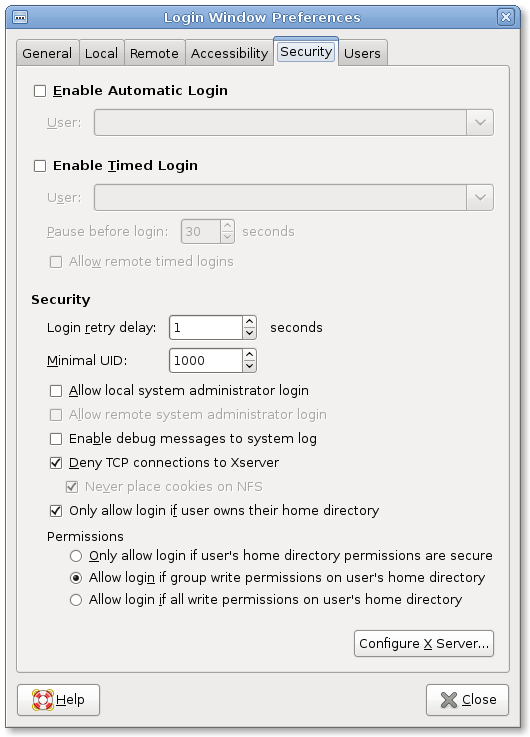
As you see from the screenshot you have the option to Enable Automatic Login by checking the box. You will also need to select a user to be the default account from the drop down list.
For the Timed Login you’ll want to check the second box, select the user and also select the timeout value. If, for example, you want your machine to auto-login after 30 seconds you’d set the “Pause before login:” value to “30”.
<disclaimer>Again, I would warn you that anyone able to get access to your machine will now be able to access all of your files and settings by simply booting the machine as normal. I prefer to enter my username and password as an additional level of security.</disclaimer>
I have enabled automatic logins for the last month. I only do this so that I am able to connect to a remote desktop session if my system is ever restarted when I am not home.
If there is a way to enable remote desktop logins at the login prompt then I would not need to have automatic logins enabled.
I enabled it, however now network manager asks me for a password. Is there a way to make it not ask?
On my laptop, I use full disk encryption and automatic login. So I don’t need to worry if it gets stolen, and it is still really quick to start up.
Whilst there might be some concerns over doing automatic login, those who are really security concious might be more interested in how to stop root access being available by simply booting in recovery mode.
I love it myself.. I have nacked a password up accidentily and needed to root the machine to reset it.
However being able to stop it would be nice (presumably remove option from grub and lock grub down to require password to alter boot options on the fly?)
>Again, I would warn you that anyone able to get access to your machine will now be able to access all of your files and settings by simply booting the machine as normal.
Lies. As if pressing Escape -> B -> Recovery Mode Root Login isn’t doable at the grub login point.
The password entering is a _FAKE_ sense of security, and therefor even MORE harmfull than automatic login, because the end user is to believe the system is secure, when it’s not.
@Vadim
>I enabled it, however now network manager asks me for a password. Is there a way to make it not ask?
Yes, but you are not going to like it. GDM only unlocks the default keyring, if you truly login. (it doesn’t work if you autologin, it’s a bug, but some might act as if its a feature).
The solution? Delete teh default keyring, change password to “” (nothing). It won’t be encrypted anymore (yuck), but you don’t have to enter it everytime either.
Hm no I’ll wait for the bug to be fixed
A more secure and useful way is to add gnome-screensaver-command -l in gnome-session-properties, and give it a high priority. That way it autologins, but locks the session. When you reach your computer and unlock everything is on and you don’t have to wait for gnome, gnome-panel and a hundred applets to load ^^.
how to disable automatic login on ubuntu server?thanks
I recently purchased 2nd hand dell laptop which previous user has loaded with Ubuntu 8.04. After start up it asks for user name and password. No response from seller of machine. Does anyone know if there is default log in/password or a way of bypassing/changing it.
@djackson – reboot the computer and press esc at the Grub countdown. Select rescue mode and reset the user password / create a new account.
how to disable automatic login on ubuntu server?thanks