I have been trying to come up with some more ways to make this site and the content more helpful for the community. In my searching for new “features” I came across the Firefox feature of “Smart Keyword Search”. This post is two part. One, I’ll outline how to create a Smart Keyword Search item in Firefox specifically for this site and second create Smart Keyword Searches for any website. This will allow you to quickly and easily search this sites contents anytime you need instruction on a topic!
Smart Keyword Search for Ubuntu Tutorials
To create a Smart Keyword Search for this site you’ll need to first right-click on the blog search field. The search field is found on the top left above the Donate button.

The resulting window will ask for a name and a keyword. The name is just for your use, allowing you to organize multiple keyword searches. The keyword field is the keyword you’ll need to use to quick-search the site. In the example below I used “Ubuntu Tutorials Search” for the Name and “ut” for the keyword.
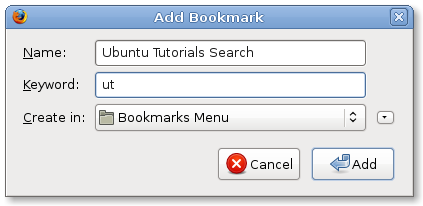
Click “Add” to save the changes. You can now quick-search this site for whatever it is you’re looking for by entering “ut <search term>” in your address bar. To search for posts related to vmware, for example, you’d use:
ut vmware
Searching can be done from any tab, so you don’t even need to pull up the site first. Quickly find the tutorials you need, simply and easily.
These steps work for any search form you can find on the web. Right-click, “Add a Keyword for this Search…”, enter the keyword, and you’re done.
This one was copied of Opera. Anyways, keep up the good work!
Yep, Konqueror already has it too – Web shortcuts: gg:something searches google for ‘something’
This has always been my search method of choice. I never use Firefox’s search bar because I can only reach it with more than two keystrokes – AND it keeps my search terms’ history, which I don’t like.
I’ve already got more than 20 searches bookmarked that way.
Great tip! I love the speed of doing searches that way.
Hello, really interesting post. I need to try it.. thx.
This is all very well (and, indeed, rather neat), but it’s let down by the use of calendar pages for the date on the results.
If you search for something, it’s sometimes nice to know whether that’s July 2008, or 2007 or 2006…
I have used Smart Keyword Search on Firefox before, and I love how searching can be done from any tab – it makes it so convenient!