Archive

Archive for the ‘Ubuntu’ Category

Ubuntu 9.10 “Karmic Koala” Beta Reviewed (Screenshots!)

October 2nd, 2009 15 comments

Yesterday I installed the Ubuntu 9.10 “Karmic Koala” Beta release by way of the desktop (Live-CD) based installer. The installation was very clean and polished. It has been a while since I’ve used a graphical installer and I am pleased with the improvements that I found. It definitely rivals any “professional” or “enterprise” install session that I’ve ever seen, and easily beats them in terms of speed and ease. I’d like to give a short review of the Beta release and encourage everyone to try it and finalize any remaining bugs.

Installation

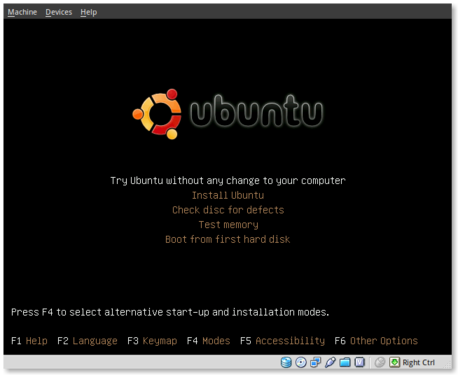
The installation was quick and painless. All of the questions were asked in the beginning and then the installer took over. During the installation messages were displayed regarding the benefits of Ubuntu and the software that it provided. Below are some screenshots of the installation process.

ubuntu-beta-install-1

This is the initial installation screen. As you can see it offers a number of options including disk and memory checks, as well as booting off existing installations. I selected “Install Ubuntu” and hit [ENTER].

ubuntu-beta-install-2

This appears to be the initial boot splash screen while the Live-CD installer is booting.

ubuntu-beta-install-3

A preview of the new default wallpaper.

ubuntu-beta-install-4

Welcome to the installer! Select your preferred language. This language will be used during and after the installation.

ubuntu-beta-install-5

Select your timezone. I very much like this improved location selector tool. Instead of trying to find myself on a map that zooms in and out (you may remember what I’m referring to from previous releases), this simply slices up the world into timezones and allows you to select yours.

ubuntu-beta-install-6

Select your keyboard layout. For US English standard qwerty layouts you can click forward. I needed to select “Choose your own:” and “USA – Dvorak” for my layout.

ubuntu-beta-install-7

Partitioning was simple. I erased and used the entire disk.

ubuntu-beta-install-8

Username information. Enter your full name, username and password information. Remember that this user will also act as the initial administrator.

I also like the addition of the “Require my password to log in and to decrypt my home folder” as well as the other options. I selected the last option and am using the encrypted home folder system.

ubuntu-beta-install-9

Final review point before installation. From here you can still go back and make changes. Once you click install it should be hands free from here out.

ubuntu-beta-install-10

Welcome to Ubuntu 9.10 – “Ubuntu is designed to be easy. Feel free to explore!”

ubuntu-beta-install-11

Browse the web with Firefox

ubuntu-beta-install-12

Relive Memories with F-Spot Photo Manager

ubuntu-beta-install-13

Accessibility in Ubuntu

ubuntu-beta-install-14

Control your digital life with Evolution

ubuntu-beta-install-15

Keep in contact with Empathy IM

ubuntu-beta-install-16

Office tools at your fingertips

ubuntu-beta-install-17

Watch and listen on Ubuntu

ubuntu-beta-install-18

Installing additional software

ubuntu-beta-install-19

Getting Help with Ubuntu

ubuntu-beta-install-21

Post Installation

Installation complete. At this point you can restart the machine and your installation should be done.

after-installation

This is a screenshot of my final installation. I have changed the following:

Conclusion

So far I think this release seems very polished. The graphics and artwork are very clean and professional. I had no trouble getting things installed properly, and I haven’t had any issues post-installation. The notification system appears to be a little more polished as compared to 9.04. We’ll see what my feelings are with continued use.

So far I am pleased with this release and would confidently suggest it to others, even if it is the Beta release.

Bugs

I did submit two bugs since I installed. I’ve listed them below for feedback, verification and hopefully closure:

Untitled

September 30th, 2009 No comments

I found this very interesting.

TI-92+

n=AD49CA3CFEF1F2DE400B5D3790813BF3822CB0BD83E3F565CE81B3A6CEF36FB833D932596D0E979615BAB6811ABE68834CA7CEBF46145C1DD1920AA4E9558DF7
p=331792FFBB24450379CD2FA4F562961625E0EF737006A375CB9ABEA2C9D4E251
q=3644570912C38CD2D25322B5C2074DC9C40B774873F4BCEF8E1D2526237DE51C7
e=11
d=7020B00959AB9D2665AD0014E50853F7EAD19F89AFB19EC9678119E467CAB1B119F600276590FBF65BE2A49E214A26963A827242F8231EBC9EEABFA3B3FFA391

TI-73

n=F3FA1D8F06918D7CAA2A3D1EE76563E96F9FD0D6068647A7C17CFE427F8B0BE1B8347669EFDD16EE9EE8D02738DC1E44C961FE1F8230FA49C99B98C0556D3981
p=1ECCBA67FE2BFB6A29EFF138C2B55224FAE7D9ADBBAC2FE93422AB5745FDA6E1
q=7EBE11E729ADCBEE93031F5EE347E414F064E225169B9D389F3B499DC04BE06A1
e=11
d=396806F47A04214A82644A9DDC17DB45FC259A8CB63DB681D32C780FA58A20E7EC982512AB04CA7EE301A03C4BAF2FB8A791E261F7B74923715B5EF4028420F1

TI-89

n=8976D4B5045A8988FB2BBAF8BADAFAFA4C5F8ABD5A9453D46790B33A03F6C225AAF31500E8246E63498D85A1C7C8240E0630331F1291F6F4F21611BD661FC2E7
p=4EEC590226B160EB0C00C1A5FE84011BC04947EDB01EB434C3581CC2D901223
q=1BDE307D27AD9ED6CF7ABB0D8F16F6E42175446D065B478CB248726E6C7F5F6E6D
e=11
d=7134AF2BA93B8052B0BA99FA034AECCE20C726F64A984509463AEDF38ACB3662685416968C52104F822D49DB8DED0EF07318BF6FA659D1FF7A1E75F4D4BE54C1

TI-83+

n=82EF4009ED7CAC2A5EE12B5F8E8AD9A0AB9CC9F4F3E44B7E8BF2D57A2F2BEACE83424E1CFF0D2A5A7E2E53CB926D61F347DFAA4B35B205B5881CEB40B328E58F
p=B709D3A0CD2FEC08EAFCCF540D8A100BB38E5E091D646ADB7B14D021096FFCD
q=B7207BD184E0B5A0B89832AA68849B29EDFB03FBA2E8917B176504F08A96246CB
e=11
d=4D0534BA8BB2BFA0740BFB6562E843C7EC7A58AE351CE11D43438CA239DD99276CD125FEBAEE5D2696579FA3A3958FF4FC54C685EAA91723BC8888F292947BA1

Voyage 200

n=8307B022CEC848E14CA5D57C0C148A4803FEB19F7EEEC4493C860DF89594250E8F0F80B7AB18CF03C27A07C1BA41B5ED4368261F4427BBE200A3B017EE100511
p=8FAEE8D84AB6F0AE8FCED849C52A5E5E63366D2484CE172685BADE4D908EE7B
q=E974B04EBBCA3F5AF86576CEEF637470F2AA78B84BE3784613861349DB70F4AE3
e=11
d=2689CA64972BD93334A93ECA21ABB0334C78161FDA09FD7EF3AEF50CE0B319F0EBE0ED4E979597BB36929C6247EAC2A35A2987B35D6C467CB2CB69A466EE8735

TI-89 Titanium

n=D65139FA0ADA452B80CD35C0F9ACA3604EFE1915F0D3A4232C2C3B1FFEDDF2D7B0A4572A12B0F86C92D7E69F9DB102B1C27A551AD128BB6AF9321784FD8EAFD1
p=F39D6276648A571322729F44E84C895EF33AF37FB70FD498588CC6B414639C1
q=E13689E94702FEAE752C61F9F793739B1C64E13AFF7B1D526A68118A517575A11
e=11
d=97486528F89A12B54BDC25F1A12E917128B35D006DC291FAB5C4DE70F02432E8A079CD0284DC85B3CD968CF94BBC004ADBFAC18D516D9565BDFE41BBBFB940F1

TI-84+ / TI-84 Silver Edition

n=EF5FEF0B0AB6E22731C17539658B2E91E53A59BF8E00FCC81D05758F26C1791CD35AF6101B1E3543AC3E78FD8BB8F37FC8FE85601C502EABC9132CEAD4711CB1
p=94489014C63CC9E1E1ADB192DBBDD1F78F90A630DA9C86EFC4CBCA44E5B4D54D
q=19D431AF2794229620B884E3750D622D1C74F2E4569DC15486FC8D5A3BCDFE2F5
e=11
d=2A3E1B2010F318D9BD7C7E19300980B055A0E2A9554B77E7142E23CDF7C7CA13C233A3D462FDFC968B1F9CEAF2AC2CF305147992AD9E834192ACEBB517DB9941

Date-stamp signing key for TI-73 / Explorer, TI-83 Plus / TI-83 Silver Edition, TI-84 Plus / TI-84 Silver Edition, TI-89 / TI-89 Titanium, TI-92 Plus, Voyage 200

n=A3E337A7BB1A47198D79FC393AB0A7898FFD714E1FC80314FB61CE71481B8B40B51BFF332E7594A6AC847AE38354C74D022E0971D7DFB70D252F144105D11E15
p=3D7316BFF85539DAE08FAF040631F952EB7DB77EC824F52613ECDB523FD4745
q=2AAC2314B2992A3DAE35CB3106001D972C134E4F08FCEF53E1BCFAD84200C8C091
e=11
d=60678A266E0F751E16FC763FC82BADD872D151B57C1B4D1B66B200F75797BB3A2122E55767292F2657EF3D7C81A9EB9D8017741540F57516405422C20BE86771

Categories: Ubuntu Tags:

Lucid Lynx? Ubuntu 10.04 Codename Announced

September 19th, 2009 4 comments

As seen on identi.ca/twitter this morning, Ubuntu 10.04 will be codenamed “Lucid Lynx”.

here here.

Thoughts?

Categories: Ubuntu Tags: , , , ,

Install Firefox 3.5 in Ubuntu 9.04

September 15th, 2009 1 comment

Ubuntu 9.04 comes pre-installed with Firefox 3.0.x. This was the current version of the browser at the time the Ubuntu version was released. Based on the development model of six-month releases, Firefox won’t be updated to the 3.5.x version until Ubuntu 9.10. Security updates for the 3.0.x branch are supplied, but major revision upgrades won’t happen until the next release.

I have recently discovered that there is a package available for Firefox 3.5.x in the universe repository, which will install the latest version of the browser alongside the default version. I know how important web browsing is for most of us, and having the latest browser with the latest features is a requirement. This article will outline how to install the Firefox 3.5 package from the default repositories, as well as update the user-agent string as needed.

Install the package

To install the package you’ll need to make sure you have the universe repository configured. This should be enabled by default, so unless you’ve manually removed it you should be fine. Once this is verified you can install the package using the command below (or click the link):

sudo aptitude install firefox-3.5

Once this package is installed you should have a new menu entry in Applications > Internet called “Shiretoko Web Browser”. This is named after the development codename (I believe) of the 3.5 branch.

Required tweak : User-Agent

I’m unsure the reasoning behind it (probably the Mozilla license issue regarding redistribution using the name & logo), this version of the browser identifies itself with its development codename and not the known “Firefox” name. This will break functionality on a number of sites that verify the user-agent string. There is a simple way to fix this, which I’ll outline below.

In your address bar, enter the url: about:config

Accept the notice that tinkering with the settings in this section might catastrophically break things, destroying the world and all mankind.

In the field at the top, enter the string: general.useragent.extra.firefox

Double-click on the result and change the string from “Shiretoko/3.5.2" to “Firefox".

Conclusion

At this point you should have a working copy of Firefox 3.5 installed alongside your default copy of Firefox 3.0. You may notice some oddities based on the Firefox vs Shiretoko issue, but at least the user-agent string is reporting what you’d like it to. Remember, the latest version will be the default in Ubuntu 9.10, so just wait a few more weeks and you can get it with the next release!

Categories: Ubuntu Tags: , , , ,

Replace Network-Manager With Wicd : Ubuntu 9.04

September 14th, 2009 5 comments

I remember when network-manager first came out. It was the most welcome piece of software I could imagine! The idea that a graphical tool would manage my wireless networks for me, display available SSIDs and signal strength and basically just keep me online with minimal work on my part. It sure beat the dark magic of the command line just to get connected! I want to thank the network-manager developers for creating such a helpful application. I’d also like to introduce an alternative for those that may not have had the same luck I did with network manager.

Install Wicd

The Wicd network manager is available in the core Ubuntu repositories for Ubuntu 9.04. It can be installed by using the following command or clicking on the link below:

sudo aptitude install wicd

This will download and install the Wicd package, and remove the network-manager tools. You’ll likely want to relogin for the changes to fully take effect.

You’ll find that Wicd isn’t that much different than network manager. It has a slighly different interface, but I think it is a little lighter and, at times, more customizable. I have had great luck with Wicd. When network-manager will give me connection issues, Wicd is able to directly connect when I need it to. Of course wireless on Linux isn’t flawless, but its getting there, and between these two tools we have greater choice on what we want to use while getting online.

Disable Ubuntu 9.04 Notification System

September 13th, 2009 3 comments

In yesterdays post I mentioned some of my feelings regarding the new Ubuntu 9.04 notification system. In a nutshell I think it could evolve into a nice system tool (similar to OS X “Growl”), but at this point it isn’t there yet. Until it is improved (perhaps in 9.10?) I’ve decided to simply disable it altogether. If you would like to disable the system as well keep reading:

Disable New Notifications

Disable the new system by using the following command: (one line)

sudo mv /usr/share/dbus-1/services/org.freedesktop.Notifications.service /usr/share/dbus-1/services/org.freedesktop.Notifications.service.disabled

To re-enable the new notification system after you’ve applied the above change, use the command: (one line)

sudo mv /usr/share/dbus-1/services/org.freedesktop.Notifications.service.disabled /usr/share/dbus-1/services/org.freedesktop.Notifications.service

Categories: Ubuntu Tags: , ,

Disable Pidgin Pop-Up Notification System

September 12th, 2009 13 comments

I’ll admit that, so far, I’m not a big fan of the 9.04 notification system. It does remind me a lot of OS X “Growl”, but the lack of customization options make it frustrating at times. I do hope that the developers continue to improve on the system as I think it could be a very nice tool given a little more attention.

In the meantime I have disabled Pidgin from using it. I don’t need every inbound IM and status change to be displayed for all to see.

Disable Pidgin Notifications

This “annoyance” can be easily fixed by disabling the libnotify plugin within the Pidgin plugins manager. To disable this system go to Tools > Plugins and untick the checkbox next to “Libnotify Popups”.

Also, if you’d prefer, you can try to customize the pop-up behavior by selecting the “Configure Plugin” button.

pidgin-disable-notification

Hopefully being able to customize this or disable it altogether will make the new notification system livable until some improvements are made.

Categories: Ubuntu Tags: , , ,

Free Memes : 0.4% non-free software

September 11th, 2009 1 comment

To hop on the Free Meme bandwagon…

[cedwards@daphne ~]$ vrms
Non-free packages installed on daphne


linux-generic             Complete Generic Linux kernel
linux-restricted-modules- Non-free Linux 2.6.28 modules helper script
linux-restricted-modules- Restricted Linux modules for generic kernels
skype                     Skype - Take a deep breath
tangerine-icon-theme      Tangerine Icon theme
unrar                     Unarchiver for .rar files (non-free version)
Reason: Modifications problematic


Contrib packages installed on daphne


flashplugin-installer     Adobe Flash Player plugin installer
flashplugin-nonfree       Adobe Flash Player plugin installer (transitional pack
gstreamer0.10-pitfdll     GStreamer plugin for using MS Windows binary codecs
ttf-mscorefonts-installer Installer for Microsoft TrueType core fonts


6 non-free packages, 0.4% of 1400 installed packages.
4 contrib packages, 0.3% of 1400 installed packages.

Categories: Ubuntu Tags: , , ,

Improve Slow Graphics on Intel Cards

September 11th, 2009 6 comments

Ubuntu 9.04 unfortunately had some significant regressions in regards to video on Intel based hardware. I have an onboard Intel GM965/GL960 and I noticed the video was a lot more choppy and glitchy after installing Ubuntu 9.04. This issue has been addressed and seems to be fixed in the latest alpha releases of Ubuntu 9.10, but if you don’t want to wait you can try to fix it yourself with the following steps. I just applied these fixes to my machine and I’ve noticed a significant improvement!

xorg.conf backup

To apply these changes you’ll need to manually update your xorg.conf file. It is good practice to make a backup of this file before you alter anything, as a broken configuration will result in a non-working graphical interface. The following two commands will 1) make a backup and 2) open the file for editing:

sudo cp /etc/X11/xorg.conf /etc/X11/xorg-$(date)
sudo vim /etc/X11/xorg.conf

Section “Device”

You’ll want to look for a section in the configuration that starts with Section “Device” and add some options within that block. The primary option you’ll want to add is the AccelMethod. You can see an example below:

Section "Device"
Identifier "Configured Video Device"
Option "AccelMethod" "uxa"
EndSection

You’ll need to re-login for the changes to take effect, but you should notice a difference.

Additional Options

I’ve also added a few other options to my configuration which you might want to try out. Below is the configuration I’m using:

Section "Device"
Identifier "Configured Video Device"
Option "AccelMethod" "uxa"
Option "EXAOptimizeMigration" "true"
Option "MigrationHeuristic" "greedy"
Option "Tiling" "true"
EndSection

Remember, before you apply any of these settings you should make a backup of the file. If one of your changes doesn’t apply properly, or isn’t supported you may end up with no graphical environment at all. You’ll only have the console available to fix / revert your changes. A backup will make “fixing” the problem much simpler.

Categories: Ubuntu Tags: , , , , , ,

Re-Enable Ctrl-Alt-Backspace Combination for Restarting X Server

September 10th, 2009 3 comments

With the release of Ubuntu 9.04 the keyboard combination to restart the X server was disabled. This, I think, was due to reports of users accidentally hitting the combination and having X restart resulting in lost work. I will admit that I may have hit that combination once or twice in my time, but its pretty rare. In this post I’ll outline how to re-enable that keyboard combination, allowing you to use ctrl-alt-backspace to restart X.

DontZap

To re-enable the ctrl-alt-backspace keyboard combination to restart the X server install the package dontzap:

sudo aptitude install dontzap

All this package basically does is update the xorg.conf file to set Option “DontZap” ” false”.

You can then manually toggle between enabling and disabling the keyboard combination using the commands:

sudo dontzap --disable

sudo dontzap --enable

If you would like to make these changes manually (without installing the package), you can make changes by hand to your xorg.conf file. Simply add the following section within your /etc/X11/xorg.conf:

Section "ServerFlags"
Option "DontZap" "false"
EndSection

You will likely need to re-login for any of these changes to take effect.

Categories: Ubuntu Tags: , , ,