Archive

Posts Tagged ‘karmic’

Install Adobe PDF Reader 9 on Ubuntu 9.10 “Karmic Koala”

January 14th, 2010 Christer Edwards 10 comments

UPDATE: This article has been update for Ubuntu 10.04 LTS. Please see Install Adobe Reader 9.3.2 on Ubuntu 10.04 “Lucid Lynx”.

Adobe Reader 9 allows you to easily view, print, and collaborate on PDF files! Adobe Reader is the standard for electronic document sharing. It is the only PDF file viewer that can open and interact with all PDF documents. Use Adobe Reader 9 to view, search, digitally sign, verify, print, and collaborate on Adobe PDF files. In this article I will outline how to install the latest Adobe Reader release on Ubuntu 9.10 “Karmic Koala”.

Requirements

Installation of Adobe Reader 9 requires the activation of the Canonical Partner repository. You can add the Partner repository by following the steps outlined below.

  1. Navigate to System > Administration > Software Sources
  2. Select “Third Party” or “Other Software”
  3. Select “Add” and enter: deb http://archive.canonical.com/ karmic partner

Installation

Once the Partner repository is configured and active you are ready to install Adobe Reader 9. This can be done by running the following command within your terminal, or clicking the linked package name.

sudo aptitude install acroread

Use

You should now be able to launch Adobe Reader 9 from your Applications menu. You can find it in Applications > Office > Adobe Reader 9, or in KDE: Office > Adobe Reader 9. This installation also prompts to set Adobe Reader 9 as the default PDF reader.

If this article has been helpful, please consider linking to it.

Categories: Ubuntu Tags: , , ,

How To Upgrade To Ubuntu 9.10 “Karmic Koala”

October 28th, 2009 Christer Edwards 8 comments

So the new Ubuntu is here and you’re just dying to upgrade and have a look at all the new features! With just a few simple steps you’ll be up and running the new system in no time! Before you dive right in there are a few things you should know, and a few ways to (hopefully) make your upgrade process more pleasant.

Upgrade vs Fresh Install

You may wonder if its a better idea to do a fresh install vs upgrade your current installation. There are benefits to doing a fresh installation, but there are also benefits to upgrading your system in place. First, you don’t need to deal with finding and backing up all of your data. Ever done that before and forget something? It’s easy to do. Doing a fresh installation will require that you backup anything you want to keep, because a fresh install will clobber your drive and start fresh. An upgrade on the other hand can be done in place, and you can generally keep working while it churns along in the background. Keep working on the web, or write emails. Do whatever it is that you normally do while your machine upgrades quietly in the background. This is not a problem with the upgrade process.

Another reason that I might suggest doing an in-place upgrade is that it is supposed to be a supported method to move from one release to another, and we should ensure that is the case by using and testing it. The last thing we want to do is provide new and exciting releases every six months, yet require everyone to start fresh each time. This goes particularly for those running Ubuntu that are not tech enthusiasts. Ubuntu should be easy to install, once, and then easy to upgrade as needed after that. I would suggest doing an in-place upgrade and ensure that process continues to mature.

Preparation

Before you get started there are a few things you should know.

First, this upgrade only works from Ubuntu 9.04 to 9.10. If you’re on a previous version (8.10 or earlier) you will not be able to directly upgrade to 9.10. In that situation you’ll either want to do a fresh installation OR do incremental upgrades leading up to 9.10. Incremental upgrades are beyond the scope of this article, but there is plenty of documentation regarding the process here.

Second, I suggest that you apply all available updates to your current system before you move to the new version. You can do this in two ways. One involves the command line and another includes the graphical interface. I’ll outline each below.

Command Line Updates (Pre-Upgrade)

On the command-line (Applications > Accessories > Terminal) you can run the following command to check for and apply any updates pending for your current installation.

sudo aptitude update && sudo aptitude safe-upgrade && sudo aptitude full-upgrade

Apply any updates that are pending from the command above before you move onto the next step, Upgrading. Follow any suggestions to reboot before moving on as well.

Graphical Updates (Pre-Upgrade)

If you prefer the graphical environment you can check for and apply updates by way of the Update Manager tool (System > Administration > Update Manager). This tool will automatically scan for and list any pending updates. Again, be sure to apply these before moving to the next step. This includes applying and rebooting for kernel updates before proceeding.

Selecting a Mirror

The steps outlined below describe how to do a network-based in-place upgrade. This will require an internet connection as well as a repository to connect to. I can’t stress this next point enough. Please. Please configure your system to use an alternate Ubuntu mirror other than the default. The default mirror(s) will be so overwhelmed with traffic that it’ll take forever to update your system. I might suggest using something like mirrors.kernel.org or another public mirror with a healthy pipe. You can also look for regional mirrors here. The list of regional mirrors also communicates how up to date the mirror is. You will, of course, need to select and up to date mirror.

To configure your system to use an alternate mirror you can follow the following steps:

  1. Open “Update Manager” (System > Administration > Update Manager)
  2. Click “Settings”
  3. On the “Ubuntu Software” tab there is a drop-down box labeled “Download From”
  4. Select “Other”
  5. Manually select a regional mirror OR click the button “Select Best Server”

Choose a Download Server

Upgrading to Ubuntu 9.10

So you’ve applied all of the pending updates for Ubuntu 9.04 and now you’re ready to move on to Ubuntu 9.10. As above, this can be done via the command line or graphical interface. In this case, I might suggest the graphical interface.

Navigate to System > Administration > Update Manager and let it scan for available updates.

Update-Manager

If you are reading this after the release of Ubuntu 9.10 (Oct 29th), this tool will automatically suggest that there is a new version available and offer to let you upgrade. This process will be automated for the most part, and quietly work in the background while you continue with your day. When it is finished it will suggest that you reboot your machine for the changes to take effect. When your machine comes back up you’ll be ready with Ubuntu 9.10.

Enjoy!

Categories: Ubuntu, Upgrade Tags: , , , , ,

What’s New In Ubuntu 9.10 “Karmic Koala”

October 27th, 2009 Christer Edwards 2 comments

Well it’s almost here! Ubuntu 9.10 “Karmic Koala” will be released in just a few short days (Oct 29th) and this release has packed in a long list of new and exciting features. From boot time to Desktop, Ubuntu 9.10 continues in the tradition of offering the best that Free Software has to offer. Let’s take a quick look at some of the changes available.

Upstart

Upstart has been included in Ubuntu for a number of releases now, but with Ubuntu 9.10 there have been some major improvements. Previous releases of Upstart in Ubuntu were incremental. The plan was to ease into the new system. Ubuntu 9.10 now offers Upstart in its entirety. Congratulations!

Upstart is an “under the hood” change that you may not notice right away, but by the release of Ubuntu 10.04 the changes will be more apparent. Upstart is the tool that handles the boot up sequence, meaning it handles what daemons and services are started at boot time and in which order. Upstart is really a big shift from the traditional (and aging!) SystemV init sequence that you’ll find on most other major Linux distributions. While traditional systems use a pre-defined order of operations, Upstart handles the boot process in a more event-driven manner. This has and will continue to improve the boot times you find on Ubuntu.

Upstart has also been adopted by Fedora, which is great news. More adoption means better stability and more attention paid to the project. I’m happy to hear that Fedora has decided to adopt this exciting new technology.

You can read much more about Upstart at http://upstart.ubuntu.com.

XSplash

The addition of XSplash is another boot-time improvement that I think you’ll enjoy in Ubuntu 9.10. This replaces the short-lived USplash that was found in the previous release. I had problems with USplash so I’m happy to see it replaced with something else. So far XSplash has been a nice change (based on initial Beta and RC testing), and I don’t experience any flicker or similar during boot up. XSplash also offers a new splash screen during boot, which I like. There isn’t a whole lot more to say about XSplash, other than I think you’ll be impressed with the change since Ubuntu 9.04.

Security, Security, Security

Ubuntu 9.10 offers a lot of improvements in terms of security. From the kernel to the Desktop there have been security-minded changes that will help you feel more secure on this rock-solid platform.

Ubuntu 9.10 enables a feature called “non-exec memory” in the Linux kernel. This means that Ubuntu is able to activate protections for non-executable memory regions such as heaps or stacks. This feature is generally referred to as Non-eXecute (NX) or eXecute-Disable (XD). In the past this feature required PAE enabled kernels, but is now partially emulated on 32-bit systems without PAE support. 64-bit systems are protected by this feature as well.

In addition, the kernel offered with Ubuntu 9.10 offers the possibility to disable the loading of any additional kernel modules once the system is up and running. This adds yet another layer of protection against potential security vulnerabilities. In certain cases, an attacker will require the addition of a malicious kernel module in order to take control of a system. With this feature enabled this type of vulnerability is no longer possible. While this may not be something that the day-to-day Desktop user may use or appreciate, this is a huge win for Server installations and multi-user environments.

Desktop Love

Likely the most noticeable change to the end-user are the changes made to the Desktop environment with GNOME 2.28. I think this has been another fantastic release from the GNOME Foundation and I think you’ll agree. For those of you that have seen the new GNOME Shell demonstrations, GNOME 2.28 might be the last release before GNOME Shell hits us. I’m super excited to see GNOME Shell, don’t get me wrong, but this could be the last release in the environment that we’re used to. (As far as I understand, it is still undecided whether GNOME Shell will ship with GNOME 2.30 or 2.32).

GNOME 2.28 offers a number of new features as well as stability and general improvements. For those that use Bluetooth enabled devices, you’ll love the new GNOME Bluetooth management tool. GNOME Bluetooth supports hundreds of Bluetooth devices, including mice, keyboards and headsets. This also includes PulseAudio integration for headsets and headphones. Also included with GNOME Bluetooth is the ability to access the internet through your Bluetooth enabled mobile phone. No more tethering! This is exciting news!

You’ll also notice some Ubuntu-specific interface improvements, such as the notification system and tray. Very clean default icons in the tray, and the Growl-like popup notifications are improved as well. The default theme, icons and login window are improved since Ubuntu 9.04 as well. Also, an improvement that I’m particularly excited about, is the addition of my favorite themes and fonts to the core Ubuntu repositories. These packages include:

Conclusion

I have to say that this has been a very solid release so far. With so many improvements both under the hood and on the user interface, you’ll be hard pressed to find someone that doesn’t find something new and exciting about Ubuntu 9.10. The best part though? All of these improvements are merely leading up to the powerhouse that will be Ubuntu 10.04, the next Ubuntu Long Term Support (LTS) release. With goals of 10 second boot times, improvements in the new Ubuntu Software Center, improved Artwork, as well as a long list of other improvements, Ubuntu 10.04 is sure to blow you away!

Categories: Ubuntu Tags: , ,

Announcing the Release Candidate for Ubuntu 9.10

October 22nd, 2009 Christer Edwards No comments

The Ubuntu team is pleased to announce the Release Candidate for Ubuntu 9.10 Desktop and Server editions, Ubuntu 9.10 Server for UEC and EC2, and the Ubuntu Netbook Remix. Codenamed “Karmic Koala”, 9.10 continues Ubuntu’s proud tradition of integrating the latest and greatest open source technologies into a high-quality, easy-to-use Linux distribution.

We consider this release candidate to be complete, stable, and suitable for
testing by any user.

Ubuntu 9.10 Desktop Edition improves on the work of 9.04 to get you going faster, with improved startup times and a streamlined boot experience.

Ubuntu 9.10 Server Edition integrates Ubuntu Enterprise Cloud setup in the installer and provides improvements to system security with AppArmor, including an AppArmor profile for libvirtd to further isolate virtual machines from the host system.

Ubuntu 9.10 Server for UEC and EC2 brings the power and stability of the Ubuntu Server Edition to cloud computing, whether you’re using Amazon EC2 or your own Ubuntu Enterprise Cloud.

The Ubuntu 9.10 family of variants, Kubuntu, Xubuntu, Edubuntu, Ubuntu Studio, and Mythbuntu, also reach RC status today. This release sees the first technology preview of Kubuntu Netbook.

The final release of Ubuntu 9.10 is scheduled for 29 October 2009 and will be supported for 18 months on both desktops and servers. Users requiring a longer support lifetime on the server may choose to continue using Ubuntu 8.04 LTS, with security support until 2013, rather than upgrade to 9.10.

Before installing or upgrading to Ubuntu 9.10 please review the instructions and caveats in the release notes:

http://www.ubuntu.com/getubuntu/releasenotes/910

In addition, there are a small number of known bugs in the release candidate that will be fixed before the Ubuntu 9.10 release, but warrant highlighting for your attention:

http://www.ubuntu.com/getubuntu/releasenotes/910overview#Known%20issues

About The Release Candidate
—————————

The purpose of the Release Candidate is to solicit one last round of testing before the final release. Here are ways that you can help:

* Upgrade from Ubuntu 9.04 to the Release Candidate by following the instructions in the release notes referenced above.

* Participate in installation testing using the Release Candidate CD images, by following the testing and reporting instructions at
http://wiki.ubuntu.com/Testing/ISO

Desktop features
—————-

GNOME 2.28 featuring Empathy: with this latest release, Ubuntu now uses the Empathy instant messaging service by default, introducing the Telepathy framework.

Ubuntu Software Center: the first step in a replacement for Add/Remove Software has landed.

New boot experience: multiple changes to look, feel and speed of the boot experience have been included in the Ubuntu 9.10 release candidate.

Server features
—————

Cloud computing: Ubuntu 9.10 builds on the tantalizing cloud support in Ubuntu 9.04, with support for Eucalyptus configuration at install time and publishing of standard VM images for UEC.

AppArmor: Ubuntu 9.10 continues to raise the bar for server security, with AppArmor profiles enabled by default for ntpd and libvirt providing another layer of protection from attacks on the network or via guest virtual machines.

UEC and EC2: Ubuntu 9.10 includes the first official release of Ubuntu Server images for UEC and for Amazon’s EC2, giving you everything you need for rapid deployment of Ubuntu instances in a cloud computing environment. UEC images, and information on running Ubuntu 9.10 on EC2, are available at:

http://uec-images.ubuntu.com/releases/9.10/rc

Ubuntu Netbook Remix features
—————————–
Ubuntu Netbook Remix is optimised for Intel Atom netbooks and compatible x86 devices. It includes a new consumer-friendly interface that allows users to quickly and easily get on-line and use their favourite applications. This interface is optimised for a retail sales environment.

It includes the same faster boot times and improved boot experience as Ubuntu desktop.

Kubuntu features
—————-

Kubuntu 9.10, built on KDE 4.3, brings users a complete, full-featured KDE 4 desktop with many new applications and innovations.

This is the first release for a new Kubuntu variant, Kubuntu Netbook Edition. Built on a Kubuntu base, it brings users an exciting first look at KDE’s netbook-oriented desktop environment.

New features include better integration with OpenOffice.org and various social website connections for applications. Notable problems with network management and user configuration have been fixed.

Please see https://wiki.kubuntu.org/KarmicKoala/RC/Kubuntu for all the details.

For upgrade instructions from Kubuntu 9.04 or 8.04 see
https://help.ubuntu.com/community/KarmicUpgrades/Kubuntu

Xubuntu features
—————-

Xubuntu 9.10 comes with the light-weight Xfce 4.6 desktop environment to provide a desktop designed for productivity while conserving system resources.

Xubuntu 9.10 is proud to offer an improved multimedia experience with the Exaile media player, a more integrated power management solution with the Xfce4 power manager, and more convenience built right in with improved multimedia volume key support and more consistent desktop notifications.

Please see https://wiki.ubuntu.com/Xubuntu/KarmicKoala/RC for the full list and details about all the great enhancements Xubuntu 9.10 has to offer.

Edubuntu features
—————–

Edubuntu 9.10 transitions from an add-on educational CD that depended on an existing Ubuntu installation to a full Ubuntu derivative delivered on as a DVD image. This allows prospective users and decision makers to try the educational offerings prior to installation and the flexibility to make Edubuntu a first class educational operating system.

Mythbuntu features
——————

Mythbuntu 9.10 introduces MythTV 0.22. The entire stack has been ported to QT4 and now allows for very neat UI effects. Also 0.22 adds support for VDPAU hardware acceleration, and HD-PVR hardware support.

Please see http://www.mythtv.org/wiki/Release_Notes_-_0.22 for more details about changes introduced in 0.22.

See http://mythbuntu.org/9.10/rc for information about the Mythbuntu release candidate.

A more complete tour of the features new in 9.10 can be found at
http://www.ubuntu.com/getubuntu/releasenotes/910overview

About Ubuntu
————

Ubuntu is a full-featured Linux distribution for desktops, laptops, netbooks and servers, with a fast and easy installation and regular releases. A tightly-integrated selection of excellent applications is included, and an incredible variety of add-on software is just a few clicks away.

Professional services including support are available from Canonical and hundreds of other companies around the world. For more information about support, visit http://www.ubuntu.com/support

To Get the Ubuntu 9.10 Release Candidate
—————————————-

To upgrade to Ubuntu 9.10 Release Candidate from Ubuntu 9.04, follow these instructions:

https://help.ubuntu.com/community/KarmicUpgrades

Or, to perform a new installation or try out 9.10 “live” from CD, download the Ubuntu 9.10 Release Candidate here (choose the mirror closest to you):

Asia:

* http://mirror.unej.ac.id/ubuntu-cd/9.10 (Indonesia)
* http://ubuntu.qualitynet.net/releases/9.10 (Kuwait)
* http://ftp.linux.org.tr/ubuntu-releases/9.10 (Turkey)

Europe:

* http://ubuntu.ipacct.com/releases/9.10 (Bulgaria)
* http://ucho.ignum.cz/ubuntu-releases/9.10 (Czechia)
* http://ubuntu.univ-nantes.fr/ubuntu-cd/9.10 (France)
* http://ftp.uni-kl.de/pub/linux/ubuntu.iso/9.10 (Germany)
* http://ie.releases.ubuntu.com/9.10 (Ireland)
* http://releases.ubuntu.fastbull.org/ubuntu-releases/9.10 (Italy)
* http://no.releases.ubuntu.com/9.10 (Norway)
* http://se.releases.ubuntu.com/9.10 (Sweden)

North America:

* http://mirror.anl.gov/pub/ubuntu-iso/CDs/9.10 (United States)
* http://mirror.csclub.uwaterloo.ca/ubuntu-releases/9.10 (Canada)
* http://mirrors.cat.pdx.edu/ubuntu-releases/9.10 (United States)
* http://ubuntu.media.mit.edu/ubuntu-releases/9.10 (United States)

Oceania/Australia:

* http://ftp.citylink.co.nz/ubuntu-releases/9.10 (New Zealand)

South America:

* http://mirrors.ucr.ac.cr/ubuntu-cd/9.10 (Costa Rica)

Rest of the world:

http://releases.ubuntu.com/9.10 (Great Britain)

Please download using Bittorrent if possible. See https://help.ubuntu.com/community/BitTorrent for more information about using BitTorrent.

Feedback and Participation
————————–

If you would like to help shape Ubuntu, take a look at the list of ways you can participate at

http://www.ubuntu.com/community/participate/

Your comments, bug reports, patches and suggestions will help turn this Release Candidate into the best release of Ubuntu ever. Please note that, where possible, we prefer that bugs be reported using the tools provided, rather than by visiting Launchpad directly. Instructions can be found at

https://help.ubuntu.com/community/ReportingBugs

If you have a question, or if you think you may have found a bug but are not sure, first try asking on the #ubuntu IRC channel on FreeNode, on the Ubuntu Users mailing list, or on the Ubuntu forums:

http://lists.ubuntu.com/mailman/listinfo/ubuntu-users
http://www.ubuntuforums.org/

More Information
—————-

You can find out more about Ubuntu and about this preview release on our website, IRC channel and wiki. If you are new to Ubuntu, please visit:

http://www.ubuntu.com/

To sign up for future Ubuntu announcements, please subscribe to Ubuntu’s very low volume announcement list at:

http://lists.ubuntu.com/mailman/listinfo/ubuntu-announce

Categories: Ubuntu Tags: , , , , ,

Ubuntu 9.10 “Karmic Koala” Beta Reviewed (Screenshots!)

October 2nd, 2009 Christer Edwards 15 comments

Yesterday I installed the Ubuntu 9.10 “Karmic Koala” Beta release by way of the desktop (Live-CD) based installer. The installation was very clean and polished. It has been a while since I’ve used a graphical installer and I am pleased with the improvements that I found. It definitely rivals any “professional” or “enterprise” install session that I’ve ever seen, and easily beats them in terms of speed and ease. I’d like to give a short review of the Beta release and encourage everyone to try it and finalize any remaining bugs.

Installation

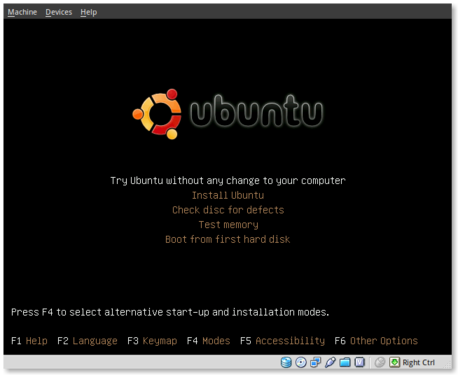
The installation was quick and painless. All of the questions were asked in the beginning and then the installer took over. During the installation messages were displayed regarding the benefits of Ubuntu and the software that it provided. Below are some screenshots of the installation process.

ubuntu-beta-install-1

This is the initial installation screen. As you can see it offers a number of options including disk and memory checks, as well as booting off existing installations. I selected “Install Ubuntu” and hit [ENTER].

ubuntu-beta-install-2

This appears to be the initial boot splash screen while the Live-CD installer is booting.

ubuntu-beta-install-3

A preview of the new default wallpaper.

ubuntu-beta-install-4

Welcome to the installer! Select your preferred language. This language will be used during and after the installation.

ubuntu-beta-install-5

Select your timezone. I very much like this improved location selector tool. Instead of trying to find myself on a map that zooms in and out (you may remember what I’m referring to from previous releases), this simply slices up the world into timezones and allows you to select yours.

ubuntu-beta-install-6

Select your keyboard layout. For US English standard qwerty layouts you can click forward. I needed to select “Choose your own:” and “USA – Dvorak” for my layout.

ubuntu-beta-install-7

Partitioning was simple. I erased and used the entire disk.

ubuntu-beta-install-8

Username information. Enter your full name, username and password information. Remember that this user will also act as the initial administrator.

I also like the addition of the “Require my password to log in and to decrypt my home folder” as well as the other options. I selected the last option and am using the encrypted home folder system.

ubuntu-beta-install-9

Final review point before installation. From here you can still go back and make changes. Once you click install it should be hands free from here out.

ubuntu-beta-install-10

Welcome to Ubuntu 9.10 – “Ubuntu is designed to be easy. Feel free to explore!”

ubuntu-beta-install-11

Browse the web with Firefox

ubuntu-beta-install-12

Relive Memories with F-Spot Photo Manager

ubuntu-beta-install-13

Accessibility in Ubuntu

ubuntu-beta-install-14

Control your digital life with Evolution

ubuntu-beta-install-15

Keep in contact with Empathy IM

ubuntu-beta-install-16

Office tools at your fingertips

ubuntu-beta-install-17

Watch and listen on Ubuntu

ubuntu-beta-install-18

Installing additional software

ubuntu-beta-install-19

Getting Help with Ubuntu

ubuntu-beta-install-21

Post Installation

Installation complete. At this point you can restart the machine and your installation should be done.

after-installation

This is a screenshot of my final installation. I have changed the following:

Conclusion

So far I think this release seems very polished. The graphics and artwork are very clean and professional. I had no trouble getting things installed properly, and I haven’t had any issues post-installation. The notification system appears to be a little more polished as compared to 9.04. We’ll see what my feelings are with continued use.

So far I am pleased with this release and would confidently suggest it to others, even if it is the Beta release.

Bugs

I did submit two bugs since I installed. I’ve listed them below for feedback, verification and hopefully closure:

Ubuntu 9.10 “Karmic Koala” Alpha 5 Reviewed

September 7th, 2009 Christer Edwards 5 comments

I very briefly tried out the fifth alpha release of Ubuntu 9.10 “Karmic Koala” tonite and I thought I would share some of my immediate impressions with the rest of you. To sum it up, I hope others are having better luck with it than I did.

System

The machine that I installed on is a Dell Latitude D630. That is a Core 2 Duo 2.10GHz, 2G RAM, 80G HDD, Integrated Intel video and Intel 3945ABG wireless adapter. It is pretty standard hardware as far as I’m concerned–the intel hardware is all supported just fine.

Negatives

I installed using the alpha 5 alternate installer (text based). I used LVM + encryption for my partitioning and otherwise used all default settings, but my problems started before the installer was even finished. Actually, I don’t know if I can accurately say that because the installer never actually did finish. It got to the point of adding the user(s) and then hung. I finally decided to reboot the machine and see what state it was in.. maybe it could be salvaged. Luckily it seemed to be in working bootable order. at least at first glance..

Some of you may remember that I’m a dvorak user. Most of the time this doesn’t cause any problems as I’m the only user on my machine and I can configure the keyboard anyway I’d like. There are those few exceptions however where it ends up causing issues. This was one of them.

When I tried logging into my new installation I noticed the keyboard settings weren’t in place. It was still trying to use qwerty, even though I had used dvorak throughout the installation. I tried setting it manually, which worked during my session, but didn’t persist. I even tried reinstalling the console-setup package to alter the system-wide keyboard. That didn’t seem to take effect either.

I noticed some other oddities as well, most of them linked back to the keyboard layout issue.

Positives

On the positive side I was very impressed with the improved boot time and splash screen. I didn’t time the boot, but I want to say the speed was improved. The graphics were also a bit cleaned up. Ohh, and the horrible GDM graphic from 9.04 was gone as well!

I was also glad to see that ext4 is the new default filesystem. I’ve been running ext4 since it become “stable” and I’ve had no problems with it at all. It is *much* faster than ext3 as well as most of the other common file systems.

The addition of GRUB2 will be very interesting I’m sure. I didn’t get to play with it much, but I’m glad to see that is finally being used. I understand there are a lot of technical improvements in GRUB2 vs the traditional “legacy” GRUB.

I also noticed that some of the issues I’ve had in the past with Intel video were gone. This is due to the replacement of EXA with UXA. For any of you Intel users, this is a big one to be excited about, particularly if you have issues currently on Ubuntu 9.04.

Conclusion

In conclusion I think there are going to be a lot of very noticeable improvements in Ubuntu 9.10 and I’ll be happy to use it. Based on my keyboard issues however it will be hard for me to use at this point. I’ve gone back to Ubuntu 9.04 for the meantime. Perhaps I’ll try it again when it hits Beta.

What regressions or improvements have you found with Ubuntu 9.10 releases? Are you excited to see it coming or are you going to be reluctant to upgrade? I’d really like to hear that other people are having better luck than I did. Chances are, considering my problems were dvorak related, you probably did.

Ubuntu 9.10 “Karmic Koala” Alpha 2 Released

June 12th, 2009 Christer Edwards 1 comment

For those of you that enjoy the bleeding edge and want to help test the next release of Ubuntu, the second Alpha release of 9.10 is now available. You should be warned that this release is not meant for the faint of heart or production machines. It will very likely break before it is done, leaving you with all kinds of interesting problems. On the other hand though, a little bleeding edge never killed anyone (plus, you learn a lot when things break).

Some of the upcoming features in Ubuntu 9.10 are:

  • GNOME 2.27.1
  • Linux Kernel 2.6.30
  • New Intel Video Architecture (testing)
  • New default compiler (GCC-4.4 vs GCC-4.3)
  • EXT4 filesystem by default (I’m excited about this one!)
  • Grub2 by default

If you’d like to help test this release you can find more information regarding known issues, download locations and how to report bugs here. Let the testing begin!

Categories: Testing Tags: , , ,