Archive

Posts Tagged ‘KDE’

Disable User List and Preselect User in KDM Login Manager

June 11th, 2010 2 comments

Another KDE related post. How ’bout that. This article outlines how to disable the user list and/or the preselect user feature of the KDM login manager. The end result here is for the Login Manager to not display a list of users or pre-populate the username field with the previously logged in users. If you are the type that dislikes Face Choosers and the like, you’ll appreciate these changes.

Login Manager – KDE Control Module

The configuration for the Login Manager are found in the System Settings menu. Launch or navigate to the System Settings. Click the “Advanced” tab, and find the Login Manager button. This should prompt you for administrative privileges.

Once in the Login Manager configuration you’ll be presented with a number of tabs. The tabs we’ll deal with here are the “Users” and “Convenience” tabs, on the far right.

To disable the list of users (this really only applies to machines that have multiple users), uncheck the “Show list” button in the left-hand pane of that window. Once you apply these settings a list of users will no longer be displayed at login.

To disable the “convenience” of auto-populating the username, you’ll need to select the “Convenience” tab. Again, in the left-hand pane of this window you can check the box “None” in the “Preselect User” section.

On next login your username field will no longer be populated with the username from the previous login.

It seems that every major desktop environment is defaulting to Face Choosers and making it easier to login to your machine. Maybe I’m old-school, but I prefer to not present would-be-attackers with any information about my machine, including my username.

If you have any other tips regarding the Login Manager, please share in the comments section.

Categories: KDE Tags: ,

Change Run Command Keybinding to Match Gnome-Do (KDE Converts)

June 9th, 2010 5 comments

I’ve been spending some time recently in KDE 4.4.x. It seems with each new release it gets more and more polished, and I want to thank the dev team for their hard work. Some of the oddities that I find in KDE though, I think, are based on my familiarity to GNOME. This post outlines how to change the Run Command Keybinding (ALT-F2) to match that of GNOME-Do (Super-Space). This gives you basically what GNOME-Do does (granted not quite the same, but good enough for quick-launching apps), without installing GNOME-Do and its dependencies.

System Settings – Global Keyboard Shortcuts

  1. To quickly get to the System Settings and the Global Keyboard Shortcuts configuration, use the Run Command interface by pressing ALT-F2 and enter “Global Keyboard Shortcuts”.
  2. In the drop-down menu labeled “KDE Component”, select “Run Command Interface”.
  3. Select “Run Command” in the Action (left) column.
  4. Click the “Custom” box.
  5. Click the input box to the right of “Custom” and press the key combination “Super-Space” (Super is the Windows Key).
  6. Click Apply.

General Usage

I admit that the Run Command interface doesn’t give all of the same options as GNOME-Do, but it does do quite a bit. You can, of course, quickly launch applications. You can switch between applications (type the name of a currently running app, and select it. It’ll switch focus, or switch to the desktop running that app). Do you have any suggestions on how to use the Run Command interface for more efficient desktop usage?

Conclusion

If you’re trying out KDE and want your transition to be a little smoother, try changing some of the little things to make you feel more at home. Changing this keybinding, for those used to GNOME-Do, is just one small step along the way.

Categories: KDE Tags: , ,

How to Change the Ubuntu Screensaver : Ubuntu Beginners

February 2nd, 2010 1 comment

This article is part of a series entitled “Ubuntu Beginners”, which walks new users through basic Desktop and Command Line usage. This article will detail how to change the Ubuntu screensaver, using the graphical interface. Included below are GNOME, and KDE.

Change Screensaver – GNOME

Ubuntu’s default screensaver is a blank screen, activated after five minutes of inactivity. If you’d like to change the screensaver, the inactivity timeout, or other settings, you can find out how below. I’ve included screenshots for navigating to, managing and updating your screensaver in Ubuntu.

Launching Screensaver Preferences

Launching Screensaver Preferences

You can now change your preferences in the Screensaver Preferences utility. This allows you to change the screensaver, update the idle timeout, lock or don’t lock the screen, etc.

Screensaver Preferences

Screensaver Preferences

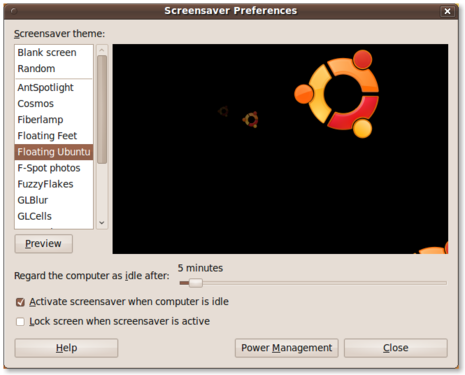
Finally, update the settings to reflect your preferences. Select a different screensaver from the list on the left, update the idle time, or lock the screen when the screensaver is active.

Floating Ubuntu - Screensaver Preferences

Floating Ubuntu - Screensaver Preferences

Change Screensaver – KDE

The screensaver settings in KDE are contained within the System Settings utility. You can launch this tool by clicking the Kickoff menu (bottom-left, on your bottom taskbar) and selecting System Settings.

System Settings

System Settings

From here you’ll want to select the ‘Desktop’ option. Screensaver preferences are held under the general Desktop settings.

Desktop Settings

Desktop Settings

The Desktop settings will then allow you to change the screensaver preferences. You’ll need to select ‘Screensaver’ from the list of options on the left side.

Screensaver

Screensaver

Conclusion

Updating the screensaver preferences in either of these major Desktop environments is a piece of cake. Simply navigate to the screensaver utility, select the screensaver of your choice and you’re set! Both of these environments also allow for security preferences, such as locking the screen when the screensaver is activated and requiring a password to unlock.

Categories: Beginner Tags: , , ,

How to Rename a File in Ubuntu : Ubuntu Beginners

February 1st, 2010 2 comments

This article is part of a series entitled “Ubuntu Beginners”, which walks new users through basic Desktop and Command Line usage. This article will detail how to rename files, using both the graphical interface as well as the command line. Included below are GNOME, KDE and command line methods.

Rename Files – Nautilus (GNOME)

If you are using the standard Ubuntu, which uses the GNOME Desktop Environment, the file manager is called Nautilus. Anytime you are browsing files or folders graphically, you are using Nautilus. I’ve included screenshots below displaying the default Home folder, selecting a document, and renaming the document.

This is the default Nautilus view in Ubuntu 9.10, displaying the contents of the home folder. You’ll notice that there are pre-populated directories (folders) for Documents, Downloads, Music, Pictures, etc.

Nautilus - Home Folder

Nautilus - Home Folder

In this next screenshot I’ve selected a document in my Documents folder, and selected the ‘Rename…’ option. This is done by selecting the file, right-clicking the mouse and selecting the ‘Rename…’ option.

Nautilus - Rename File

After selecting the ‘Rename…’ option, the file name will become editable. You can update the text to your preference, and rename your file.

Nautilus - Rename

Nautilus - Rename

Once you’ve updated the file name simply hit the [ENTER] key on your keyboard, or click your mouse anywhere outside of the editable text area. The edit-field will disappear and your file will have been renamed.

Rename Files – Dolphin (KDE)

If you have installed Kubuntu, the KDE-based Ubuntu variant, your file manager is called Dolphin. I’ve included screenshots of Dolphin, as well as the process of renaming files in Dolphin.

This is the default Home folder as displayed by the Dolphin file manager.

Dolphin - Home

Dolphin - Home

In order to rename a file, simply right-click on the file and select the ‘Rename…’ option. You’ll notice that Dolphin also provides a keyboard shortcut to rename using the F2 key. This means, instead of right-clicking and selecting ‘Rename…’ you can simply press F2 after the file has been selected.

Dolphin - Rename File

Lastly, enter the new name of the file into the dialog box and update your changes by hitting the [ENTER] key, or clicking the ‘Rename’ button.

Dolphin - Rename Item

Rename Files – Command Line (Linux)
The method of renaming a file on the command-line is generic to Linux. In other words, this method should apply to any Linux distribution, any version, and any variant.

In Linux, renaming a file is essentially the same as moving a file. Where moving a file is simply moving a file from one location to another, renaming a file is essentially moving the name of the file. The contents remain the same, we’ve simply moved the place where you’d find them–from one name to another.

To rename a file, using the following syntax:

mv welcome-to-ubuntu.doc renamed.doc

A few additional examples:

mv IMGOOO1.JPG release-party-pictures-1.jpg
mv IMGOOO2.JPG release-party-pictures-2.jpg

You get the idea. I understand it can be confusing to use the mv (move) command to rename a file, but you’ll find that you get used to it rather quickly and then not even think about it.

Conclusion
No matter the environment that you’re in, whether in be GNOME, KDE or the command-line, renaming files is simple. Right-click and select ‘Rename…’ is generally standard between graphical environments, and using mv on the command-line will work on all Linux distributions. I hope this beginner tip has been helpful.

Categories: Beginner Tags: , , , , ,

How To Install KDE 4.4 RC In Ubuntu 9.10 “Karmic Koala”

January 19th, 2010 4 comments

As I mentioned a few days back in my article regarding Installing Dropbox on Kubuntu, I’ve been tinkering with KDE recently and I am enjoying my time with it. I know I’ve written in the past regarding some frustrations with KDE, but I have to admit that many of my frustrations have gone away as the KDE 4.x series has matured. Again, if you haven’t tried KDE in a while I would invite you to do so.

In this article I will outline how to activate the kubuntu-ppa (Personal Package Archive), which will allow you to install the latest KDE packages. These instructions are specific to the KDE 4.4 RC (Release Candidate) packages, which are offered for feedback and testing. If you would like to try the latest that Kubuntu has to offer (even potentially unstable), you’ll want to continue reading.

Requirements

In order to download and install the latest KDE packages you’ll need to configure and activate the Kubuntu PPA. This is a Personal Package Archive, hosted on Launchpad, which is maintained by the Kubuntu Developers, and allows for staging and testing new packages. To activate the repository, run the command:

sudo add-apt-repository ppa:kubuntu-ppa/beta

The Kubuntu PPA, particularly the RC packages, should now be configured and activated on your machine. You’ll still need to refresh your repository and install the updates, which I will cover next.

Installing KDE RC Packages

There are two approaches we can take to installing these packages. The first is for people who are already running Kubuntu (KDE) and want to simply update their installed packages to those offered in the RC repository.

To upgrade your existing installation to KDE 4.x RC, run the following two commands:

sudo apt-get update
sudo apt-get dist-upgrade

The second method is for people interested in trying KDE 4.x RC who do not have KDE installed currently.

To install KDE 4.x RC packages, use the following:

sudo apt-get update
sudo apt-get dist-upgrade
sudo apt-get install kubuntu-desktop

I consider the KDE 4.x series to be very mature at this point, with a plethora of features and effects. I think the KDE Team has done a great job on improving the Linux Desktop over the past few years, and I continue to enjoy my time using it. I continue to use GNOME as well, but KDE 4.x has rebuilt the bridges that previous experiences had burned.

I am interested in hearing what you think about these RC packages, and how stable you find them to be. Do you enjoy being on the bleeding edge? If you run into problems, you might try looking for support in our Forum.

Categories: KDE Tags: ,

Install Dropbox on Kubuntu KDE (Without Nautilus)

January 17th, 2010 12 comments

I recently installed Kubuntu 9.10 to have a look at the latest that KDE has to offer in the Ubuntu arena. I have to say, I find it very polished and far less buggy than previous releases that I’ve used! If you haven’t tried KDE recently, I invite you to give it a try. In this article I’ll outline how to install Dropbox on KDE (Kubuntu) without using the packages, or requiring the GNOME dependencies that are required for Nautilus integration.

Installation

Because we’ll be installing Dropbox manually, outside of the package management system, the first thing you’ll need to do is download the binary for your running architecture. I’ve included direct download links to the 32bit and 64bit releases below:

After you’ve downloaded the .tar.gz file, unpack it and move its contents to your home folder. Assuming your default Download location is your ~/Downloads folder, do the following to unpack and move the dropbox files:

tar xf dropbox-lnx*.tar.gz

mv .dropbox-dist/ ~/

Lastly, assuming you want Dropbox to autostart when you login, you’ll want to create a symlink to your Autostart folder. You can do this using the command:

ln -s ~/.dropbox-dist/dropdoxd ~/.kde/Autostart/

Launch Dropbox

At this point you can either logout and log back in to have Dropbox launch, or manually launch by issuing the command:

~/.dropbox-dist/dropboxd

You should be prompted to enter your account information, and you’re set!

Getting Dropbox

If you don’t have a Dropbox account, I’d invite you to check it out. It’s a very, very useful tool for sharing files and doing off-site backups. If the program is still in place, you’ll get a 250M storage bonus for using this link.

Categories: KDE Tags: , , ,

What Is Your Preferred Minimal Window Manager?

September 23rd, 2009 24 comments

Yesterday I spent some time playing with some alternative window managers. After spending hours and hours tinkering with the internals of GNOME in preparation for my presentation at the Utah Open Source Conference I needed a change of scenery. I experimented with evilwm and openbox primarily. They were both very interesting, and I realized there are so many more that I haven’t even considered yet. What do you use?

I keep hearing about other window managers like Awesome, xmonad, etc, etc. I’m curious about trying them out but I’m not sure I’d know where to start. If you use any of these (ie; anything other than the ‘standard’ GNOME or KDE environments) please drop a comment regarding why.

To give you an idea about my computing habits, I generally only really need the following:

  • Terminal (gnome-terminal preferred, xterm is fine)
  • Browser (chromium or something else lightweight)
  • Email (evolution or mutt generally)
  • Keyboard control (if I could spend a day without touching the mouse, that’d be awesome)

I appreciate the feedback. Hopefully I’ll be able to generate some posts based on using some of these other window managers soon.

Dropbox Without Gnome : File synching that “Just Works”

April 18th, 2009 8 comments

UPDATE: This article has been updated for clarity and to include user feedback. Install Dropbox on Kubuntu KDE (Without Nautilus).

I have been using Dropbox for quite some time now and I really like it. It is cross platform, meaning it works on my Linux machines (at home and at work) and also my OS X machines. It is a very, very simple way to synchronize files between machines.

Recently I switched to KDE 4.2.2 and have since missed Dropbox, as it is primarily designed for use with GNOME’s Nautilus file browser. I found a quick tutorial outlining how to use Dropbox on KDE, and wanted to pass it along.

The first time you run Dropbox you’ll go through a short configuration wizard. Simply enter your existing Dropbox account information and you’re set.

If you don’t have an existing Dropbox account, but would like to check it out, do so here.

If you’d like Dropbox to launch automagically at login simply create a symlink from your home folder to your .kde4/Autostart directory:

ln -s ~/.dropbox-dist/dropdoxd ~/.kde4/Autostart/

Rinse and repeat on any of your machines and you’ll be synching files in no time!

Categories: KDE Tags: ,

Refresh The Katapult Launcher in Kubuntu

October 10th, 2007 8 comments

After posting my previous tutorial on Manually Installing Firefox I noticed that the Katapult Launcher in Kubuntu was not aware of my newly installed application. Apparently you need to refresh Katapult before it’ll see the changes. For those of you that use Katapult this little trick might be handy.. and for those of you that don’t use Katapult you’re really missing out. This is one of the apps that I really like in KDE that gnome doesn’t really have.

Refreshing the Katapult Launcher

Refreshing Katapult to be aware of newly installed applications can be done in just a few quick steps:

  1. Hit “Alt-Space” to bring up the Katapult Launcher
  2. Hit “Ctrl-C” and select “Configure Katapult
  3. Click “Save” without making any changes

Your newly installed applications will now be launchable from within Katapult. Katapult ftw!

Categories: KDE Tags:

Removing KDE icons in gnome / remove gnome icons in KDE

July 18th, 2007 32 comments

This tutorial is for those people that like to run gnome and KDE side by side. This will allow you to only show the native apps in the menus within each desktop environment instead of showing everything.

update: I wrote a script to automate this process. If you’d like to use that instead it is available below.

You can run the following commands to make gnome menu backups and KDE menu backups prior to making the changes, if you want to be safe.

mkdir -p ~/.menu-backup{gnome,kde}

cp /usr/share/applications/* ~/.menu-backup/gnome

cp /usr/share/applications/kde/* ~/.menu-backup/kde

To update the menu listings then run (one continued line):

sudo -i

cd /usr/share/applications/ ; for i in *; do echo “ShowOnlyIn=GNOME” >> $i; done ; cd /usr/share/applications/kde/ ; for i in *; do echo “ShowOnlyIn=KDE” >> $i; done ; exit

The changes should take place immediately and you should now only see the native apps in each menu. Enjoy.

If everything seems to work the way you like you can delete the backup directories with the following commands:

rm -r ~/.menu-backup-gnome

rm -r ~/.menu-backup-kde

I suppose I could write a small shell script to do the work for you.. would anyone prefer that? I got bored and wrote it.

menu-cleaner.sh v0.1

Categories: GNOME Tags: ,