Archive

Posts Tagged ‘ssl’

Install Firesheep on Ubuntu 10.04 or 10.10
November 26th, 2010 31 comments

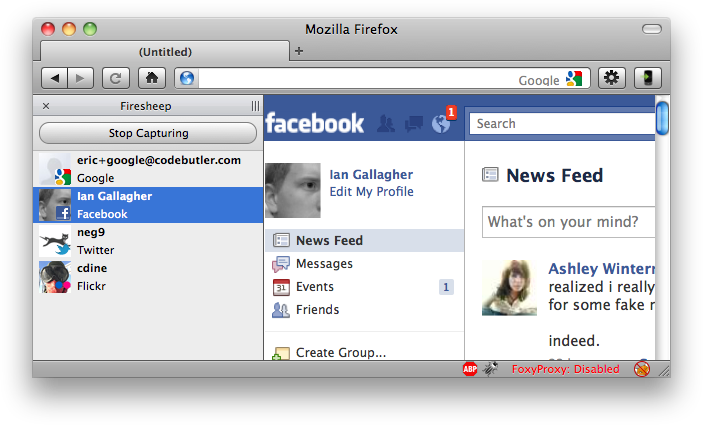
This morning I had a little bit of free time so I thought I’d (finally) check out the Firefox extension Firesheep. The main website mentions that it isn’t supported for Linux, but the source code is available and as it turns out very easy to compile. Below are instructions for downloading, compiling and installing the Firesheep security plugin for Firefox.

Get the Source

You’ll need to download the source code from github, which can be done using the following two commands:

git clone https://github.com/codebutler/firesheep.git
cd firesheep
git submodule update --init

These two commands will download the code required to compile Firesheep, putting the source into a new directory called “firesheep”.

Build Tools

To compile Firesheep on Ubuntu 10.04 or 10.10 you’ll need the following development packages installed. Simply copy-paste the following list of packages into your terminal:

sudo apt-get install autoconf libtool libpcap-dev libboost-all-dev libhal-dev xulrunner-1.9.2-dev

On my machine this installed quite a few packages, and while the main Firesheep website lists 10.10 specifically, I had no problems on my 10.04 installation.

Build Firesheep

You’re now ready to compile Firesheep. Run the following command and hopefully you’ll be able to build it without error:

./autogen.sh && make

Install the Plugin

If all is well you should find a new file called ‘firesheep.xpi’ in a subdirectory called build (ie; firesheep/build/). Simply drag-and-drop that file into your Addons dialog box, restart Firefox and you should be set.

I’ve been having some issues in actually capturing data on my Dell D630 with an Intel Pro/Wireless 3945ABG card. It looks like this tool is often hardware specific, so your mileage may vary. I’d be interested in anyone offering suggestions on getting it to capture properly on OS X 10.6 (macbook) or Ubuntu 10.04+.

Accessing Freenode IRC Network via SSL Secure Connection

January 30th, 2010 6 comments

On Jan 30, 2010 the Freenode IRC network finally activated SSL support. This is something that many have long been waiting for, and I’m glad to finally see it! I have been an IRC user for some years now, the majority of which has been specific to the Freenode network. Historically all data passed to the Freenode network, including username, password and chat messages have been done in the clear. This no longer has to be the case as SSL client support is now available.

With internet technology, and the rise of cloud computing, SSL is becoming more important than ever. Corporations usually have it as a standard to secure their networks with VPN, with solutions seen in ATT virtual private nets. VPN and use of Proxies can enhance online security and is also available for consumer use.

In this article I will outline how to configure your IRC client to connect to the Freenode IRC network using SSL client encryption. This article includes instructions for Irssi, Empathy and Pidgin.

Access Freenode via SSL – Irssi

This section outlines how to configure irssi, the command-line IRC client, to connect to freenode via SSL secure connection.

First, you’ll need to ensure you have an updated list of CA root certificates. This can be done by verifying you have the following package installed:

sudo aptitude install ca-certificates

It is likely that this is already installed, but it won’t cause any problems to attempt installation just to make sure.

Once you’ve verified that you have the latest CA root certificates you can connect to Freenode via SSL using the following command:

/connect -ssl_verify -ssl_capath /etc/ssl/certs chat.freenode.net 7000

If you’d like to automatically connect to freenode each time you launch irssi, use the following:

/network add -nick <nick> -realname <realname> freenode

/server add -auto -ssl_verify -ssl_capath /etc/ssl/certs -network freenode chat.freenode.net 7000

/save

Access Freenode via SSL – Empathy (IDLE)

This section outlines how to configure Empathy, the default messaging client in Ubuntu 9.10+, to connect to freenode via SSL secure connection.

You’ll need to verify that you have an updated list of CA root certificates. This can be done by verifying you have the following package installed:

sudo aptitude install ca-certificates

Once you’ve verified that you have the latest CA root certificates, you’ll also need to verify your Empathy configuration. Below is a screenshot for the FreeNode configuration in Empathy. Ensure yours matches the port and SSL activation.

Empathy FreeNode configuration

Empathy FreeNode configuration

Access Freenode via SSL – Pidgin

This section outlines how to configure Pidgin, the default messaging client in older Ubuntu releases, to connect to freenode via SSL secure connection.

You’ll need to verify that you have an updated list of CA root certificates. This can be done by verifying  you have the following package installed:

sudo aptitude install ca-certificates

Once you’ve verified that you have the latest CA root certificates you’ll also need to verify your Pidgin configuration. Below is a screenshot for the IRC configuration in Pidgin. Ensure yours matches by modifying your account.

On the “Basic” tab, the default Server: entry will likely be “irc.ubuntu.com”. Unless you change this to “chat.freenode.net”, you’ll get a warning about not being able to verify the certificate.

Pidgin Basic Configuration

Pidgin Basic Configuration

Next, navigate to the Advanced tab. On this tab you’ll need to change the Port: to 7000 and activate the checkbox for “Use SSL”. When you are finished, save your changes

Pidgin Advanced Configuration

Pidgin Advanced Configuration

Conclusion

Encrypted connections via SSL are important for network security, particularly in the situation where usernames and passwords are being transfered. As end-users we should be aware of improved security options available to us, such as encrypted network connections. If you are an IRC user and haven’t yet made the switch to SSL enabled connections, I’d invite you to take a minute and do so now.

Categories: Security Tags: ,