Archive

Posts Tagged ‘theme’

How to Change the Ubuntu Theme : Ubuntu Beginners
February 3rd, 2010 Christer Edwards No comments

This article is part of a series entitled “Ubuntu Beginners” which walks new users through basic Desktop and Command Line usage. This article will detail how to change and customize your Ubuntu look by managing your themes. This article includes step-by-step instructions as well as screenshots, and is specific only to GNOME.

Changing The Theme

Ubuntu comes pre-installed with a number of Desktop themes. The default is called “Human”, and is what defines the characteristic Ubuntu earth-tone colors. Some users love the default theme and others don’t like it at all. The primary complaint that I’ve heard is that it is “too brown”. If you’d like to change your theme, follow the steps below.

To change your theme, you need to navigate to System > Preferences > Appearance, as outlined in the screenshot below:

System > Preferences > Appearance

System > Preferences > Appearance

This will launch the GNOME Appearance utility, which will default to a list of installed themes. You can easily change your theme in real-time by simply selecting a new theme from the list. The default installed themes are:

  • Clearlooks
  • Dark Room
  • Dust
  • Dust Sand
  • High Contrast Inverse
  • High Contrast Large Print Inverse
  • Human
  • Human-Clearlooks
  • New Wave
Appearence :: Theme

Appearence :: Theme

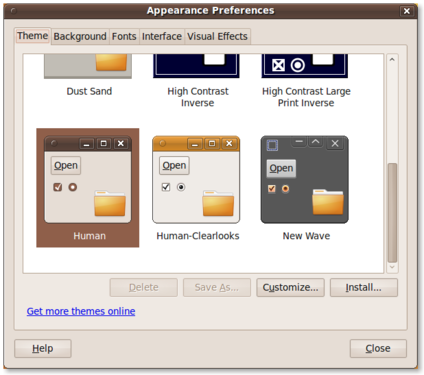
On a default installation of Ubuntu 9.10, you should have nine default themes installed to choose from. The screenshot below displays more from the list above.

Appearance :: Theme (cont.)

Appearance :: Theme (cont.)

You can instantly change your theme by selecting one of the listed themes within the window. The next two screenshots show the Dust and Dust Sand themes after being selected.

Appearance :: Dust Theme

Appearance :: Dust Theme

Appearance : Dust Sand Theme

Appearance : Dust Sand Theme

In a future article I will outline additional theme customizations, including Backgrounds, Fonts, Interface, and Visual Effects. Until then, why not try a few different themes and see how well you like them. Remember, if you want to put the theme back where it started, simply select “Human” from the list.

Categories: Beginner Tags: , ,

What Is The Best GNOME Desktop Theme?

January 22nd, 2010 Christer Edwards 15 comments

I’ve been using the Shiki theme (Shiki-Brave) for some time now. You may recall that I wrote about it in My Ubuntu Look and Feel as well as How To Install Shiki-Colors Theme in Ubuntu. After seeing some recent posts on other blogs regarding some of the potential themes for Ubuntu 10.04 “Lucid”, I’ve got the urge to try something new.

So, I this is my question for all of you readers out there, and don’t be shy about linking to screenshots:

What is the best GNOME Desktop theme?

Categories: GNOME Tags: ,

A New Look For A New Year!

January 13th, 2010 Christer Edwards 5 comments

I posted about a week ago that I’d begun working on a new theme for the site. I felt like it was time for something new–something a little less plain. I tried out a number of Wordpress themes and layouts, and finally found one that I like. I feel it better represents where the site (and its author!) are at this point. Can you believe the site has been around for nearly four years! It is amazing–I can’t believe it myself sometimes.

I’d like to invite you to click through and have a look at the new site. Leave a comment. Let me know your thoughts.

Here is to a new year, a new look and new content!

Categories: News, Wordpress Tags: , ,

Site Overhaul for 2010

January 4th, 2010 Christer Edwards 1 comment

I’m going to be working on this site to give it a new look and better organization for 2010. Please forgive the downtime / oddities for the rest of the day.

Categories: News Tags: , ,

My Ubuntu Look and Feel

July 22nd, 2009 Christer Edwards 18 comments

Yesterday I blogged about changing the GDM login screen, which seems to be a very touchy and popular subject among readers. I don’t know that I’ve heard from but a very few people that actually like the default login screen in Ubuntu 9.04. It seems everyone has an opinion about changing it. I thought I would offer mine, in more detail. Presenting “My Ubuntu Look and Feel”

Desktop Background

There are so many really amazing desktop backgrounds to choose from it is hard to pick just one and publish it as my “favorite”. I guess what I will say is that I’ve grown accustomed to something darker (which fits with the theme, which we’ll see soon.) One of my recent selections is GNOME Smoke. Not too busy, and not too bright and shiny as to be distracting.

Theme

For my overall theme I have been using Shiki-Colors for months now. I’ve really grown accustomed to the look, and my desktop just “looks funny” to me if its on something else. I’ve blogged in the past about how to install Shiki-Colors. If you haven’t tried it, I’d recommend it.

Fonts

Another must-have in my book is the Droid Sans font. I update all my fonts system wide to use this (Droid Sans Mono within gnome-terminal). You might also check out my previous post about installing Droid Fonts. If you haven’t tried this font set check it out. Here are some quick instructions:

sudo aptitude install ttf-droid

System > Preferences > Appearance > Fonts

Select “Droid Sans” 10pt for everything. I also check “LCD” (I am on a laptop). You also may notice a difference if you click “Details” in the bottom right corner of the window and make sure that you’re resolution is set to “96″ dots per inch. I know that recent releases try to dynamically detect the best resolution, often times selecting something higher than 96. I’ve found that 96 still looks the best.

gnome-terminal

It might seem odd to include gnome-terminal is a list of graphical tweaks, but I always customize my terminal as well. Considering I spend the more part of my day within it, it should present me with the most comfortable surroundings.

First I right-click and select Profile > Profile Preferences. I then deselect “Show menubar by default in new terminals”. I then deselect “Use thy system fixed width font” and select Droid Sans Mono, 10pt. I then move to the “Colors” tab and deselect “Use colors from system theme”. I promptly change the color scheme to White on Black. For me, a black background is the only appropriate background for a console. After this I move to the “Scrolling” tab and select “Disable”. You might think this disables the ability to scroll. It does not. It disables the scrollbar within the window (pgup/pgdn still work as expected).

With that I Close the window and enjoy a white on black console with the additional space alloted from removing the scrollbar and menubar, plus a very clean readable font.

Conclusion

Looking back at this it sure doesn’t seem like I’m too particular when it comes to the look and feel of my Desktop, but I definitely have an opinion. I’ve grown to the point that I like/expect certain things a certain way, while not caring about others. It does sometimes feel like I’ve grown a bit more minimalist. Anything that allows me to focus more on my work and less on the “bling” and I’m good.

What are some of your favorite UI tweaks? Have a favorite wallpaper? GDM theme? font? Share the love!

Update Default GDM Theme: Ubuntu 9.04 “Jaunty”

July 21st, 2009 Christer Edwards 19 comments

A while back I blogged about the new GDM theme in Ubuntu 9.04 and I was surprised at the number of people that disliked it. Granted I don’t think its the best theme I’ve ever seen either, but is it *that* bad? In response (delayed, I know) to that feedback I thought a post on how to update that login theme to something more artistic would be in order.

Update Default GDM Theme

Updating the GDM theme is a fairly simple process. There is a utility called “gdmsetup” which allows you to customize a number of aspects of the login screen. You can usually find this application in your menu by navigating to:

System > Admin > Login Window

After entering your password you should be able to customize the login screen on the “Local” tab. The Style entry allows you to select Plain or Themed, or a variation with a Face Browser. What you want is Themed, and you can select a different graphic from the list below. You should find a few other default GNOME themes that you can select.

If you’d like to find more themes, go check out GNOME Look. You can easily install any of those GDM themes by selecting “Add” from the Login Window management tool.

For those of you that customize your theme, what are some of your favorite GDM graphics to use?

Categories: GNOME Tags: , , , ,

New GDM Login Theme in Ubuntu 9.04 “Jaunty”

March 9th, 2009 Christer Edwards 53 comments

I’ve been playing with Ubuntu 9.04 in VirtualBox and after installing the 9.04 Alpha 5 I noticed the new GDM Login screen. Things sure have come a long way since I started using Ubuntu in 5.04! Below is a screenshot of the new Login screen. Thoughts?

Ubuntu 9.04 GDM Login Screen

Ubuntu 9.04 GDM Login Screen

Categories: GNOME Tags: , , ,

Trying Out a New Theme

March 7th, 2009 Christer Edwards 16 comments

After toying with a few new themes I have activated one of them on this blog today. I’d love to hear your thoughts on the change. Better? Worse? Anything missing? Drop by, leave a comment, and tell me what you think.

P.S. I know OpenID is broken. I’m looking into it..

Categories: Ubuntu Tags: ,

Install Shiki-Colors Theme on Ubuntu 8.10

November 10th, 2008 Christer Edwards 28 comments

I’ve never been one that is much for customizing Ubuntu themes.  Generally the most I do is switch to Clearlooks and call it good.  Recently, however, a theme was pointed out to me that I really like.  Its called Shiki-Colors, and can be downloaded from gnome-look.

One nice thing about this theme release is that it includes a script to configrue everything for you.  You can download the install script via:

wget -c http://zelut.org/dropbox/colorizeme-shiki-0.2.tar.gz
tar xf colorizeme-shiki-0.2.tar.gz
./install

This script will download and install the icon sets, themes, etc and update your theme as it goes.  To get the full effect you will likely want to logout or reboot.

I also like this in combination with the ttf-liberation font set.

note: the author is definitely an artist and not a programmer.  The shell script is pretty ugly and could use some cleanup, but thats another story..

I’d love to hear your thoughts on this theme.

Categories: GNOME Tags: , ,