In a release long, long ago and in a galaxy far, far away I blogged about how to configure Ubuntu to print directly to a .pdf file. Looking back to this article it appears to be outdated an in need of some corrections. This tutorial will outline how to use and, if needed, configure your Ubuntu 8.04 machine to print directly to a .pdf file.
Verifying Setup or Print to PDF Configuration
My Ubuntu 8.04 installation was already configured, out of the box, to print to .pdf. This means, without any additional configuration I could select “Print” from an application and the output would be generated into a .pdf file and saved to disk. You can verify whether or not your machine is configured the same way by Navigating to:
System > Administration > Printing
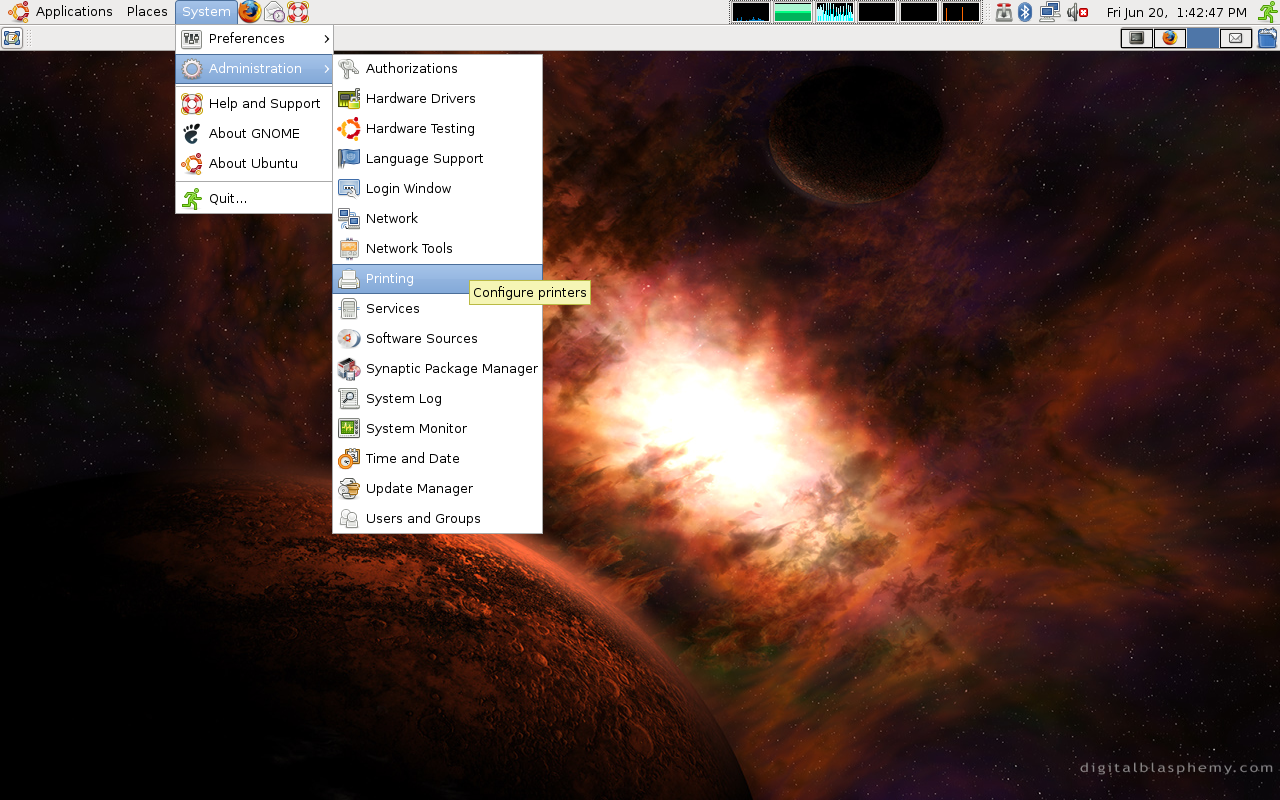
If you already see a Local Printer listed as “PDF” then your machine is already configured as well. If, for whatever reason, this is not the case for you this can be configured as follows.
- Install the cups-pdf package using:
sudo aptitude install cups-pdf - Select “New Printer”
- Select “Print into PDF file” with the device URI of “cups-pdf:/”
- Select “Generic”
- Select “PDF file generator”
- Assign a name. “PDF” should be sufficient.
- Select “Apply”
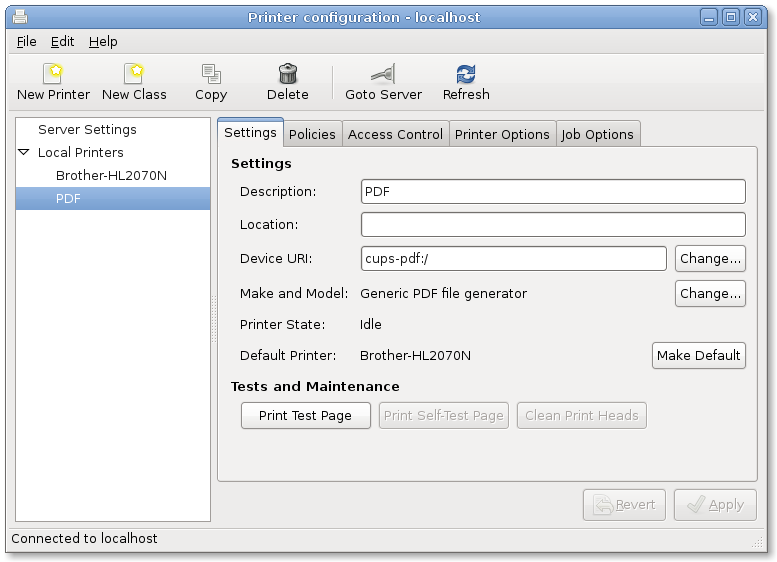
Again, I would be surprised if this is not configured on your machine by default, but I never can tell what some of you have done to your machines 😉
Printing Directly to PDF
Once you have verified your machine is configured properly you should now be able to print documents directly to a .pdf file. This should include text documents, web pages, etc. Simply select “PDF” as the printer when you want to print a document.
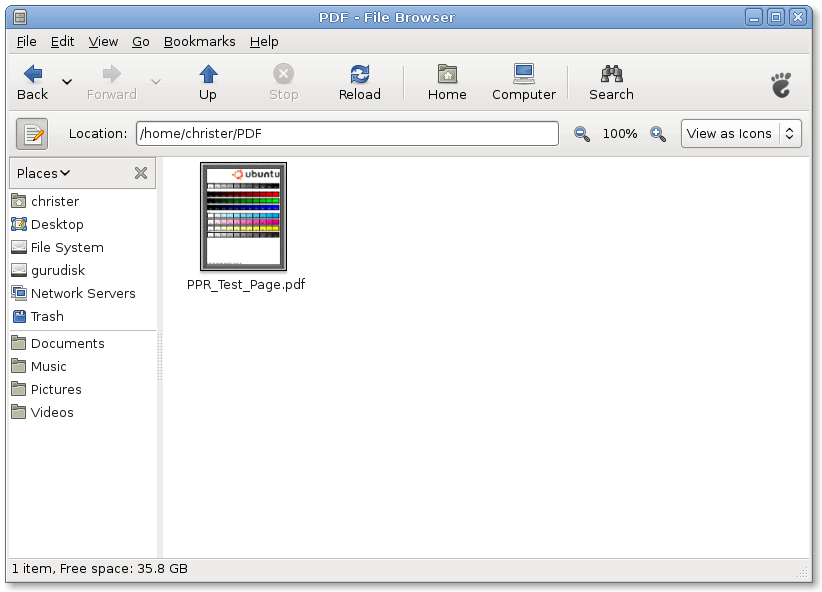
After a print job has been sent you can find the generated .pdf file in your users Home folder within a new directory called “PDF”.
Thank you.
I knew about this tip. Just wondering if anyone found a way to choose a “name-file” for the PDF to be print. It is very annoying -have to- remember to rename each PDF after printing. I have to just to avoid overwriting it with the same name if printing something else from the same place later.
Unfortunately it does not work for me.
No file is created.
I see two PDF directories in my system:
one in my homedir
one in /root
Both have no output files
I guess you have to be very lucky if this gonna work the first time.
I use Oo to produce PDF files, but this seems to me more convenient. If it works of course 🙁
Addendum:
After choose refresh in the printer configuration and make a testpage again, the PDF is created in the /root/PDF folder!
Unfortunately this folder it is only accessible as root user :-(… But there is at least something… 🙂
With the new Evince in Fedora 9 the save to file is broken (it saves as a blank file) and printing the pdf is the only way to save the pdf. Not sure if this is an Evince problem or Fedora. Is Evince working correctly in Hardy?
Is there a possibility to change the output folder? I would prefer another location then ~/PDF/. Thanks.
@Tom – take a look at the /etc/cups/cups-pdf.conf and update the “Out” line. Currently it points to $HOME/PDF, but you should be able to change this to whatever location you have access to.
@Christer Edwards: Thanks for the tip 🙂
I have had this set up for a while now, but I want to be able to save the file to a location when I do this. Has anybody figured out how to do that yet? It’s got to be the most common request from this…
For those who want to be able to chose file-name or destination folder for the PDF. In Hardy is possible to print to file and chose PDF instead the usual Postscript, also is possible to chose the folder destination and the file-name.
@Fer: Great thanks 🙂
PDF output in Hardy is a mess compared to PDF output in other OSes! For some reason, some pages are not printed when I print from Firefox.
This is why I cannot completely switch to Ubuntu. Too many broken things …
Anyone knows how to fix this?
@Fer – I haven’t tried this yet, but this looks VERY promising!
Thanks for the tip, I didn’t realize where it placed the pdf’s, so simple.
-Egrets
http://egrets.wordpress.com
Using Open Source Software on Ubuntu
I changed /etc/cups/cups-pdf.conf to print to ${HOME}/Desktop but now I get a box flashing briefly on the screen and no output in either directory. I set perms for both directories the same, still no luck. What now? Seems to me Desktop would be a better default choice anyway.
Followed the directions..but did not work. I don’t get any option for PDF File Generator.
Sooo I guess this isn’t going to be an option for me.
thank’s your tip, i really happy ^^
This did not work for me until changing the output in apparmor as well.
See http://ubuntuforums.org/showpost.php?p=4318842&postcount=12
It did work for me, but it just prints one A4 page. I tested it in Firefox and Google Chrome and it does the same.
I didn’t worked at all until I used Anon’s approach. Now I get the PDF files onto my Desktop.
Anybody printing only one page as well?
Thanks.
Nevermind, works now!