I have been doing a lot of ssh connections between my machines lately and noticed that the times were different between each. I had assumed that each would be fairly close but one was even five minutes off. Well, that was an easy fix using ntpdate. From the man page for ntpdate:
ntpdate sets the local date and time by polling the Network Time Protocol (NTP) server(s) given as the server arguments to determine the correct time. It must be run as root on the local host. A number of samples are obtained from each of the servers specified and a subset of the NTP clock filter and selection algorithms are applied to select the best of these. Note that the accuracy and reliability of ntpdate depends on the number of servers, the number of polls each time it is run and the interval between runs.
A simple method of manually updating your system time is by using the command below:
sudo ntpdate ntp.ubuntu.com (or an ntp server of your choice)
This will quickly check the time server for the appropriate time and synchronize your system accordingly. The whole process generally only takes a few seconds.
This command can be run manually as above or setup to run via cron for automation.
This can also be done using a GUI method via the clock generally found in the corner of your desktop. right-click and select “Adjust Date and Time”. You will then be presented with a window such as this one:
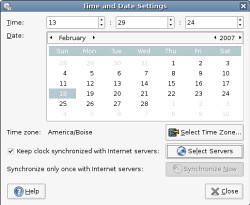 To activate and install the ntpdate service you’ll want to check the box as seen in the picture “Keep clock synchronized with Internet servers”.
This will ask you if you want the ntp packages installed. Go ahead and install these.
When that is finished you can select the “Select Servers” to select which local servers you want to use. Any should work but something local should be a bit quicker and possibly more reliable.
At this point you can use either method of updating your machines time and date. This GUI method should keep it synchronized for you so its setup and forget. The console method would be primarily used for server machines, etc.
What happens if you are using the computer without an internet connection? Do errors get displayed, or is it silent?
Strange thing, that on my Ubuntu install I have the problem that after 24 hours the clock is 5 minutes in the future. I use Archlinux on the same computer and there isn’t this problem.
I’m syncing Ubuntu’s clock every hour to fix this problem but on my Archlinux I don’t have to do this. Strange.
Menachem – if you don’t have a connection it will not work, sorry.
Don’t set your clock via cron and ntpdate, use ntpd instead:
http://episteme.arstechnica.com/eve/forums/a/tpc/f/96509133/m/982008055631/r/982008055631#982008055631
This works in Ubuntu as well as Debian.
sudo vim /etc/cron.hourly/setclock.cron
—————————-
#and within it:
#!/bin/bash
clock=timeserverofyourchoicehere
/usr/sbin/ntpdate -s -u $clock >& /dev/null
/sbin/hwclock –adjust
/sbin/hwclock –systohc
——————————
Replace timeserverofyourchoicehere above with the time server of your choice, maybe something close to you in pool.ntp.org.
then:
sudo chmod +x /etc/cron.hourly/setclock.cron
It just works!
As another poster said, you can use ntpd instead, but ntpdate is very simple for most and people have had problems (just see UbuntuForums for many examples) with ntpd in Ubuntu and getting it working right. Plus, if I’m running a desktop system I like ntpdate via cronjob rather than ntpd because I don’t have extra computers to update and I don’t want an extra daemon running all the time just for keeping the time on one system updated.
ntpdateshould never be run from cron. It is well known to cause problems, like the clock ending up farther off than it would have been otherwise due to repeated use ofntpdate.Running
ntpdatefrom cron is such a bad idea, that ntp’s authors decided to remove thentpdatecommand entirely a couple of years ago. It appeaars that they changed their minds.ntpdis a very tiny daemon and the basic setup needed for desktop use is extremely simple. Not running “one more daemon”, though an understandable reason on it’s own, doesn’t make sense withntpd.On my notebooks, I just run
ntpdateabout once a month and let the system clock keep things close from there. The nature of the way notebooks are used and the varying powersources supplying the hardware clock at different times, means that their hardware clocks will drift more than the typical desktop machine’s. Even runningntpdon a notebook that doesn’t always have a network connection produces better results.No, please don’t use ntpdate! See this. You ought to update your post, IMHO.
Using ntpdate in this way is a very bad idea. ntpdate should be run at boot time and only very rarely thereafter — ntpd will keep your clock in sync, take account of ‘drift’ to make sure your clock stays reasonably accurate even without a network connection, and won’t end up with all the world’s Ubuntu boxes hitting the NTP server at the same time. This is actually what the “Keep clock synchronized with Internet servers” checkbox in the “Adjust Date and Time” dialogue box does — it starts and stops ntpd. I’d correct this tutorial if I were you.
Pingback: Death Insurance WebLog » Blog Archive » The Answer Guy 38: How 'ntpdate' finds IP addresses?
The comments saying to use ntpd instead are interesting, but make the assumption that the machine is connected directly to the internet. If you are running your machines behind a firewall (as you should be) and you do not want to open another port to have all your machines polling a time server outside the firewall AND exact time to the thousandths of a second is not essential, then the method described here is the best. It is even overkill to use cron — if you see a difference in the time, run the ntpdate command or a script that uses it. In a commercial environment the machines should be turned off every night and the time will be reset on reboot and this is not an issue at all. You are at liberty of course to set up a machine on your network as a time server and use ntpd.
Two things to note: 1. ntpd will run by default and if it is running, ntpdate will not. You might have to kill -9 it. 2. The information on using the GUI is way out of date. I have no idea how Precise Pangolin does this in the GUI.
Yes, I know that this thread is 5 or 6 years old, but when you google, it’s what you get.