Oct
20
It was pointed out to me this morning that my previous Ubuntu upgrade instructions did not include upgrading Ubuntu Server. I thought I’d take a second and type those up as well. They are pretty simple (as all of the upgrade options intend to be), so you really shouldn’t need to do much.
Preparing for the Upgrade - Ubuntu Server
You’ll want to make sure that your current installation is completely up to date first. Repeat the below steps until no more updates are offered:
- sudo aptitude update
- sudo aptitude upgrade
- sudo aptitude dist-upgrade
Upgrading Ubuntu 7.04 to 7.10 - Ubuntu Server
To upgrade your Ubuntu Server from 7.04 to 7.10 follow these few steps and you’ll be presented with a menu that will walk you through the upgrade process.
- sudo aptitude install update-manager-core
- sudo do-release-upgrade
Enjoy. Between this and the previous tutorial on upgrading Ubuntu I would hope that everyone is covered. If you run into upgrading problems please report them on launchpad and double check that you’ve followed all of these steps correctly.
I post tutorials very regularly on this site. You may want to consider subscribing to the RSS feed. Or if you'd prefer these tips sent to your inbox you can use Email Subscriptions.
Oct
18
How To Upgrade To Ubuntu 7.10 “Gutsy Gibbon” (Gnome, KDE and Manual Steps)
Filed Under Installation | 25 Comments
I wanted to outline instructions on how to upgrade from Ubuntu 7.04 to Ubuntu 7.10. The upgrade steps try to be very user friendly and can be done without any manual “command line trickery”. Upgrading using these methods are only supported for machines currently running Ubuntu 7.04.
Preparing for the Upgrade - Gnome Desktop
Before you attempt to upgrade from 7.04 to 7.10 you need to make sure that your current installation is completely up to date. This will help avoid conflicts or missed packages during the upgrade process.
Navigate to “System > Admin > Update Manager”. Click the “Check” box. If there are any updates available at this point first install them before attempting the complete upgrade.
Upgrading 7.04 to 7.10 - Gnome Desktop
If no updates are available (or if you’ve finished installing anything remaining) again select the “Check” box. You should now be presented with a message “New distribution release ‘7.10′ in available“. To the right of this box select the “Upgrade” button and follow the few prompts. Your machine will now be updates via the Ubuntu repositories.
Preparing for the Upgrade - KDE Desktop
On the KDE (Kubuntu) Desktop you’ll also need to make sure that your machine is fully up to date pending the complete upgrade. To do this navigate to “KMenu > System > Adept Manager (Manage Packages).” From this application select “Adept > Manage Repositories”, enable “Recommended Updates” and then close and reload the Adept Manager.
When the Adept Manager reloads select “Full Upgrade” and “Apply Changes”. Allow all Recommended Updates to be installed and close the Adept Manager.
Upgrading 7.04 to 7.10 - KDE Desktop
If your system is completely up to date navigate to “KMenu > System > Adept Manager (Manage Packages)” and the upgrade wizard will be presented to you. Simply follow the prompts and your machine will be updates from the Ubuntu repositories.
Upgrading Using The Alternate CD
If you’ve downloaded the Ubuntu Alternate (text based) installer CD you can also upgrade your machine using the CD. As is traditional with Debian / Ubuntu upgrade mechanisms you do not need to reboot your machine to initiate the upgrader. Please make sure your machine is already upgraded using the above steps before attempting this method.
Follow these steps to upgrade via the Alternate CD:
- Download the alternate CD image
- Burn the CD image / re-insert the CD OR mount the CD image (sudo mount -o loop ubuntu-7.10-alternate-i386.iso /mnt/)
- A dialog should appear on your screen offering to upgrade your system using the CD
- If the dialog does not appear (it may not if you use the mount -o loop option), run the following via ALT-F2:
- gksudo “sh /media/cdrom/cdromupgrade” OR gksudo “sh /mnt/cdromupgrade”
Oct
14
Automated Ubuntu Installation Preview
Filed Under Installation | 12 Comments
I have recently started expanding my research based from previous tutorials on network based installations and PXE booting + network based installations to include automated Ubuntu installations. I will mention that I do not consider myself an expert at this by any means, but I wanted to give some of you a preview of what will end up being a much more mature tool.
Ubuntu and Debian installers use preseed for basically pre-answering installation questions for automated installation. RedHat and Fedora installers use kickstart for the same purpose. Well the Ubuntu installer team has combined these into a project called Kickseed, which basically allows Ubuntu to use RedHat / Fedora based kickstart files for automated Ubuntu installations.
Having worked with kickstart quite a bit I have an interest in the kickseed project and I’d love to contribute to it. Anyone else that would like to see more mature automated Ubuntu installation processes should look into this project as well.
I want to give the Ubuntu Team a little time to finish and release Ubuntu 7.10, but after that perhaps some of us can start focusing on maturing this project and working with the installer team members to do so.
In the meantime, I have a public generic kickstart script you can use to simply preview what can be done. To use this do the following:
- Boot the Alternate install CD.
- At the boot menu hit ‘esc’ and ‘exit to text mode’.
- enter “install ks=http://zelut.org/projects/misc/ks-test.cfg
This should automate the entire installation with the following specs:
- en_US language and qwerty keyboard layout
- ‘ubuntu’ user with the password of ‘password’
- 100M /boot, 2048M swap, remaining space for / partitions
- Gnome desktop with GDM
- DHCP on eth0
This will, of course, wipe any data from the machine you test it on so give it a shot in a virtual machine or on a test machine. And, again, if you’re interested in using something like this contact me and we’ll see what we can organize towards improvements and maturity.
Oct
11
How To Configure PXE (Network) Booting on Ubuntu For Network Based Installations
Filed Under Installation | 9 Comments
Previously I outlined how to install Ubuntu over the network using a netboot install CD or USB image. This tutorial takes it a step further and allows you to boot your machine from the network environment and select from a list of what you would like to install. This comes to the same end result as the previous tutorial (an installed machine without having to burn a CD), but doesn’t require the boot CD or USB image.
This will take more work and should also be considered intermediate to advanced. Please read through the tutorial in its entirety before diving in, researching any aspects of the tutorial you’re not familiar with prior to attempting these steps.
Requirements
There are a few things that we’ll need in order to set this up. These are outlined below:
- DHCP Server (sudo aptitude install dhcp3-server)
- Ubuntu CD Image (alternate CD, not Desktop LiveCD)
- TFTP Server (sudo aptitude install tftpd)
- Apache (sudo aptitude install apache2)
The way that these services will be used, as a quick overview, is that the DHCP server will listen for and assign IP addresses for machines on the local network. The TFTP server will hand a small kernel and ramdisk image to the client as it boots from the network environment and the contents of the Ubuntu CD will be used to install, being shared over the web via the Apache server. This is, again, an extension of the previous tutorial on network-based installations, this simply removes the need for a CD or USB image to boot the machine.
DHCP Setup
First of all we’ll install the DHCP server to initially hand out the IP addresses and point to the network boot images:
sudo aptitude install dhcp3-server
Now that we have the DHCP server installed there are a few small changes we need to make to the core configuration. Full detail on DHCP configuration is outside of the scope of this tutorial, but this should give you enough to achieve the goal of this tutorial.
We’ll first edit the DHCP configuration file, normally found in /etc/dhcp.conf:
sudo vim /etc/dhcp.conf
We’ll add two lines into this file outlining the address of the TFTP server (probably the same machine) and the path to the pxelinux.0 file we want to hand off to the client machines.
next-server 192.168.0.254 (the IP address of your DHCP/TFTP server)filename "/tftpboot/pxelinux.0";
After we have made these changes we need to restart the DHCP server. We can do this using the command:
sudo /etc/init.d/dhcpd restart
Apache Setup
We need to export the contents of the CD over the web so that the network based installer can find them for use with deb. For this we’ll install apache. The base configuration should be enough for what we need here. Further details on configuring Apache are outside of the scope of this tutorial.
sudo aptitude install apache2
CD Image Contents
We’ll need to extract the contents of the CD onto the DHCP/TFTP server so that we can access the packages and the installer kernel. We can locally mount and copy the CD contents using these commands:
sudo mkdir /var/www/html/ubuntu7.10 (or, if you're going to export multiple versions select something more unique)
sudo mount -o loop CD.iso /mntsudo cp -a /mnt/* /var/www/html/ubuntu.710
PXELinux Setup
Now that the DHCP server knows where the tftp server is and the path to the file that it should direct clients to we need to configure the PXE end of things, which is what allows us to boot a kernel over the network or select from a list of kernels to boot over the network.
Relative to the location of the pxelinux.0 file we can make a directory for the distribution/version that we want to boot. For example we might want to install Ubuntu 7.10 so we’d create a folder U7.10, or ubuntu7.10–something to specify what version and variant this will hold.
sudo mkdir /tftboot/ubuntu7.10
We then need to copy the network-based installer kernel and initrd.gz into the newly created folder:
sudo cp /var/www/html/ubuntu7.10/install/netboot/ubuntu-installer/i386/{linux, initrd.gz} /tftboot/ubuntu7.10/
We now need to build the file that will list what is available and how to select it from a (optional) list.
pxelinux.cfg/default
We’ll now move into the /tftpboot/pxelinux.cfg directory and edit the file “default”. If this file doesn’t exist that is OK, we’ll create one.
sudo vim /tftpboot/pxelinux.cfg/default
We’ll now make a list of the boot options that might be available on this network booting system:
default 0prompt 1
display msgs/boot.msg
# begin list of available boot options
label ubuntu7.10
kernel ubuntu7.10/linux
append initrd=ubuntu7.10/initrd.gz
This file basically outlines that a list will be presented to the user booting over the network, which we’ll create in the next step, and defines what will be loaded for each menu item.
pxelinux.cfg/msgs/boot.msg
We’ll now create a file that will give a display of the different boot options available. Your setup may only have one option outlined for installation, others might have three, four, five–a dozen different versions and variations available to install. We’ll create a list here outlining what is available and what option to enter to select the option.
This file can be something as simple as:
ubuntu7.10 - Select this to install Ubuntu 7.10kubuntu7.10 - Select this to install Kubuntu 7.10
ubuntu7.04 - Select this to install Ubuntu 7.04
kubuntu7.04 - Select this to install Kubuntu 7.10
…etc. Creating a list such as this after having repeated the above steps for each version and variant you want to make available and you should be ready to go. One thing to note is that the boot option entered at the list prompt should match the label defined in the pxelinux.cfg/default file.
Starting The Installer
You should now be ready to install your machine by booting and instructing your machine to boot from the network. If you have trouble booting to either of those devices you might check your BIOS settings to see that one of them takes priority over the main hard drive.
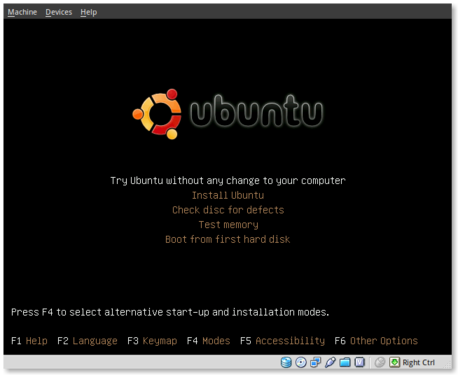
You’ll be presented with a very basic menu when the netboot installer loads.
To install only the base system type ’server’, then ENTER.For the default installation, press ENTER.
The default installation is suitable for most desktop or laptop systems.
Navigate through the installer as normal but watch for the step entitled:
Choose a mirror of the Ubuntu archive
At this step we will tell the installer to use a custom repository, in this case being the locally shared CD contents we set up previously.
Instead of selecting your country in this step go up to the first option listed: (pg-up to the top)
enter information manually
I don’t think the option of entering custom information is very intuitive so I missed this the first few times through. Watch for this step. If you are given a prompt offering us.archive.ubuntu.com or CC.archive.ubuntu.com you’ve gone too far!
The next step will prompt you for the hostname or IP address of the server you will be installing from. This is the IP address of the server you copied the CD contents and installed Apache to.
After the hostname or IP is entered the installer will prompt you for the path to the publicly shared contents. If you closely followed these steps the default entry of /ubuntu/ should work. If you copied your CD contents into a folder other than /ubuntu/ you’ll need to update this accordingly.
At this point navigate through the installer as normal and enjoy what should be faster installation speeds as network-based is usually faster than CD-based.
As I mentioned before. This should be considered more technical in nature than many of my previous tutorials. Best of luck, and enjoy network based booting and installation!
Oct
8
I spent some time this week figuring out the requirements for installing Ubuntu locally over the network. Ubuntu has netboot installers which are more than happy to go find a public repository mirror for you, but how about installing over the LAN using the contents of the CD as the repository? Well, if you’re interested in fast installations and no longer burning CDs this tutorial is for you. You should note that this tutorial is considered intermediate to advanced so please read through the entire contents before you continue and research any steps you’re not familiar with before diving in. Requirements This tutorial does not outline PXE boot based installation information. That is for an upcoming tutorial. This simply outlines installing the contents of the CD over the network. In order to do this we’ll need a few basic things:
- CD image
- Apache
- netboot installer
The way that each of these requirements will be used is that we’ll copy the contents of the CD to a web-accessible share on Apache and then boot the machine-to-be-installed via the netboot installer (CD or USB based options available here).
- Download the .iso image for the ubuntu version and variant that you want, saving it to disk (alternate, not desktop!).
- Install apache “sudo aptitude install apache2” *
- netboot installer image i386 64bit (compatible for use with any alternate install image in step #1)
* The configuration of apache is beyond the scope of this tutorial but a basic installation should provide enough core functionality to allow us to continue with the installation. Preparing the CD for installation We’ll need to unpack the contents of the downloaded CD .iso file. The way I generally do this is using these commands:
sudo mkdir /var/www/ubuntu/ sudo mount -o loop /path/to/.iso /mnt sudo cp -a /mnt/* /var/www/ubuntu/
If you’re not familiar with the above commands we’re first creating a directory called ubuntu within our apache web-accessible directory. We’re then locally “loop” mounting the CD image to the location /mnt. Finally we’re copying the contents of the CD to our new directory. Preparing the Installer We’ll now need a netboot installer created. This is a very minimal installation CD that can be used to install any other Ubuntu image. For example one copy of this netboot installer will allow you to install previous, current and (most likely) future releases of Ubuntu as long as you have access to the web-accessible CD image or public repository. So, although above I promised no more burning CDs you will actually need to burn just *one* more. Also, this netboot installer image is available for CD or USB image if you prefer one over the other (I prefer USB). Hopefully you’ve already followed step #3 of the Requirements section and you have either the mini.iso or the boot.img.gz file downloaded. To prepare either of those for use do follow these steps: mini.iso (CD)
- (gnome) insert a writable disk into your machine, right-click mini.iso and select “Write to disk”.
- (KDE) insert a writable disk into your machine, right-click mini.iso and select “Actions > Write CD image with K3B”
boot.img.gz (USB) You’ll first need to uncompress this file before you can write the image to disk:
gunzip boot.img.gz
insert a USB device that you’ll use as your boot device. ALL DATA WILL BE WIPED TO MAKE IT BOOTABLE. You can use the ‘dmesg’ command to see what device your USB was detected as (sdb, sdc, etc). We’ll then write the contents of the image to the device using dd:
dd if=boot.img of=/dev/sdX (where X is the device detected with dmesg, sdb, etc)
Starting The Installer You should now be ready to install your machine by booting either the CD or via the USB you’ve created. If you have trouble booting to either of those devices you might check your BIOS settings to see that one of them takes priority over the main hard drive. If you are using the boot.img on a USB you will want to remove this device when you are prompted with the language selection menu. This will help avoid conflicts with drives-to-be-installed, where to install the Boot Loader, etc. You’ll be presented with a very basic menu when the netboot installer loads.
To install only the base system type 'server', then ENTER.For the default installation, press ENTER.
The default installation is suitable for most desktop or laptop systems. Navigate through the installer as normal but watch for the step entitled:
Choose a mirror of the Ubuntu archive
At this step we will tell the installer to use a custom repository, in this case being the locally shared CD contents we set up previously. Instead of selecting your country in this step go up to the first option listed: (pg-up to the top)
enter information manually
I don’t think the option of entering custom information is very intuitive so I missed this the first few times through. Watch for this step. If you are given a prompt offering us.archive.ubuntu.com or CC.archive.ubuntu.com you’ve gone too far! The next step will prompt you for the hostname or IP address of the server you will be installing from. This is the IP address of the server you copied the CD contents and installed Apache to. After the hostname or IP is entered the installer will prompt you for the path to the publicly shared contents. If you closely followed these steps the default entry of /ubuntu/ should work. If you copied your CD contents into a folder other than /ubuntu/ you’ll need to update this accordingly. At this point navigate through the installer as normal and enjoy what should be faster installation speeds as network-based is usually faster than CD-based. As usual if you have any questions feel free to leave a comment. It should be noted, again, that this tutorial is probably considered intermediate to advanced so you may not want to undertake this if you’re a n00b.
Mar
11
Last year I wrote a tutorial on the Ubuntu Wiki for using the Jigdo (Jigsaw Download) tool for incremental CD updates. I had forgotten about it until I got into some recent testing for Feisty 7.04. I thought I would revisit my old tutorial and share it with the rest of you. Jigdo is really nice for rebuilding daily CD images without downloading the entire CD again, which can waste bandwidth and time when the latest daily build may have only updated a handful of packages. Here is what you’ll need to setup and use Jigdo.
The first thing you’ll need to do is install the needed jigdo packages.
sudo aptitude install jigit jigdo jigdo-file
It should be noted that Jigdo is a console based application so if you’re afraid of the terminal it might not be the best for you… but I suppose if that were the case you might not be downloading daily builds for testing either.
After the installation finished you’ll want to start Jigdo and you’ll also need a .jigdo file available from the cdimage download page. If you’re interested in the daily builds you can find them here.
Start the application using the command:
jigdo-lite
This will prompt you for a .jigdo URL, as mentioned above. Here is a dump of the initial prompt and message:
To resume a half-finished download, enter name of .jigdo file.
To start a new download, enter URL of .jigdo file.
You can also enter several URLs/filenames, separated with spaces,
or enumerate in {}, e.g. `http://server/cd-{1_NONUS,2,3}.jigdo'
You can simply paste in a URL from the above link. This will then dowload the .jigdo file, which is basically a collection of packages and versions included in that image.
After it has an idea of the packages and version numbers that are available in the daily build it’ll prompt you for a current or previous image for comparison. You can supply a mounted CD here if you have one. Here is a dump of the message prompt for the comparison CD.
If you already have a previous version of the CD you are
downloading, jigdo can re-use files on the old CD that are also
present in the new image, and you do not need to download them
again. Mount the old CD ROM and enter the path it is mounted under
(e.g. `/mnt/cdrom').
Alternatively, just press enter if you want to start downloading
the remaining files.
Jigdo then scans the existing files and compares them with the latest copies from the .jigdo template. This way it is able to find and update only the packages that have been changed since the latest cd image build, cutting down your download time significantly.
You’ve heard me talk about Feisty before and how it is turning out to be a really impressive release. Why don’t you lend a hand, use Jigdo to help test the daily builds and make it absolutely the best release Ubuntu has offered to date!
Mar
10
How To Choose The Right Ubuntu CD
Filed Under Installation | 14 Comments
I realized the other day, based on repeated questions, that many people don’t know which CD is the best to download. When looking at a list of CD options from a download page the options can be very overwhelming. I thought I would break things down for everyone today. Hopefully this’ll help new users find the right CDs, leading the fewer installation problems, better hardware support and a better overall experience.
First you need to decide whether you want the Desktop, Alternate or Server CD. After you’ve made that decision you’ll need to make sure you get the right architecture for your machine. Here is a breakdown:
The Desktop CD
The Desktop CD allows you to preview Ubuntu before you install anything. It’ll boot into a LiveCD with full functionality with an option to install during this preview. This installer seems to install things more quickly than the Alternate (below) and walks you through the installation in just a few steps. This is the suggested method for most new users. If you want to see what Ubuntu has to offer with no strings attached you’ll most likely want the Desktop CD.
The Alternate CD
The Alternate CD can be a bit intimidating to some users, although many of the options are the same as the Desktop CD. This installer is completely text-based and does seem to take a bit more time to install the system, but it has a few better support options when compared to the Desktop CD. A few things that I have found better supported on the Alternate CD are things such as RAID, LVM and boot-loader functions such as bypassing the grub installer or working with other boot loaders such as Acronis. I, personally, prefer using the Alternate CD installer.
The Server CD
The Server CD is for installation on server machines such as web or mail servers. It has a server-specific kernel, smaller memory footprint and only takes about 500M for a full installation. This website is hosted on an Ubuntu run web server based on this Server CD. To give you an idea, the server is a Pentium III 500mhz with 256M total memory and the Ubuntu Server CD keeps it running like a champ! If you need a home or office based server this would be the right CD for you.
Now for the architecture. You need to make sure that you’re installing the CD that best supports your computer architecture. Whether it is a Mac (old-school or Intel), Intel based PC or AMD based PC. You’ve got to make sure you’re getting the right version for your hardware for best support and performance.
i386
Here is a quick breakdown of some of the major machine types that are best suited for the i386 download. This is generally the most widely used / most popular hardware type. If you’re not sure what you have this is probably the safest guess.:
Intel Pentium (1-4)
Intel Celeron
Intel Pentium M
Intel Mobile Pentium 4
Intel Celeron M
Intel Core Solo, Duo (Not Core 2)
AMD Geode (GX, LX, NX)
AMD K6/K7 (Duron, Athlon)
AMD Sempron models without AMD64 support
AMD64
Here is a quick breakdown of some of the major machine types that are best suited for the AMD64 download:
AMD Athlon 64
AMD Turion 64
AMD Opteron
AMD Sempron models with AMD64 support enabled
Intel processors that support EM64T: Intel Core 2 processors, Pentium D, Pentium Extreme Edition, some versions of Pentium 4 and Celeron D
Intel Xeon
PowerPC
This architecture is best for those of you with the old-school Mac machines. Anything pre-Intel on Mac hardware is best suited for this installation. These are usually referred to as G3, G4 or G5. Note: This architecture is still available for download but will not be available or supported in future Ubuntu releases.
I hope this helps people find the right fit for the right machine. I want to make Ubuntu a pleasant experience for everyone and I believe making sure you know the right installation options for the right machine is the basis of it all. If you have any hardware or installation type suggestions please leave a comment and it may be added to the post.
Feb
7
5 Steps To A New Ubuntu Installation
Filed Under Installation | 13 Comments
This post is a response to a few previous posts and comments and based on some other questions that I’ve been asked recently. I wanted to outline the few steps I use on a new installation. Your usage might vary a bit, but I realize this is something that new users might be interested in.
Repositories
After I install a new Ubuntu machine the first thing I do is make sure that I have all of the appropriate repositories enabled to give me the software I need. The simplest way to do this is using a GUI method to update your “Software Sources”.
System > Administration > Software Sources

When you’ve got this open you’ll want to make sure you’ve got each box checked as seen in the picture. I always un-check the source code option as I rarely do any compiling. You might notice that removing the source code inclusion speeds up your update time as it no longer has to ping generally unneeded repositories.
You can also select the Download From option to select your local mirror.
Security Updates
I then hit the next tab labeled Internet Updates. This allows you to set the options concerning your regular security updates. I always want my machine as up to date as it can be. That probably explains why I normally have at least one machine in perpetual alpha / beta. In any event, this will allow you to make sure your machine is up to date on the latest stable packages.
I generally make sure to include the important security updates (of course!) and usually include the recommended updates. Proposed and backported I haven’t been using, mainly because I’m not 100% on what they are for.
The major things that I update here are the automatic updates section. I update my machines daily, download automatically, and install security updates without confirmation. Again, I like to keep my machines up to date on security and the latest versions of my commonly used packages. Your usage here might vary, but this is what I have set.
Seveas Repository
After I have taken care of the above I add one third party repository. I generally don’t suggest using any third party repositories but this one has been very well supported and I trust Seveas. He works very closely with the main community and maintains, from what I can tell, a few of the official packages. He also maintains a few packages in his repository that I always end up installing. You can install his repository using the following:
You can add the following line within the Third Party tab (as seen in the screen shots) or use the second command to manually add it directly to your sources.list file.
deb http://mirror.ubuntulinux.nl edgy-seveas all (replace edgy with your version as needed)
echo "deb http://mirror.ubuntulinux.nl edgy-seveas all" | sudo tee -a /etc/apt/sources.list
You’ll also want to import his public key for authentication using the command below:
wget http://mirror.ubuntulinux.nl/1135D466.gpg -O- | sudo apt-key add -
Another option is to download the key directly and import it using the Authentication tab as seen in the screen shots.
Get up to date
After all of that fun stuff is out of the way I then make sure my new installation is updated. Whether you’re installing Dapper, Edgy or even Feisty your machine will have security and suggested updates available. Make sure that you’re using the latest versions and the latest security. You can do this in two ways.
The first is to use the command line, which is done using the command below. It can be cut and pasted into a terminal as needed. It will check against the above changed repositories for updates, upgrade to those packages and clean up unneeded packages afterwards.
sudo aptitude update && sudo aptitude upgrade && sudo aptitude dist-upgrade && sudo aptitude autoclean
This can also be done using a GUI method by using the graphical Update Manager. You can find that in the same menu area as the software sources (System > Administration > Software Updates) or launch it using ALT-F2 and typing the following in the resulting window:
gksudo "update-manager"
You’ll want to make sure and select the Check option to scan for updates. You’ll then be prompted to update your system based on what the update manager finds.
Any new system should have quite a few updates available. The time it takes to update your system at this point will depend on your internet connection.
Install The Goodies
Now that your system is up to date you’ll want to install the goodies. Your usage really might vary here but this is a list of packages that I always install on a new machine. Mainly codecs, media players and a few of my favorite apps.
sudo aptitude install gstreamer0.10-pitfdll gstreamer0.10-ffmpeg gstreamer0.10-gl gstreamer0.10-plugins-base gstreamer0.10-plugins-good gstreamer0.10-plugins-bad gstreamer0.10-plugins-bad-multiverse gstreamer0.10-plugins-ugly gstreamer0.10-plugins-ugly-multiverse libxine-extracodecs w32codecs
vlc beep-media-player flashplugin-nonfree sun-java6-jre sun-java6-plugin libdvdcss2 rar unrar mpg321 vorbis-tools liferea tilda glipper
Your packages might vary here as mentioned above but this list in combination with the instructions above will install all your needed media codecs, the VLC player, java, flash, DVD playback, windows codecs and my favorite media player, beep (as mentioned before in the gnome media players post.)
Have I missed any packages here? What else might be on your new machine setup list?
Feb
1
Live CD vs Alternate Installer
Filed Under Installation | 13 Comments
I spent some time this last weekend at a couple of local install fests. They were fairly successful but there were a few things I saw that could be improved.
There are some limitations of the Live CD installer that are included in the Alternate CD. Is there, or how difficult would it be to include, an option to use the alternate text-based installer from the standard Live CD? Considering the Live CD is the standard that is shipped it would be nice to provide all of the options to the new user.
We ran into trouble being able to get the correct resolution to display during the installer on some machines, which made things very difficult. This wouldn’t have been an issue on the Alternate text-based installer. Also, there were a few situations where the partitions weren’t detected. In particular I have always had trouble creating or using LVM with the Live CD.
Personally I always use the alternate CD installer. I think it’s faster, has fewer bugs and seems to be just as simple to use. What have the rest of you found when using the two methods and is there any way that they can be improved in future versions?