Archive

Archive for the ‘Beginner’ Category

How to Change Your Default Firefox Home Page : Ubuntu Beginners

February 4th, 2010 3 comments

This article is part of a series entitled “Ubuntu Beginners”, which which walks new users through basic Desktop and Command Line usage. This article will detail how to change the default Firefox home page. As outlined in a previous post: Ubuntu 10.04 to Change Default Search Provider, the default search provider (and home page) in Ubuntu 10.04 will be changing from Google to Yahoo!. This article will outline how to revert that change, or define an alternate preferred search provider.

Change Firefox Home Page

In order to change the preferred home page in Firefox, you’ll need to navigate to the Preferences menu. This can be found, within Firefox, at Edit > Preferences. If you’re migrating from the Windows platform, you’ll notice a difference here. Instead of Tools > Preferences, it is found at Edit > Proferences. The screenshot below demonstrates this location:

Firefox > Edit > Preferences

Firefox > Edit > Preferences

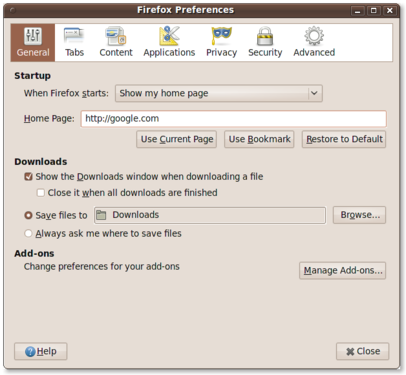
This will open the Firefox Preferences utility, which allows you to customize a wide range of Firefox settings. The primary setting that we’re looking for is the Home Page. In the default installation in Ubuntu 9.10, the Home Page is set to: chrome://ubufox/content/startpage.html. In future versions the Home Page will be set to Yahoo!. To update your Home Page, simply change the URL defined. The second screenshot below demonstrates defining Google as the preferred Home Page.

Firefox Preferences

Firefox Preferences

Firefox Preferences - Home Page : Google

Firefox Preferences - Home Page : Google

The change is minor between the two screenshots, but it does make a big difference. A users Home Page is the launching point for all Internet activity. It can allow you to quickly access your favorites sites, or provide you with tools you need. The change from Google to Yahoo! has been a controversial one, but one of the main benefits of Open Source Software is the ability to choose and customize. Changing your default Home Page and Search Provider simple.

Categories: Beginner Tags: ,

How to Change the Ubuntu Theme : Ubuntu Beginners

February 3rd, 2010 No comments

This article is part of a series entitled “Ubuntu Beginners” which walks new users through basic Desktop and Command Line usage. This article will detail how to change and customize your Ubuntu look by managing your themes. This article includes step-by-step instructions as well as screenshots, and is specific only to GNOME.

Changing The Theme

Ubuntu comes pre-installed with a number of Desktop themes. The default is called “Human”, and is what defines the characteristic Ubuntu earth-tone colors. Some users love the default theme and others don’t like it at all. The primary complaint that I’ve heard is that it is “too brown”. If you’d like to change your theme, follow the steps below.

To change your theme, you need to navigate to System > Preferences > Appearance, as outlined in the screenshot below:

System > Preferences > Appearance

System > Preferences > Appearance

This will launch the GNOME Appearance utility, which will default to a list of installed themes. You can easily change your theme in real-time by simply selecting a new theme from the list. The default installed themes are:

  • Clearlooks
  • Dark Room
  • Dust
  • Dust Sand
  • High Contrast Inverse
  • High Contrast Large Print Inverse
  • Human
  • Human-Clearlooks
  • New Wave
Appearence :: Theme

Appearence :: Theme

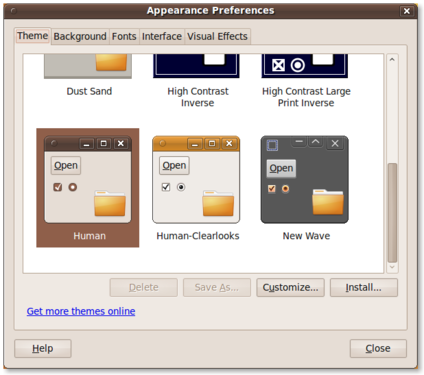
On a default installation of Ubuntu 9.10, you should have nine default themes installed to choose from. The screenshot below displays more from the list above.

Appearance :: Theme (cont.)

Appearance :: Theme (cont.)

You can instantly change your theme by selecting one of the listed themes within the window. The next two screenshots show the Dust and Dust Sand themes after being selected.

Appearance :: Dust Theme

Appearance :: Dust Theme

Appearance : Dust Sand Theme

Appearance : Dust Sand Theme

In a future article I will outline additional theme customizations, including Backgrounds, Fonts, Interface, and Visual Effects. Until then, why not try a few different themes and see how well you like them. Remember, if you want to put the theme back where it started, simply select “Human” from the list.

Categories: Beginner Tags: , ,

How to Change the Ubuntu Screensaver : Ubuntu Beginners

February 2nd, 2010 1 comment

This article is part of a series entitled “Ubuntu Beginners”, which walks new users through basic Desktop and Command Line usage. This article will detail how to change the Ubuntu screensaver, using the graphical interface. Included below are GNOME, and KDE.

Change Screensaver – GNOME

Ubuntu’s default screensaver is a blank screen, activated after five minutes of inactivity. If you’d like to change the screensaver, the inactivity timeout, or other settings, you can find out how below. I’ve included screenshots for navigating to, managing and updating your screensaver in Ubuntu.

Launching Screensaver Preferences

Launching Screensaver Preferences

You can now change your preferences in the Screensaver Preferences utility. This allows you to change the screensaver, update the idle timeout, lock or don’t lock the screen, etc.

Screensaver Preferences

Screensaver Preferences

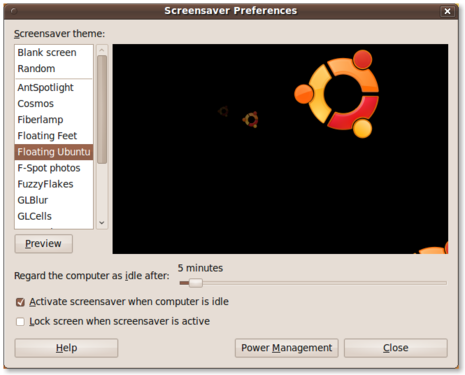
Finally, update the settings to reflect your preferences. Select a different screensaver from the list on the left, update the idle time, or lock the screen when the screensaver is active.

Floating Ubuntu - Screensaver Preferences

Floating Ubuntu - Screensaver Preferences

Change Screensaver – KDE

The screensaver settings in KDE are contained within the System Settings utility. You can launch this tool by clicking the Kickoff menu (bottom-left, on your bottom taskbar) and selecting System Settings.

System Settings

System Settings

From here you’ll want to select the ‘Desktop’ option. Screensaver preferences are held under the general Desktop settings.

Desktop Settings

Desktop Settings

The Desktop settings will then allow you to change the screensaver preferences. You’ll need to select ‘Screensaver’ from the list of options on the left side.

Screensaver

Screensaver

Conclusion

Updating the screensaver preferences in either of these major Desktop environments is a piece of cake. Simply navigate to the screensaver utility, select the screensaver of your choice and you’re set! Both of these environments also allow for security preferences, such as locking the screen when the screensaver is activated and requiring a password to unlock.

Categories: Beginner Tags: , , ,

How to Rename a File in Ubuntu : Ubuntu Beginners

February 1st, 2010 2 comments

This article is part of a series entitled “Ubuntu Beginners”, which walks new users through basic Desktop and Command Line usage. This article will detail how to rename files, using both the graphical interface as well as the command line. Included below are GNOME, KDE and command line methods.

Rename Files – Nautilus (GNOME)

If you are using the standard Ubuntu, which uses the GNOME Desktop Environment, the file manager is called Nautilus. Anytime you are browsing files or folders graphically, you are using Nautilus. I’ve included screenshots below displaying the default Home folder, selecting a document, and renaming the document.

This is the default Nautilus view in Ubuntu 9.10, displaying the contents of the home folder. You’ll notice that there are pre-populated directories (folders) for Documents, Downloads, Music, Pictures, etc.

Nautilus - Home Folder

Nautilus - Home Folder

In this next screenshot I’ve selected a document in my Documents folder, and selected the ‘Rename…’ option. This is done by selecting the file, right-clicking the mouse and selecting the ‘Rename…’ option.

Nautilus - Rename File

After selecting the ‘Rename…’ option, the file name will become editable. You can update the text to your preference, and rename your file.

Nautilus - Rename

Nautilus - Rename

Once you’ve updated the file name simply hit the [ENTER] key on your keyboard, or click your mouse anywhere outside of the editable text area. The edit-field will disappear and your file will have been renamed.

Rename Files – Dolphin (KDE)

If you have installed Kubuntu, the KDE-based Ubuntu variant, your file manager is called Dolphin. I’ve included screenshots of Dolphin, as well as the process of renaming files in Dolphin.

This is the default Home folder as displayed by the Dolphin file manager.

Dolphin - Home

Dolphin - Home

In order to rename a file, simply right-click on the file and select the ‘Rename…’ option. You’ll notice that Dolphin also provides a keyboard shortcut to rename using the F2 key. This means, instead of right-clicking and selecting ‘Rename…’ you can simply press F2 after the file has been selected.

Dolphin - Rename File

Lastly, enter the new name of the file into the dialog box and update your changes by hitting the [ENTER] key, or clicking the ‘Rename’ button.

Dolphin - Rename Item

Rename Files – Command Line (Linux)
The method of renaming a file on the command-line is generic to Linux. In other words, this method should apply to any Linux distribution, any version, and any variant.

In Linux, renaming a file is essentially the same as moving a file. Where moving a file is simply moving a file from one location to another, renaming a file is essentially moving the name of the file. The contents remain the same, we’ve simply moved the place where you’d find them–from one name to another.

To rename a file, using the following syntax:

mv welcome-to-ubuntu.doc renamed.doc

A few additional examples:

mv IMGOOO1.JPG release-party-pictures-1.jpg
mv IMGOOO2.JPG release-party-pictures-2.jpg

You get the idea. I understand it can be confusing to use the mv (move) command to rename a file, but you’ll find that you get used to it rather quickly and then not even think about it.

Conclusion
No matter the environment that you’re in, whether in be GNOME, KDE or the command-line, renaming files is simple. Right-click and select ‘Rename…’ is generally standard between graphical environments, and using mv on the command-line will work on all Linux distributions. I hope this beginner tip has been helpful.

Categories: Beginner Tags: , , , , ,