Archive

Archive for the ‘Ubuntu’ Category

Install Adobe Reader 9.3.2 on Ubuntu 10.04 LTS “Lucid Lynx”

July 11th, 2010 Christer Edwards 5 comments

The topic of installing Adobe products in Ubuntu has both been loved and hated by reader since the first time I outlined it. Some very much appreciate the clear steps outlining installation of the PDF reader application. Others despise the idea of proprietary software intermingling with their otherwise open source desktop. However you feel about Adobe Reader, love it or hate it, it is a popular application and in many cases required by users for work or otherwise. With each new Ubuntu release I outline how to install and update your Adobe Reader installation.

Repository Requirements (Optional)

Canonical, the parent company behind Ubuntu, has provided a repository to distribute Adobe Reader and similar applications. The method of installing Ubuntu by way of a repository is more automated than a direct download from the Adobe website. I’ll outline either version, but keep in mind that I prefer (and suggest!) the first. Configuring the partner repository is a requirement for the first option.

Canonical Partner Repository – Option 1

Installation of Adobe Reader 9 requires the activation of the Canonical Partner repository. You can add the Partner repository by following the steps outlined below.

  1. Navigate to System > Administration > Software Sources
  2. Select “Third Party” or “Other Software”
  3. Select “Add” and enter: deb http://archive.canonical.com/ lucid partner

You should now be able to install the latest version of Adobe Reader on Ubuntu 10.04 LTS by using the following command, or clicking the embedded link:

sudo aptitude install acroread

    Direct Download: Adobe.com – Option 2

    The alternate installation solution is to download Adobe Reader directly from the Adobe website. As a disclaimer, I should warn you that this method will not receive automatic updates and it is left to the user to download and install any future releases of this application.

    If you understand these requirements, continue to install Adobe Reader using the following steps:

    1. Visit this page: http://get.adobe.com/reader/otherversions/
    2. Select “Linux – x86 (.deb)” from the drop-down menu
    3. Select your preferred language
    4. Download the package

    Depending on your browser you may be prompted to open the package with the package installer, or it will simply save it to disk. If it saves to disk, you’ll simply need to double-click the archive for the installation to begin.

    Conclusion

    Most of my dealings with PDF files is managed by Evince, the default GNOME pdf reader. Occasionally however I need the Adobe-specific application. As with many of the readers here, I prefer the free software solution where possible, but sometimes it just isn’t possible. Love it or hate it, Adobe Reader is sometimes part of our lives.

    Again, I would suggest the first solution toward installing Adobe Reader as it will automatically manage security updates for you. The packages are provided directly from Canonical, Ubuntu’s parent company, and managed by Ubuntu staff. I trust these packages just as much (if not more) than the direct-from-adobe packages available in the secondary solution.

    If this article has been helpful, please consider linking to it.

    Categories: Ubuntu Tags: , , ,

    Install VirtualBox Guest Additions on VirtualBox Guests

    June 26th, 2010 Christer Edwards No comments

    I thought I would share a little bit more from the book I reviewed, “VirtualBox 3.1 Beginners Guide“. This book outlines the process of installing Guest Additions on your virtual machines. Guest additions allow you to greatly improve your experience when working inside virtual machines. Improved mouse and keyboard integration, improved video resolution and more! VirtualBox Guest Additions are a basic requirement for anyone wanting to properly run virtual machines in a graphical environment.

    In this article I will outline how to install VirtualBox Guest Additions on Windows and Linux virtual machines. If you have not previously run a Virtual Machine with Guest Additions, you’ve been missing out!

    Prerequisites

    This article assumes, of course, that you already have VirtualBox and a Virtual Machine installed. You’ll find instructions below for both Windows and Linux guests.

    Install VirtualBox Guest Additions on Windows

    To install VirtualBox Guest Additions, you’ll first need to boot and log into your Virtual Machine. In this case, launch your Windows Virtual Machine and follow these steps:

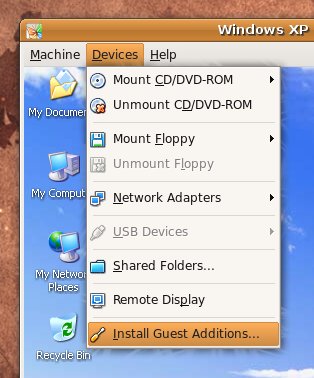
    VirtualBox Guest Additions

    1. In the VirtualBox menu of your running Virtual Machine, under Devices, select “Install Guest Additions”.
    2. Follow the prompts for the VirtualBox Guest Additions Setup.
    3. Reboot the Virtual Machine when prompted.
    4. Enjoy!

    You can always verify whether or not VirtualBox Guest Additions are installed in your Virtual Machine by looking in the system tray. If you see a small VirtualBox icon, VirtualBox Guest additions is installed an running properly.

    Install VirtualBox Guest Additions on Linux

    These instructions should apply to most Linux distributions. It is not limited to Ubuntu Virtual Machines.

    To install VirtualBox Guest Additions, you’ll first need to boot and log into your Virtual Machine. In this case, launch your Linux Virtual Machine and follow these steps:

    1. Ensure you have the ‘build-essential’ and ‘dkms’ packages installed in the Virtual Machine. This is required to compile the kernel modules required.
    2. In the VirtualBox menu of your running Virtual Machine, under Devices, select “Install Guest Additions”.
    3. This may prompt you with an auto-run prompt as it loads the CD image. You can skip this as you’ll need to run the installer from the Terminal.
    4. Open a Terminal and navigate to the VBOX* directory under /media.
    5. * Run: sudo ./VboxLinuxAdditions-x86.run
    6. If everything runs according to plan, you’ll be prompted to reboot your Virtual Machine.
    7. Enjoy!

    * Note: step 5 allows for 32bit or 64bit installations. If your Virtual Machine is a 64bit, run the ./VboxLinuxAdditions-amd64.run instead.

    You can always verify whether or not VirtualBox Guest Additions are installed in your Virtual Machine by looking in the system tray. If you see a small VirtualBox icon, VirtualBox Guest additions is installed and running properly.

    Conclusion

    After installing VirtualBox Guest Additions you’ll notice a great improvement in your Virtual Machine experience. You’ll have much better mouse and keyboard integration, improved video resolution, the ability to run in Full Screen and Seamless Window Integration, and much more. VirtualBox Guest Additions are required for anyone regularly running Virtual Machines, whether Windows or Linux.

    Note: I found this for those wishing to install VirtualBox Guest Additions on Fedora.

    Move Window Buttons Back to the Right : Ubuntu 10.04

    I wasn’t going to write this post. I was going to get used to the idea of my window buttons being on the left, instead of the right where I’m used to them. I was really going to try and use the Ubuntu “standard”. Well, after a little more than a month, I give up. If you’re the same and you’d like your window buttons back “where they belong”, this post will outline how to move window buttons back to the right.

    For those in a hurry,  I’ve outlined the quickest way known to man to move the window buttons back to the right. Open a terminal (Applications > Accessories > Terminal), and paste in the following command:

    gconftool -s /apps/metacity/general/button_layout -t string menu:minimize,maximize,close

    Magically your window buttons will be back to the “right” place.

    For those that are afraid of the terminal and their copy-paste functionality, you can follow these steps:

    1. Press ALT-F2 to open the application launcher.
    2. Enter ‘gconf-editor’
    3. Navigate to Apps > Metacity > General > Button Layout
    4. Change the string value to ‘menu:minimize,maximize,close’
    5. Exit gconf-editor

    Those steps aren’t too bad either. I prefer the first, of course, but perhaps it has a little too much “magic” to it.

    In conclusion I think the move is still controversial. I would have expected some of these controversial changes in a development release, but not an LTS (Long Term Support) release. In any case, I’m not here to make decisions.

    Categories: GNOME, Ubuntu Tags:

    Upgraded to Ubuntu 10.04 “Lucid Lynx”

    I know I’m a few days behind, but I finally upgraded this morning to 10.04 “Lucid Lynx” LTS release. So far my impression is that it is very well polished and has a professional look. I’m not referring to the “purple vs brown” change in look, but the overall polish of the interfaces and integration of tools.

    I did a fresh installation, which took a little bit longer than I remember previous versions taking, but it wasn’t bad. The introductory slideshow was nice as well. I can definitely see that as aimed toward new, non-technical adopters.

    I’m impressed to see the Ubuntu One integration into many of the applications. I’ve long been a “cloud user”, but usually those “clouds” are my own file servers stretched out here and there. It is nice to see Ubuntu One so seamlessly integrated into the applications so I don’t really have to think about it.

    I hope to have some new posts here coming up soon. I’d love to hear your thoughts and impressions on the new release as well. Drop by, leave a comment and tell us what you think!

    Categories: Ubuntu Tags: , ,

    Ubuntu 10.04 “Lucid Lynx” Torrent Link Collection

    Categories: Ubuntu Tags:

    35,000 Core Ubuntu Server Farm at Weta Digital

    January 20th, 2010 Christer Edwards 2 comments

    I just read an article over at Dustin Kirkland’s blog regarding the enormous server farm that Weta Digital has setup to render blockbuster movies. Apparently the latest Blockbuster, Avatar, had scenes rendered using a 35,000 core Ubuntu-based server farm. 35,000! That is hard to imagine! They’ve also rendered a few other films you may have heard of:

    • Avatar
    • District 9
    • The Day the Earth Stood Still
    • King Kong
    • Jumper
    • Lord of the Rings
    • Fantastic Four
    • i-Robot
    • X-Men
    • Eragon

    It is amazing to think that in just a few short years Ubuntu has gained such a reputation that it would be used for such high-end commercial services.

    A few years ago I did a talk at a local conference regarding Ubuntu in the Enterprise. Sadly, at the time, it was very hard to find any real solid documentation regarding large businesses using Ubuntu day-to-day. Sure it had crept onto some corporate desktops, but it was very hard to find it elsewhere. Now, we have stories like this and I’m sure this is just the tip of the iceberg!

    What other companies do you know that run Ubuntu in production? I’m sure many of us would be interested to find out where else it is being used.

    (Note: more details and links regarding Weta Digital and the source of this data at Dustin’s blog.)

    Categories: Ubuntu Tags: ,

    Continued Blog Improvements

    January 20th, 2010 Christer Edwards No comments

    I’m working this morning on some additional blog improvements. I’m focusing on speed and efficiency, as well as reader interaction. If you notice anything odd on the site, this is likely the reason.

    If you have any must-have WP plugin suggestions that I may be missing, I’d be glad to hear about them!

    Categories: Ubuntu Tags:

    Apt-Cacher and Apt-Mirror : Revisited

    January 20th, 2010 Christer Edwards No comments

    I’ve written a detailed article on the topic of creating your own Ubuntu repository mirror using the Apt-Mirror utility. This article also includes leveraging an Apt-Cacher, for consolidating and saving bandwidth between multiple machines. We regularly make use of both of these utilities to maintain our Ubuntu and Debian installations in my workplace. We have maintained an internal repository to support our developers (all running Ubuntu!) for over a year. I also make use of an Apt-Cacher at home, which is a great boost to my limited bandwidth.

    If you’d like to read my latest writeup on leveraging these two tools, see my article at Packt Publishing.

    Categories: Ubuntu Tags: , ,

    Install Adobe PDF Reader 9 on Ubuntu 9.10 “Karmic Koala”

    January 14th, 2010 Christer Edwards 10 comments

    UPDATE: This article has been update for Ubuntu 10.04 LTS. Please see Install Adobe Reader 9.3.2 on Ubuntu 10.04 “Lucid Lynx”.

    Adobe Reader 9 allows you to easily view, print, and collaborate on PDF files! Adobe Reader is the standard for electronic document sharing. It is the only PDF file viewer that can open and interact with all PDF documents. Use Adobe Reader 9 to view, search, digitally sign, verify, print, and collaborate on Adobe PDF files. In this article I will outline how to install the latest Adobe Reader release on Ubuntu 9.10 “Karmic Koala”.

    Requirements

    Installation of Adobe Reader 9 requires the activation of the Canonical Partner repository. You can add the Partner repository by following the steps outlined below.

    1. Navigate to System > Administration > Software Sources
    2. Select “Third Party” or “Other Software”
    3. Select “Add” and enter: deb http://archive.canonical.com/ karmic partner

    Installation

    Once the Partner repository is configured and active you are ready to install Adobe Reader 9. This can be done by running the following command within your terminal, or clicking the linked package name.

    sudo aptitude install acroread

    Use

    You should now be able to launch Adobe Reader 9 from your Applications menu. You can find it in Applications > Office > Adobe Reader 9, or in KDE: Office > Adobe Reader 9. This installation also prompts to set Adobe Reader 9 as the default PDF reader.

    Categories: Ubuntu Tags: , , ,

    Announcing Ubuntu Developer Week!

    January 13th, 2010 Christer Edwards No comments

    I wanted to pass on an announcement today that I think many of our readers will be interested in. If you want to get more involved in Ubuntu, or simply want a better understanding of how the participation and development process works, this is an event for you! I have participated in a number of these Ubuntu Developer Week events, and they are full of very good presentations. The only difficult thing is trying to keep up!

    From the Fridge:

    Welcome to the Ubuntu Developer Week! We will have one week of action-packed sessions from Jan 25th 2010 to Jan 29th2010!

    Ubuntu Developer Week is a series of online workshops where you can:

    • learn about different packaging techniques
    • find out more about different development teams
    • check out the efforts of the world-wide Development Community
    • participate in open Q&A sessions with Ubuntu developers
    • much more…

    All sessions will happen on IRC, and the best way to join is to use Lernid. (There are other ways too. :-) )

    If you’re not comfortable yet asking all your questions in English, we will have a couple of people helping to translate your questions and translating back the answers. Have a look at the Ubuntu Developer Week page to see how it works.

    Like the sound of it? DIGG IT!

    Visit The Fridge for more information.

    Categories: Ubuntu Tags: , , ,