Archive

Posts Tagged ‘skype’

Install Skype for Linux Beta v2.1.0.81 on Ubuntu 9.10
January 21st, 2010 3 comments

Skype just recently released an updated version of their desktop client for Linux, Skype Beta v2.1.0.81. This release fixes some major bugs and well as introduces some new features previously unavailable on the Linux release. I am very happy to see this version released as I use Skype quite regularly. Not only to talk to distant family, but also day-to-day as a standard home phone. Yes, that’s right. It is 2010 and I don’t even own a cell-phone! With high-speed internet so readily available between my home, office and public transportation, I simply use Skype as my contact phone number.

In this article I will outline how to install the latest Skype release directly from the Skype website. This version should fix the issues Ubuntu users previously had with Pulse Audio as well as issues presented by using dark themes in GNOME.

Requirements

If you currently have Skype installed, from the Medibuntu repository, you’ll want to remove that package. Until the Medibuntu team updates their release, the two packages might conflict.

You can uninstall the existing package using the command:

sudo aptitude remove skype

Installation

We’ll now grab the Skype for Linux Beta v2.1.0.81 package from the Skype website. The links below are direct-download links. Please select the appropriate architecture:

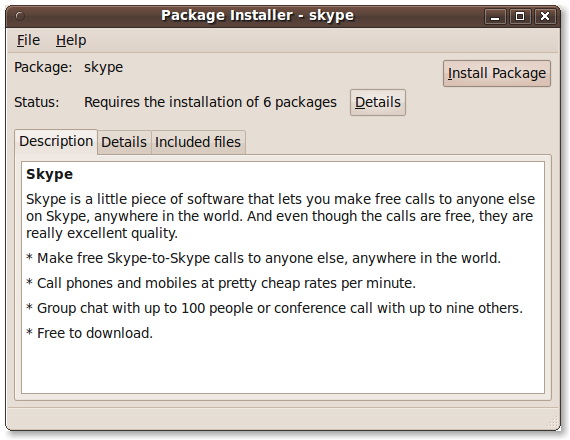
Once the package downloads you should be prompted to either “Save As…” or “Open With : GDebi Package Manager”. Select the latter which will launch a package management tool and install the package for you. If you are only prompted to “Save As”, you can simply double-click on the Skype download item in your Downloads window and the installer will launch.

If there are any needed dependencies these will be taken care of using this tool.

Applying GNOME Theme

This release now allows you to apply your GTK theme to the Skype desktop client. You can do this by launching Skype (Applications > Internet > Skype) and opening the “Options” menu. On the General tab you can now select “Choose Style” underneath the language selection option. This will allow your Skype client to better blend in with your GNOME Desktop.

New Features
This release of Skype includes a number of new features other than the bug fixes mentioned above. Some of these new features have been available on the OS X and Windows version, but are now also included in Linux. These include:

  • Screen Sharing
  • Report Abuse
  • Support for UI Styles
  • Message Quoting
  • Localized Time Formats

See the Skype Changelog for more detailed information.

Conclusion
Skype is a great tool for communicating with friends and family worldwide. It has become a required tool in my daily arsenal, and I think these new additions make it even better. If you haven’t used Skype in a while, I’d invite you to check out this release.

Categories: Linux Tags: ,

Install Skype 2.0 on Ubuntu 8.10 “Intrepid Ibex”

November 16th, 2008 28 comments

The past few days have been all about installing third-party applications.  Yes I know some of these are “non-free”, but it does seem like a lot of these are those apps that many of us just can’t do without.  So, to continue the series here we have Installing Skype 2.0 on Ubuntu 8.10.

Download The Package

The people behind Skype have provided packages for many Linux distributions.  The package that they include for Ubuntu is listed as “Ubuntu 7.04+”, which seems a bit outdated to me.  Yes, the package should work properly on Ubuntu 8.04 or 8.10, but I think they should update the listing to something more current. (hint hint)

In any event, to install Skype 2.0 on Ubuntu 8.10 simply head to the Skype Download Page and click the Ubuntu 7.04+ listing.  This should provide you with a package to save to your Desktop.  Once the download is finished simply double-click the file and the installation will take off.

I haven’t used Skype very much outside of close family and friends.  Is this something I should start using more?  What are your thoughts on Skype as a regular communication tool?

Categories: Ubuntu Tags: , ,

Microphone Support on the MacBook (Skype 2 Supported)

December 30th, 2007 2 comments

So I posted recently on how to get the camera working in Skype 2 Beta on the MacBook. One of the most common questions after that post was “But how do I get the microphone to work!?” So, I started toggling switches and trying stuff out until I could reproduce working microphone input. I did have this working in the past and I guess I must have lost the settings so I had to find them again…

Microphone on the Macbook

To get started right-click on the volume applet up near the clock and select the “Open Volume Control” option. This should open the volume control mixer application. What you’ll want to do within this application is select “Edit > Preferences”, which will present you with a long checklist of potential hardware items. The only items I have checked here are:

  • PCM
  • Input Source
  • Mux

PCM should be your main volume for audio output for best control. You can set that from the “Preferences” menu of the volume applet.

Input Source allows you to select the source of the microphone. Mic, Front Mic or Line.

Mux is the device/option I’m using for the Microphone input.

I have the “Playback” tab, on PCM, set to full and use the hardware keys to control volume. “Recording” tab, on Mux, is set to 1/3 volume. I find that I get too much static and noise set too far above that. “Options” is then set to Mic as the input.

Calls in Skype now sound great incoming and outgoing and the video works really well. I hope these similar settings work for everyone else. If you need to use alternate settings please leave a comment.

UPDATE: these instructions have been added to the Ubuntu community wiki as well. Ubuntu on the Macbook.

Categories: macbook Tags: , ,