Archive

Posts Tagged ‘Ubuntu’

Announcing Ubuntu User Day – January 23, 2010

January 13th, 2010 2 comments

Another exciting calendar item just arrived in my Inbox that I am sure many of you will be interested in. A new team has recently been formed to address the Ubuntu users that want to learn more, but aren’t quite ready for something as big as Ubuntu Developer week. These events are aimed at teaching the beginner and intermediate user how to improve their Ubuntu experience. From “Command Line Basics” to “Partitioning 101″, this event will teach you the skills you need to become a more proficient and more knowledgeable Ubuntu user!

From the announcement:

The Ubuntu User Days Team would like to announce the first Ubuntu User Day, on January 23, 2010. This will be a very informative one day session geared towards beginner and intermediate Ubuntu users, as well as people who are interested in using Ubuntu. We have 14 classes covering topics ranging from installing Ubuntu, finding help, equivalent programs, using IRC, getting involved in the Ubuntu Community and more. We have enlisted the help of many talented people to lead these classes throughout the day.

These classes will be taught in #ubuntu-classroom with questions being asked in #ubuntu-classroom-chat on irc.freenode.net. Please visit http://wiki.ubuntu.com/UserDays for a complete class list and schedule of classes.

There is also a Spanish version of Ubuntu User Days being offered on January, 23, 2010. Please visit Día Del Usuario Ubuntu at https://wiki.ubuntu.com/DiaDelUsuarioUbuntu for more information on the Spanish Ubuntu User Day!

I would invite anyone interested in improving their overall Ubuntu skill set to attend this event. Find out more by visiting the Ubuntu Wiki : UserDays. See you there!

Categories: Community Tags: , , , ,

[USN-884-1] OpenSSL vulnerability

January 13th, 2010 No comments

===========================================================
Ubuntu Security Notice USN-884-1           January 14, 2010
openssl vulnerability
CVE-2009-4355
===========================================================

It was discovered that OpenSSL did not correctly free unused memory in certain situations.  A remote attacker could trigger this flaw in services that used SSL, causing the service to use all available system memory, leading to a denial of service.

The problem can be corrected by upgrading your system to the
following package versions:

Ubuntu 6.06 LTS:
libssl0.9.8                     0.9.8a-7ubuntu0.11

Ubuntu 8.04 LTS:
libssl0.9.8                     0.9.8g-4ubuntu3.9

Ubuntu 8.10:
libssl0.9.8                     0.9.8g-10.1ubuntu2.6

Ubuntu 9.04:
libssl0.9.8                     0.9.8g-15ubuntu3.4

Ubuntu 9.10:
libssl0.9.8                     0.9.8g-16ubuntu3.1

After a standard system upgrade you need to restart any applications using OpenSSL, especially Apache, to effect the necessary changes.

Announcing Ubuntu Developer Week!

January 13th, 2010 No comments

I wanted to pass on an announcement today that I think many of our readers will be interested in. If you want to get more involved in Ubuntu, or simply want a better understanding of how the participation and development process works, this is an event for you! I have participated in a number of these Ubuntu Developer Week events, and they are full of very good presentations. The only difficult thing is trying to keep up!

From the Fridge:

Welcome to the Ubuntu Developer Week! We will have one week of action-packed sessions from Jan 25th 2010 to Jan 29th2010!

Ubuntu Developer Week is a series of online workshops where you can:

  • learn about different packaging techniques
  • find out more about different development teams
  • check out the efforts of the world-wide Development Community
  • participate in open Q&A sessions with Ubuntu developers
  • much more…

All sessions will happen on IRC, and the best way to join is to use Lernid. (There are other ways too. :-) )

If you’re not comfortable yet asking all your questions in English, we will have a couple of people helping to translate your questions and translating back the answers. Have a look at the Ubuntu Developer Week page to see how it works.

Like the sound of it? DIGG IT!

Visit The Fridge for more information.

Categories: Ubuntu Tags: , , ,

Remove The User List From Ubuntu 9.10 GDM Login Screen

December 23rd, 2009 6 comments

I’m really enjoying the latest additions in GNOME 2.28, but one thing that has been bugging me is the rewrite of the GDM login screen. Historically it has been possible to customize a number of options, including features such as activating or deactivating the user list. With this latest upgrade it seems that GDM has been completely rewritten and those previously accessible customizations are now gone or well hidden. I have, however, been able to find a way to disable the user list and, again, require a username to login.

I’m curious to see further improvements to the new GDM system, but until that time I prefer to require username and password to login, not just a password.

Disable User List

In order to disable the user list you’ll need to open a terminal and run the following command:

sudo -u gdm gconftool-2 --set --type boolean /apps/gdm/simple-greeter/disable_user_list true

Enable User List

If you’d like to re-enable the user list you can revert the above command using:

sudo -u gdm gconftool-2 --set --type boolean /apps/gdm/simple-greeter/disable_user_list false

Categories: GNOME Tags: , , , ,

Ubuntu 9.10 “Karmic Koala” Torrents Available Here

November 1st, 2009 1 comment

As you’re probably aware, Ubuntu 9.10 was released on Oct 29th, 2009. The best way to download these new images is by way of bittorrent.
Whether you are looking for the latest LiveCD, Server installation or Netbook Remix, we’ve got your torrents here. See the list below to find
your preferred image and start downloading! Please remember to seed once you’re finished, at least 2:1.

Ubuntu

Ubuntu 9.10 Alternate (text-based) 32bit Torrent

Ubuntu 9.10 Alternate (text-based) 64bit Torrent

Ubuntu 9.10 Desktop (LiveCD) 32bit Torrent

Ubuntu 9.10 Desktop (LiveCD) 64bit Torrent

Ubuntu 9.10 Netbook Remix 32bit Torrent

Ubuntu 9.10 Moblin Remix 32bit Torrent

Kubuntu

Kubuntu 9.10 Alternate (text-based) 32bit Torrent

Kubuntu 9.10 Alternate (text-based) 64bit Torrent

Kubuntu 9.10 Desktop (LiveCD) 32bit Torrent

Kubuntu 9.10 Desktop (LiveCD) 64bit Torrent

Kubuntu 9.10 Netbook Remix 32bit Torrent

Xubuntu

Xubuntu 9.10 Alternate (text-based) 32bit Torrent

Xubuntu 9.10 Alternate (text-based) 64bit Torrent

Xubuntu 9.10 Desktop (LiveCD) 32bit Torrent

Xubuntu 9.10 Desktop (LiveCD) 64bit Torrent

Ubuntu Studio

Ubuntu Studio 9.10 Alternate (text-based) 32bit Torrent

Ubuntu Studio 9.10 Alternate (text-based) 64bit Torrent

Ubuntu Server

Ubuntu 9.10 Server 32bit Torrent

Ubuntu 9.10 Server 64bit Torrent

Mythbuntu

Mythbuntu 9.10 Desktop 32bit Torrent

Mythbuntu 9.10 Desktop 64bit Torrent

Edubuntu

Edubuntu 9.10 DVD 32bit Torrent

Edubuntu 9.10 DVD 64bit Torrent

If I missed any, please let me know and I’ll add them. I’d like this list to be a definitive list of all available 9.10 torrents!

Use zsync to update existing .iso images (alpha, beta or RC -> final)

October 29th, 2009 6 comments

Happy Ubuntu release day! The latest and greatest that the Ubuntu team has to offer is now available for download. Good luck getting it from the main site though. The only chance of getting a reasonable download speed is getting it from an alternate location, or updating what you currently have! In this short article I will outline how to update your existing alpha, beta or RC images to the final image in a fraction of the time it takes to download the full CD!

zsync

The download mirrors for this release have started to include .zsync files. zsync is similar to rsync, but it puts the load on the client vs the server, and it allows you to update your existing images in a fraction of the time it would take to re-download the full image.

I just finished using zsync to update my existing RC image, and I had the final version in just under three minutes. Not bad considering the amount of people trying to download!

To get started using zsync you’ll need to run the following command (or click the link):

sudo aptitude install zsync

Once that is installed you’ll need to rename your existing image, whether it be the alpha, beta or RC image, to the final image. As an example, I did:

mv ubuntu-9.10-rc-desktop-i386.iso ubuntu-9.10-desktop-i386.iso

After you’ve renamed your image to match the final, you can run zsync using one of the commands below. Find your version (Desktop, Alternate, Netbook Remix or Server) and architecture:

32bit Desktop

zsync http://mirrors.cat.pdx.edu/ubuntu-releases/9.10/ubuntu-9.10-desktop-i386.iso.zsync
zsync http://ftp.usf.edu/pub/ubuntu-releases/9.10/ubuntu-9.10-desktop-i386.iso.zsync
zsync http://mirror.as29550.net/releases.ubuntu.com/9.10/ubuntu-9.10-desktop-i386.iso.zsync
zsync http://mirror.anl.gov/pub/ubuntu-iso/CDs-Ubuntu/9.10/ubuntu-9.10-desktop-i386.iso.zsync
zsync http://mirrors.xmission.com/ubuntu-cd/9.10/ubuntu-9.10-desktop-i386.iso.zsync
zsync http://ubuntu.osuosl.org/releases/9.10/ubuntu-9.10-desktop-i386.iso.zsync
zsync http://ubuntu.inode.at/cdimage/karmic/ubuntu-9.10-desktop-i386.iso.zsync

64bit Desktop

zsync http://mirrors.cat.pdx.edu/ubuntu-releases/9.10/ubuntu-9.10-desktop-amd64.iso.zsync
zsync http://ftp.usf.edu/pub/ubuntu-releases/9.10/ubuntu-9.10-desktop-amd64.iso.zsync
zsync http://mirror.as29550.net/releases.ubuntu.com/9.10/ubuntu-9.10-desktop-amd64.iso.zsync
zsync http://mirror.anl.gov/pub/ubuntu-iso/CDs-Ubuntu/9.10/ubuntu-9.10-desktop-amd64.iso.zsync
zsync http://ubuntu.osuosl.org/releases/9.10/ubuntu-9.10-desktop-amd64.iso.zsync
zsync http://mirrors.xmission.com/ubuntu-cd/9.10/ubuntu-9.10-desktop-amd64.iso.zsync
zsync http://ubuntu.inode.at/cdimage/karmic/ubuntu-9.10-desktop-amd64.iso.zsync

32bit Alternate

zsync http://mirrors.cat.pdx.edu/ubuntu-releases/9.10/ubuntu-9.10-alternate-i386.iso.zsync
zsync http://ftp.usf.edu/pub/ubuntu-releases/9.10/ubuntu-9.10-alternate-i386.iso.zsync
zsync http://mirror.as29550.net/releases.ubuntu.com/9.10/ubuntu-9.10-alternate-i386.iso.zsync
zsync http://mirror.anl.gov/pub/ubuntu-iso/CDs-Ubuntu/9.10/ubuntu-9.10-alternate-i386.iso.zsync
zsync http://ubuntu.osuosl.org/releases/9.10/ubuntu-9.10-alternate-i386.iso.zsync
zsync http://mirrors.xmission.com/ubuntu-cd/9.10/ubuntu-9.10-alternate-i386.iso.zsync
zsync http://ubuntu.inode.at/cdimage/karmic/ubuntu-9.10-alternate-i386.iso.zsync

64bit Alternate

zsync http://mirrors.cat.pdx.edu/ubuntu-releases/9.10/ubuntu-9.10-alternate-amd64.iso.zsync
zsync http://ftp.usf.edu/pub/ubuntu-releases/9.10/ubuntu-9.10-alternate-amd64.iso.zsync
zsync http://mirror.as29550.net/releases.ubuntu.com/9.10/ubuntu-9.10-alternate-amd64.iso.zsync
zsync http://mirror.anl.gov/pub/ubuntu-iso/CDs-Ubuntu/9.10/ubuntu-9.10-alternate-amd64.iso.zsync
zsync http://ubuntu.osuosl.org/releases/9.10/ubuntu-9.10-alternate-amd64.iso.zsync
zsync http://mirrors.xmission.com/ubuntu-cd/9.10/ubuntu-9.10-alternate-amd64.iso.zsync
zsync http://ubuntu.inode.at/cdimage/karmic/ubuntu-9.10-alternate-amd64.iso.zsync

32bit Netbook Remix

zsync http://mirrors.cat.pdx.edu/ubuntu-releases/9.10/ubuntu-9.10-netbook-remix-i386.iso.zsync
zsync http://ftp.usf.edu/pub/ubuntu-releases/9.10/ubuntu-9.10-netbook-remix-i386.iso.zsync
zsync http://mirror.as29550.net/releases.ubuntu.com/9.10/ubuntu-9.10-netbook-remix-i386.iso.zsync
zsync http://mirror.anl.gov/pub/ubuntu-iso/CDs-Ubuntu/9.10/ubuntu-9.10-netbook-remix-i386.iso.zsync
zsync http://ubuntu.osuosl.org/releases/9.10/ubuntu-9.10-netbook-remix-i386.iso.zsync
zsync http://mirrors.xmission.com/ubuntu-cd/9.10/ubuntu-9.10-netbook-remix-i386.iso.zsync
zsync http://ubuntu.inode.at/cdimage/karmic/ubuntu-9.10-netbook-remix-i386.iso.zsync

32bit Server

zsync http://mirrors.cat.pdx.edu/ubuntu-releases/9.10/ubuntu-9.10-server-i386.iso.zsync
zsync http://ftp.usf.edu/pub/ubuntu-releases/9.10/ubuntu-9.10-server-i386.iso.zsync
zsync http://mirror.as29550.net/releases.ubuntu.com/9.10/ubuntu-9.10-server-i386.iso.zsync
zsync http://mirror.anl.gov/pub/ubuntu-iso/CDs-Ubuntu/9.10/ubuntu-9.10-server-i386.iso.zsync
zsync http://ubuntu.osuosl.org/releases/9.10/ubuntu-9.10-server-i386.iso.zsync
zsync http://mirrors.xmission.com/ubuntu-cd/9.10/ubuntu-9.10-server-i386.iso.zsync
zsync http://ubuntu.inode.at/cdimage/karmic/ubuntu-9.10-server-i386.iso.zsync

64bit Server

zsync http://mirrors.cat.pdx.edu/ubuntu-releases/9.10/ubuntu-9.10-server-amd64.iso.zsync
zsync http://ftp.usf.edu/pub/ubuntu-releases/9.10/ubuntu-9.10-server-amd64.iso.zsync
zsync http://mirror.as29550.net/releases.ubuntu.com/9.10/ubuntu-9.10-server-amd64.iso.zsync
zsync http://mirror.anl.gov/pub/ubuntu-iso/CDs-Ubuntu/9.10/ubuntu-9.10-server-amd64.iso.zsync
zsync http://ubuntu.osuosl.org/releases/9.10/ubuntu-9.10-server-amd64.iso.zsync
zsync http://mirrors.xmission.com/ubuntu-cd/9.10/ubuntu-9.10-server-amd64.iso.zsync
zsync http://ubuntu.inode.at/cdimage/karmic/ubuntu-9.10-server-amd64.iso.zsync

zsync will automate the rest of the process by scanning your image, comparing it to the list of files on the final image, and then synchronizing the two. Your download speed may vary, but mine was finished in just a few minutes.

Once you have the final image please seed it by downloading the .torrent file and allow it to share the updated .iso!

Categories: Ubuntu, Upgrade Tags: , ,

How To Upgrade To Ubuntu 9.10 “Karmic Koala”

October 28th, 2009 8 comments

So the new Ubuntu is here and you’re just dying to upgrade and have a look at all the new features! With just a few simple steps you’ll be up and running the new system in no time! Before you dive right in there are a few things you should know, and a few ways to (hopefully) make your upgrade process more pleasant.

Upgrade vs Fresh Install

You may wonder if its a better idea to do a fresh install vs upgrade your current installation. There are benefits to doing a fresh installation, but there are also benefits to upgrading your system in place. First, you don’t need to deal with finding and backing up all of your data. Ever done that before and forget something? It’s easy to do. Doing a fresh installation will require that you backup anything you want to keep, because a fresh install will clobber your drive and start fresh. An upgrade on the other hand can be done in place, and you can generally keep working while it churns along in the background. Keep working on the web, or write emails. Do whatever it is that you normally do while your machine upgrades quietly in the background. This is not a problem with the upgrade process.

Another reason that I might suggest doing an in-place upgrade is that it is supposed to be a supported method to move from one release to another, and we should ensure that is the case by using and testing it. The last thing we want to do is provide new and exciting releases every six months, yet require everyone to start fresh each time. This goes particularly for those running Ubuntu that are not tech enthusiasts. Ubuntu should be easy to install, once, and then easy to upgrade as needed after that. I would suggest doing an in-place upgrade and ensure that process continues to mature.

Preparation

Before you get started there are a few things you should know.

First, this upgrade only works from Ubuntu 9.04 to 9.10. If you’re on a previous version (8.10 or earlier) you will not be able to directly upgrade to 9.10. In that situation you’ll either want to do a fresh installation OR do incremental upgrades leading up to 9.10. Incremental upgrades are beyond the scope of this article, but there is plenty of documentation regarding the process here.

Second, I suggest that you apply all available updates to your current system before you move to the new version. You can do this in two ways. One involves the command line and another includes the graphical interface. I’ll outline each below.

Command Line Updates (Pre-Upgrade)

On the command-line (Applications > Accessories > Terminal) you can run the following command to check for and apply any updates pending for your current installation.

sudo aptitude update && sudo aptitude safe-upgrade && sudo aptitude full-upgrade

Apply any updates that are pending from the command above before you move onto the next step, Upgrading. Follow any suggestions to reboot before moving on as well.

Graphical Updates (Pre-Upgrade)

If you prefer the graphical environment you can check for and apply updates by way of the Update Manager tool (System > Administration > Update Manager). This tool will automatically scan for and list any pending updates. Again, be sure to apply these before moving to the next step. This includes applying and rebooting for kernel updates before proceeding.

Selecting a Mirror

The steps outlined below describe how to do a network-based in-place upgrade. This will require an internet connection as well as a repository to connect to. I can’t stress this next point enough. Please. Please configure your system to use an alternate Ubuntu mirror other than the default. The default mirror(s) will be so overwhelmed with traffic that it’ll take forever to update your system. I might suggest using something like mirrors.kernel.org or another public mirror with a healthy pipe. You can also look for regional mirrors here. The list of regional mirrors also communicates how up to date the mirror is. You will, of course, need to select and up to date mirror.

To configure your system to use an alternate mirror you can follow the following steps:

  1. Open “Update Manager” (System > Administration > Update Manager)
  2. Click “Settings”
  3. On the “Ubuntu Software” tab there is a drop-down box labeled “Download From”
  4. Select “Other”
  5. Manually select a regional mirror OR click the button “Select Best Server”

Choose a Download Server

Upgrading to Ubuntu 9.10

So you’ve applied all of the pending updates for Ubuntu 9.04 and now you’re ready to move on to Ubuntu 9.10. As above, this can be done via the command line or graphical interface. In this case, I might suggest the graphical interface.

Navigate to System > Administration > Update Manager and let it scan for available updates.

Update-Manager

If you are reading this after the release of Ubuntu 9.10 (Oct 29th), this tool will automatically suggest that there is a new version available and offer to let you upgrade. This process will be automated for the most part, and quietly work in the background while you continue with your day. When it is finished it will suggest that you reboot your machine for the changes to take effect. When your machine comes back up you’ll be ready with Ubuntu 9.10.

Enjoy!

Categories: Ubuntu, Upgrade Tags: , , , , ,

What’s New In Ubuntu 9.10 “Karmic Koala”

October 27th, 2009 2 comments

Well it’s almost here! Ubuntu 9.10 “Karmic Koala” will be released in just a few short days (Oct 29th) and this release has packed in a long list of new and exciting features. From boot time to Desktop, Ubuntu 9.10 continues in the tradition of offering the best that Free Software has to offer. Let’s take a quick look at some of the changes available.

Upstart

Upstart has been included in Ubuntu for a number of releases now, but with Ubuntu 9.10 there have been some major improvements. Previous releases of Upstart in Ubuntu were incremental. The plan was to ease into the new system. Ubuntu 9.10 now offers Upstart in its entirety. Congratulations!

Upstart is an “under the hood” change that you may not notice right away, but by the release of Ubuntu 10.04 the changes will be more apparent. Upstart is the tool that handles the boot up sequence, meaning it handles what daemons and services are started at boot time and in which order. Upstart is really a big shift from the traditional (and aging!) SystemV init sequence that you’ll find on most other major Linux distributions. While traditional systems use a pre-defined order of operations, Upstart handles the boot process in a more event-driven manner. This has and will continue to improve the boot times you find on Ubuntu.

Upstart has also been adopted by Fedora, which is great news. More adoption means better stability and more attention paid to the project. I’m happy to hear that Fedora has decided to adopt this exciting new technology.

You can read much more about Upstart at http://upstart.ubuntu.com.

XSplash

The addition of XSplash is another boot-time improvement that I think you’ll enjoy in Ubuntu 9.10. This replaces the short-lived USplash that was found in the previous release. I had problems with USplash so I’m happy to see it replaced with something else. So far XSplash has been a nice change (based on initial Beta and RC testing), and I don’t experience any flicker or similar during boot up. XSplash also offers a new splash screen during boot, which I like. There isn’t a whole lot more to say about XSplash, other than I think you’ll be impressed with the change since Ubuntu 9.04.

Security, Security, Security

Ubuntu 9.10 offers a lot of improvements in terms of security. From the kernel to the Desktop there have been security-minded changes that will help you feel more secure on this rock-solid platform.

Ubuntu 9.10 enables a feature called “non-exec memory” in the Linux kernel. This means that Ubuntu is able to activate protections for non-executable memory regions such as heaps or stacks. This feature is generally referred to as Non-eXecute (NX) or eXecute-Disable (XD). In the past this feature required PAE enabled kernels, but is now partially emulated on 32-bit systems without PAE support. 64-bit systems are protected by this feature as well.

In addition, the kernel offered with Ubuntu 9.10 offers the possibility to disable the loading of any additional kernel modules once the system is up and running. This adds yet another layer of protection against potential security vulnerabilities. In certain cases, an attacker will require the addition of a malicious kernel module in order to take control of a system. With this feature enabled this type of vulnerability is no longer possible. While this may not be something that the day-to-day Desktop user may use or appreciate, this is a huge win for Server installations and multi-user environments.

Desktop Love

Likely the most noticeable change to the end-user are the changes made to the Desktop environment with GNOME 2.28. I think this has been another fantastic release from the GNOME Foundation and I think you’ll agree. For those of you that have seen the new GNOME Shell demonstrations, GNOME 2.28 might be the last release before GNOME Shell hits us. I’m super excited to see GNOME Shell, don’t get me wrong, but this could be the last release in the environment that we’re used to. (As far as I understand, it is still undecided whether GNOME Shell will ship with GNOME 2.30 or 2.32).

GNOME 2.28 offers a number of new features as well as stability and general improvements. For those that use Bluetooth enabled devices, you’ll love the new GNOME Bluetooth management tool. GNOME Bluetooth supports hundreds of Bluetooth devices, including mice, keyboards and headsets. This also includes PulseAudio integration for headsets and headphones. Also included with GNOME Bluetooth is the ability to access the internet through your Bluetooth enabled mobile phone. No more tethering! This is exciting news!

You’ll also notice some Ubuntu-specific interface improvements, such as the notification system and tray. Very clean default icons in the tray, and the Growl-like popup notifications are improved as well. The default theme, icons and login window are improved since Ubuntu 9.04 as well. Also, an improvement that I’m particularly excited about, is the addition of my favorite themes and fonts to the core Ubuntu repositories. These packages include:

Conclusion

I have to say that this has been a very solid release so far. With so many improvements both under the hood and on the user interface, you’ll be hard pressed to find someone that doesn’t find something new and exciting about Ubuntu 9.10. The best part though? All of these improvements are merely leading up to the powerhouse that will be Ubuntu 10.04, the next Ubuntu Long Term Support (LTS) release. With goals of 10 second boot times, improvements in the new Ubuntu Software Center, improved Artwork, as well as a long list of other improvements, Ubuntu 10.04 is sure to blow you away!

Categories: Ubuntu Tags: , ,

Announcing the Release Candidate for Ubuntu 9.10

October 22nd, 2009 No comments

The Ubuntu team is pleased to announce the Release Candidate for Ubuntu 9.10 Desktop and Server editions, Ubuntu 9.10 Server for UEC and EC2, and the Ubuntu Netbook Remix. Codenamed “Karmic Koala”, 9.10 continues Ubuntu’s proud tradition of integrating the latest and greatest open source technologies into a high-quality, easy-to-use Linux distribution.

We consider this release candidate to be complete, stable, and suitable for
testing by any user.

Ubuntu 9.10 Desktop Edition improves on the work of 9.04 to get you going faster, with improved startup times and a streamlined boot experience.

Ubuntu 9.10 Server Edition integrates Ubuntu Enterprise Cloud setup in the installer and provides improvements to system security with AppArmor, including an AppArmor profile for libvirtd to further isolate virtual machines from the host system.

Ubuntu 9.10 Server for UEC and EC2 brings the power and stability of the Ubuntu Server Edition to cloud computing, whether you’re using Amazon EC2 or your own Ubuntu Enterprise Cloud.

The Ubuntu 9.10 family of variants, Kubuntu, Xubuntu, Edubuntu, Ubuntu Studio, and Mythbuntu, also reach RC status today. This release sees the first technology preview of Kubuntu Netbook.

The final release of Ubuntu 9.10 is scheduled for 29 October 2009 and will be supported for 18 months on both desktops and servers. Users requiring a longer support lifetime on the server may choose to continue using Ubuntu 8.04 LTS, with security support until 2013, rather than upgrade to 9.10.

Before installing or upgrading to Ubuntu 9.10 please review the instructions and caveats in the release notes:

http://www.ubuntu.com/getubuntu/releasenotes/910

In addition, there are a small number of known bugs in the release candidate that will be fixed before the Ubuntu 9.10 release, but warrant highlighting for your attention:

http://www.ubuntu.com/getubuntu/releasenotes/910overview#Known%20issues

About The Release Candidate
—————————

The purpose of the Release Candidate is to solicit one last round of testing before the final release. Here are ways that you can help:

* Upgrade from Ubuntu 9.04 to the Release Candidate by following the instructions in the release notes referenced above.

* Participate in installation testing using the Release Candidate CD images, by following the testing and reporting instructions at
http://wiki.ubuntu.com/Testing/ISO

Desktop features
—————-

GNOME 2.28 featuring Empathy: with this latest release, Ubuntu now uses the Empathy instant messaging service by default, introducing the Telepathy framework.

Ubuntu Software Center: the first step in a replacement for Add/Remove Software has landed.

New boot experience: multiple changes to look, feel and speed of the boot experience have been included in the Ubuntu 9.10 release candidate.

Server features
—————

Cloud computing: Ubuntu 9.10 builds on the tantalizing cloud support in Ubuntu 9.04, with support for Eucalyptus configuration at install time and publishing of standard VM images for UEC.

AppArmor: Ubuntu 9.10 continues to raise the bar for server security, with AppArmor profiles enabled by default for ntpd and libvirt providing another layer of protection from attacks on the network or via guest virtual machines.

UEC and EC2: Ubuntu 9.10 includes the first official release of Ubuntu Server images for UEC and for Amazon’s EC2, giving you everything you need for rapid deployment of Ubuntu instances in a cloud computing environment. UEC images, and information on running Ubuntu 9.10 on EC2, are available at:

http://uec-images.ubuntu.com/releases/9.10/rc

Ubuntu Netbook Remix features
—————————–
Ubuntu Netbook Remix is optimised for Intel Atom netbooks and compatible x86 devices. It includes a new consumer-friendly interface that allows users to quickly and easily get on-line and use their favourite applications. This interface is optimised for a retail sales environment.

It includes the same faster boot times and improved boot experience as Ubuntu desktop.

Kubuntu features
—————-

Kubuntu 9.10, built on KDE 4.3, brings users a complete, full-featured KDE 4 desktop with many new applications and innovations.

This is the first release for a new Kubuntu variant, Kubuntu Netbook Edition. Built on a Kubuntu base, it brings users an exciting first look at KDE’s netbook-oriented desktop environment.

New features include better integration with OpenOffice.org and various social website connections for applications. Notable problems with network management and user configuration have been fixed.

Please see https://wiki.kubuntu.org/KarmicKoala/RC/Kubuntu for all the details.

For upgrade instructions from Kubuntu 9.04 or 8.04 see
https://help.ubuntu.com/community/KarmicUpgrades/Kubuntu

Xubuntu features
—————-

Xubuntu 9.10 comes with the light-weight Xfce 4.6 desktop environment to provide a desktop designed for productivity while conserving system resources.

Xubuntu 9.10 is proud to offer an improved multimedia experience with the Exaile media player, a more integrated power management solution with the Xfce4 power manager, and more convenience built right in with improved multimedia volume key support and more consistent desktop notifications.

Please see https://wiki.ubuntu.com/Xubuntu/KarmicKoala/RC for the full list and details about all the great enhancements Xubuntu 9.10 has to offer.

Edubuntu features
—————–

Edubuntu 9.10 transitions from an add-on educational CD that depended on an existing Ubuntu installation to a full Ubuntu derivative delivered on as a DVD image. This allows prospective users and decision makers to try the educational offerings prior to installation and the flexibility to make Edubuntu a first class educational operating system.

Mythbuntu features
——————

Mythbuntu 9.10 introduces MythTV 0.22. The entire stack has been ported to QT4 and now allows for very neat UI effects. Also 0.22 adds support for VDPAU hardware acceleration, and HD-PVR hardware support.

Please see http://www.mythtv.org/wiki/Release_Notes_-_0.22 for more details about changes introduced in 0.22.

See http://mythbuntu.org/9.10/rc for information about the Mythbuntu release candidate.

A more complete tour of the features new in 9.10 can be found at
http://www.ubuntu.com/getubuntu/releasenotes/910overview

About Ubuntu
————

Ubuntu is a full-featured Linux distribution for desktops, laptops, netbooks and servers, with a fast and easy installation and regular releases. A tightly-integrated selection of excellent applications is included, and an incredible variety of add-on software is just a few clicks away.

Professional services including support are available from Canonical and hundreds of other companies around the world. For more information about support, visit http://www.ubuntu.com/support

To Get the Ubuntu 9.10 Release Candidate
—————————————-

To upgrade to Ubuntu 9.10 Release Candidate from Ubuntu 9.04, follow these instructions:

https://help.ubuntu.com/community/KarmicUpgrades

Or, to perform a new installation or try out 9.10 “live” from CD, download the Ubuntu 9.10 Release Candidate here (choose the mirror closest to you):

Asia:

* http://mirror.unej.ac.id/ubuntu-cd/9.10 (Indonesia)
* http://ubuntu.qualitynet.net/releases/9.10 (Kuwait)
* http://ftp.linux.org.tr/ubuntu-releases/9.10 (Turkey)

Europe:

* http://ubuntu.ipacct.com/releases/9.10 (Bulgaria)
* http://ucho.ignum.cz/ubuntu-releases/9.10 (Czechia)
* http://ubuntu.univ-nantes.fr/ubuntu-cd/9.10 (France)
* http://ftp.uni-kl.de/pub/linux/ubuntu.iso/9.10 (Germany)
* http://ie.releases.ubuntu.com/9.10 (Ireland)
* http://releases.ubuntu.fastbull.org/ubuntu-releases/9.10 (Italy)
* http://no.releases.ubuntu.com/9.10 (Norway)
* http://se.releases.ubuntu.com/9.10 (Sweden)

North America:

* http://mirror.anl.gov/pub/ubuntu-iso/CDs/9.10 (United States)
* http://mirror.csclub.uwaterloo.ca/ubuntu-releases/9.10 (Canada)
* http://mirrors.cat.pdx.edu/ubuntu-releases/9.10 (United States)
* http://ubuntu.media.mit.edu/ubuntu-releases/9.10 (United States)

Oceania/Australia:

* http://ftp.citylink.co.nz/ubuntu-releases/9.10 (New Zealand)

South America:

* http://mirrors.ucr.ac.cr/ubuntu-cd/9.10 (Costa Rica)

Rest of the world:

http://releases.ubuntu.com/9.10 (Great Britain)

Please download using Bittorrent if possible. See https://help.ubuntu.com/community/BitTorrent for more information about using BitTorrent.

Feedback and Participation
————————–

If you would like to help shape Ubuntu, take a look at the list of ways you can participate at

http://www.ubuntu.com/community/participate/

Your comments, bug reports, patches and suggestions will help turn this Release Candidate into the best release of Ubuntu ever. Please note that, where possible, we prefer that bugs be reported using the tools provided, rather than by visiting Launchpad directly. Instructions can be found at

https://help.ubuntu.com/community/ReportingBugs

If you have a question, or if you think you may have found a bug but are not sure, first try asking on the #ubuntu IRC channel on FreeNode, on the Ubuntu Users mailing list, or on the Ubuntu forums:

http://lists.ubuntu.com/mailman/listinfo/ubuntu-users
http://www.ubuntuforums.org/

More Information
—————-

You can find out more about Ubuntu and about this preview release on our website, IRC channel and wiki. If you are new to Ubuntu, please visit:

http://www.ubuntu.com/

To sign up for future Ubuntu announcements, please subscribe to Ubuntu’s very low volume announcement list at:

http://lists.ubuntu.com/mailman/listinfo/ubuntu-announce

Categories: Ubuntu Tags: , , , , ,

Ubuntu 9.10 “Karmic Koala” Beta Reviewed (Screenshots!)

October 2nd, 2009 15 comments

Yesterday I installed the Ubuntu 9.10 “Karmic Koala” Beta release by way of the desktop (Live-CD) based installer. The installation was very clean and polished. It has been a while since I’ve used a graphical installer and I am pleased with the improvements that I found. It definitely rivals any “professional” or “enterprise” install session that I’ve ever seen, and easily beats them in terms of speed and ease. I’d like to give a short review of the Beta release and encourage everyone to try it and finalize any remaining bugs.

Installation

The installation was quick and painless. All of the questions were asked in the beginning and then the installer took over. During the installation messages were displayed regarding the benefits of Ubuntu and the software that it provided. Below are some screenshots of the installation process.

ubuntu-beta-install-1

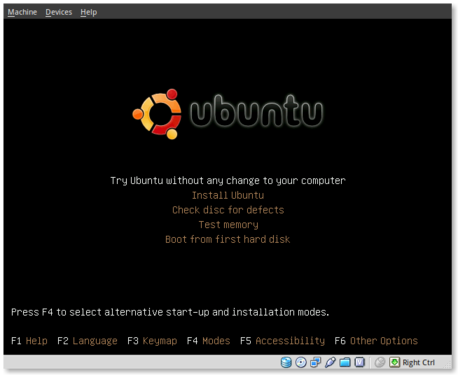
This is the initial installation screen. As you can see it offers a number of options including disk and memory checks, as well as booting off existing installations. I selected “Install Ubuntu” and hit [ENTER].

ubuntu-beta-install-2

This appears to be the initial boot splash screen while the Live-CD installer is booting.

ubuntu-beta-install-3

A preview of the new default wallpaper.

ubuntu-beta-install-4

Welcome to the installer! Select your preferred language. This language will be used during and after the installation.

ubuntu-beta-install-5

Select your timezone. I very much like this improved location selector tool. Instead of trying to find myself on a map that zooms in and out (you may remember what I’m referring to from previous releases), this simply slices up the world into timezones and allows you to select yours.

ubuntu-beta-install-6

Select your keyboard layout. For US English standard qwerty layouts you can click forward. I needed to select “Choose your own:” and “USA – Dvorak” for my layout.

ubuntu-beta-install-7

Partitioning was simple. I erased and used the entire disk.

ubuntu-beta-install-8

Username information. Enter your full name, username and password information. Remember that this user will also act as the initial administrator.

I also like the addition of the “Require my password to log in and to decrypt my home folder” as well as the other options. I selected the last option and am using the encrypted home folder system.

ubuntu-beta-install-9

Final review point before installation. From here you can still go back and make changes. Once you click install it should be hands free from here out.

ubuntu-beta-install-10

Welcome to Ubuntu 9.10 – “Ubuntu is designed to be easy. Feel free to explore!”

ubuntu-beta-install-11

Browse the web with Firefox

ubuntu-beta-install-12

Relive Memories with F-Spot Photo Manager

ubuntu-beta-install-13

Accessibility in Ubuntu

ubuntu-beta-install-14

Control your digital life with Evolution

ubuntu-beta-install-15

Keep in contact with Empathy IM

ubuntu-beta-install-16

Office tools at your fingertips

ubuntu-beta-install-17

Watch and listen on Ubuntu

ubuntu-beta-install-18

Installing additional software

ubuntu-beta-install-19

Getting Help with Ubuntu

ubuntu-beta-install-21

Post Installation

Installation complete. At this point you can restart the machine and your installation should be done.

after-installation

This is a screenshot of my final installation. I have changed the following:

Conclusion

So far I think this release seems very polished. The graphics and artwork are very clean and professional. I had no trouble getting things installed properly, and I haven’t had any issues post-installation. The notification system appears to be a little more polished as compared to 9.04. We’ll see what my feelings are with continued use.

So far I am pleased with this release and would confidently suggest it to others, even if it is the Beta release.

Bugs

I did submit two bugs since I installed. I’ve listed them below for feedback, verification and hopefully closure: