Archive

Archive for the ‘virtualization’ Category

Install VirtualBox Guest Additions on VirtualBox Guests

June 26th, 2010 Christer Edwards No comments

I thought I would share a little bit more from the book I reviewed, “VirtualBox 3.1 Beginners Guide“. This book outlines the process of installing Guest Additions on your virtual machines. Guest additions allow you to greatly improve your experience when working inside virtual machines. Improved mouse and keyboard integration, improved video resolution and more! VirtualBox Guest Additions are a basic requirement for anyone wanting to properly run virtual machines in a graphical environment.

In this article I will outline how to install VirtualBox Guest Additions on Windows and Linux virtual machines. If you have not previously run a Virtual Machine with Guest Additions, you’ve been missing out!

Prerequisites

This article assumes, of course, that you already have VirtualBox and a Virtual Machine installed. You’ll find instructions below for both Windows and Linux guests.

Install VirtualBox Guest Additions on Windows

To install VirtualBox Guest Additions, you’ll first need to boot and log into your Virtual Machine. In this case, launch your Windows Virtual Machine and follow these steps:

VirtualBox Guest Additions

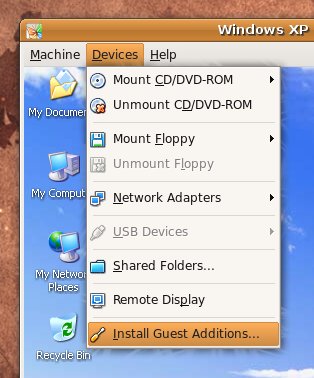
  1. In the VirtualBox menu of your running Virtual Machine, under Devices, select “Install Guest Additions”.
  2. Follow the prompts for the VirtualBox Guest Additions Setup.
  3. Reboot the Virtual Machine when prompted.
  4. Enjoy!

You can always verify whether or not VirtualBox Guest Additions are installed in your Virtual Machine by looking in the system tray. If you see a small VirtualBox icon, VirtualBox Guest additions is installed an running properly.

Install VirtualBox Guest Additions on Linux

These instructions should apply to most Linux distributions. It is not limited to Ubuntu Virtual Machines.

To install VirtualBox Guest Additions, you’ll first need to boot and log into your Virtual Machine. In this case, launch your Linux Virtual Machine and follow these steps:

  1. Ensure you have the ‘build-essential’ and ‘dkms’ packages installed in the Virtual Machine. This is required to compile the kernel modules required.
  2. In the VirtualBox menu of your running Virtual Machine, under Devices, select “Install Guest Additions”.
  3. This may prompt you with an auto-run prompt as it loads the CD image. You can skip this as you’ll need to run the installer from the Terminal.
  4. Open a Terminal and navigate to the VBOX* directory under /media.
  5. * Run: sudo ./VboxLinuxAdditions-x86.run
  6. If everything runs according to plan, you’ll be prompted to reboot your Virtual Machine.
  7. Enjoy!

* Note: step 5 allows for 32bit or 64bit installations. If your Virtual Machine is a 64bit, run the ./VboxLinuxAdditions-amd64.run instead.

You can always verify whether or not VirtualBox Guest Additions are installed in your Virtual Machine by looking in the system tray. If you see a small VirtualBox icon, VirtualBox Guest additions is installed and running properly.

Conclusion

After installing VirtualBox Guest Additions you’ll notice a great improvement in your Virtual Machine experience. You’ll have much better mouse and keyboard integration, improved video resolution, the ability to run in Full Screen and Seamless Window Integration, and much more. VirtualBox Guest Additions are required for anyone regularly running Virtual Machines, whether Windows or Linux.

Note: I found this for those wishing to install VirtualBox Guest Additions on Fedora.

If this article has been helpful, please consider linking to it.

VirtualBox 3.1 Beginners Guide : Review

June 20th, 2010 Christer Edwards 1 comment

I am a big fan of VirtualBox as a desktop virtualization technology. I have it installed on my machine and I’m constantly using it to try out new distributions and learn new technologies. It really is a great tool! I have seen it grow from a new project into the fully featured, efficient virtualization competitor that it is today.

I was recently sent a copy of the newly released “VirtualBox 3.1 Beginner’s Guide“, which outlines deploying and managing a cost-effective virtual environment using VirtualBox. I want to thank Packt Publishing for sharing a copy with me, and I’d like to share my review of the book here. I hope some of you will take the time to check out the Packt Publishing website as a resource for technical books.

VirtualBox 3.1 Beginners Guide

The first thing I have to say about this book is that it is very detail oriented.  It truly is a beginners guide. I’m positive I could give this book to my father and he’d be able to install, configure and run VirtualBox on Windows or Linux. It outlines, in step-by-step detail, everything you’d like to know about VirtualBox. Even though I consider myself a Virtualbox veteran, I followed along with some of the tutorials and was impressed that no detail was left out.

One of the things that really stands out about this title is that it includes a huge number of screenshots. The number of screenshots in the book provide any beginner with the visual roadmap they need to complete the task at hand. It covers installing VirtualBox on both a Windows and Ubuntu host, as well as installing and configuring the reverse as guests. If you’ve never installed VirtualBox before, you’ll have an installation up and running in just a few minutes.

Beyond installation and configuration, this book goes into detail regarding the command line options (I learned quite a bit from this chapter!) as well. VirtualBox provides a full set of command line tools for starting, stopping, configuring, cloning and creating virtual machines. This makes it a perfectly reasonable candidate for a headless server virtualization solution!

This book covers guest additions, disk and image creation and management, all networking options and how they differ, using and creating virtual appliances, using snapshots and even remote management. It really is a good resource for getting started with Virtualization. I’m glad to have a copy of this book in my collection.

The sections that were the most useful for me were the networking and command line chapters. I was not familiar with any of the command line tools, and the networking was a little blurry for me. Before getting a copy of this book I was unfamiliar with virtualized networking beyond NAT and Bridged. This book went into enough networking detail that I’m very comfortable with each of the networking options and in what situations each might apply. This will really boost my efficiency and productivity with VirtualBox.

For anyone wanting to learn more about virtualization or doing research into cost-effective virtual environment solutions, I would highly recommend VirtualBox 3.1 Beginner’s Guide.

VirtualBox 3.1 Beginners Guide : Sample Chapter

June 18th, 2010 Christer Edwards No comments

I’ve written quite a bit on this blog regarding Virtualization in the past. I think I’ve covered VirtualBox as well as VMware. If you haven’t noticed, I prefer the former. Free Software vs non-free is a big win, plus the performance gain that I’ve seen in VirtualBox has been great. For testing other distributions and doing simple work (non-server) installations, I think VirtualBox works the best.

I was recently sent a copy of “VirtualBox 3.1 Beginners Guide: Deploy and manage a cost-effective virtual environment using VirtualBox” by Packt Publishing. I’ll have a full review out soon, but I wanted to share this sample chapter that they have published as a .pdf.

The sample chapter is a 42 page chapter outlining getting started with VirtualBox. This includes installation, configuration and even outlines the installation of a simple Linux distribution as a guest, DSL (Damn Small Linux). For a “sample” it is actually quite impressive, and goes into a great amount of detail.

I’ll have a full review of the book here soon, but in the meantime have a look at the sample chapter and let me know what you think.

Categories: virtualization Tags: ,

Install VirtualBox on Ubuntu 9.10 “Karmic Koala”

January 15th, 2010 Christer Edwards 8 comments

I am, as I’m sure many of you are, avid users of virtualization. Virtualization allows us to test new releases, other distributions, and otherwise sandbox operating systems and applications that we wouldn’t otherwise be able to (or want to!) run on our stable system. In this article I will outline how to install the latest VirtualBox release using the VirtualBox / Sun repository. This will ensure your installation remains up to date, and stays within the package management system.

Requirements

In order to install the latest VirtualBox release we’ll need to configure and activate the VirtualBox repository. This is done by following the steps below:

  1. (GNOME) Navigate to: System > Administration > Software Sources
  2. (KDE) Navigate to: System Settings > Add and Remove Software > Settings > Edit Software Sources
  3. Select the “Other Software” tab.
  4. Add: deb http://download.virtualbox.org/virtualbox/debian karmic non-free

You’ll also want to import the package signing key, using the command:

wget -q http://download.virtualbox.org/virtualbox/debian/sun_vbox.asc -O- | sudo apt-key add -

Installation

Once you have the upstream VirtualBox repository activated, you’re able to install the latest VirtualBox release using the command below. You may also click on the linked package name:

sudo aptitude install virtualbox-3.1

Use

Before you are able to use VirtualBox you will need to add yourself to the required group. This facilitates access to the vboxdrv system device. Use the following command to add yourself to the required group:

sudo gpasswd -a <username> vboxusers

Once you have applied this change you will need to logout and log back in. This is required for the group-access change to take effect.

After you are logged back in you should be able to successfully launch VirtualBox from: Applications > System Tools > VirtualBox

How To Convert VMWare Image (.vmdk) to VirtualBox Image (.vdi)

March 22nd, 2009 Christer Edwards 19 comments

I’ve found more and more people are switching to Virtualbox these days and I keep running into the same question.  ”How can I convert my VMware images to Virtualbox images?”  Well, breath easy because it is possible and not very difficult!

There are two methods that I am aware of that will allow you to use your VMware images on Virtualbox.  The first method I’ll outline uses the graphical Virtualbox interface and the second uses the command line. Each method should be equally as stable, it simple depends on your preference.

Method 1

Start Virtualbox
Inside the Virtualbox Menu click: File > Virtual Media Manager
Click on the “Add” button.
Locate and select the VMware .vmdk file you’d like to convert.
Click Open.
Verify your disk image has been added to the list of images and that the virtual and actual sizes appear accurate.
Click OK
Create a new virtual machine profile, selecting your imported image for the storage.
Boot your new virtual machine.

Method 2
To use the second method we’ll need an addition command-line tool called qemu.

sudo aptitude install qemu

You’ll new be able to convert a .vmdk (VMware image) to a .bin format, which can then be converted to a Virtualbox native .vdi format.

qemu-img convert /path/to/original.vmdk converted.bin

You’ll then need to use the VBoxManage utility that comes with Virtualbox to convert the .bin to a native .vdi format:

VBoxManage convertdd converted.bin converted.vdi

You can now create your new Virtualbox machine profile, using this new .vdi file as your disk image.

Two methods for converting VMware images to Virtualbox images.  Are there any other methods that you can suggest, or have you had better experience with one or the other?  Let us know!

Installing Guest Additions on Ubuntu 9.04 “Jaunty” Workaround

March 18th, 2009 Christer Edwards 5 comments

WIN goes to nixternal for pointing out a fix regarding the VirtualBox guest additions installation on Ubuntu 9.04.  Just the other day I installed the latest Ubuntu 9.04 “Jaunty” alpha 6 release and then installed guest additions on the virtual machine.  At that point things went downhill.  I was no longer able to get a graphical session other than “Safe Mode” which, as we all know, isn’t the best.  I had not had time to figure out how to work around it–I honestly tossed it up to a bug in an alpha release–but then nixternal pointed out the fix on his blog.  Again, thanks.

The Workaround

If you’ve attemted to install VirtualBox guest additions within your Ubuntu 9.04 installation and had issues, this workaround should hopefully solve your problems.

  1. Mount the VirtualBox Guest Additions CD.  This is done by clicking “Devices > Install Guest Additions”
  2. Open a terminal (Applications > Accessories > Terminal) and navigate your way to /media/cdrom/
  3. Extract the architecture-specific file using the command: sudo ./VBoxLinuxAdditions-XXX.run --target /tmp
  4. Edit the install.sh file, which should now be sitting in your /tmp directory.
  5. Line 415 (in vim type :415 to jump directly), needs to be changed to: 1.5.99.* | 1.6.0 )
  6. Run: sudo ./install.sh
  7. Reboot

It appears that an upstream patch would be *very* simple, so hopefully this gets fixed before it bites too many people.  In the meantime, I hope this helps anyone that got stuck like I did.

How To Uninstall VMWare Server: Ubuntu All Versions

March 16th, 2009 Christer Edwards No comments

If you’ve ever played with Virtualization products you’ve very likely tried out VMware Server.  With its good support of hardware and software platforms, plus the fact that it is a free download from the VMware website, it is a very commonly used application.  What if you’ve decided to move on to other Virtualization products, such as VirtualBox or KVM?  How do you go about uninstalling VMware Server from your machine?

Uninstall VMware Server

Assuming you’ve followed the tutorials here for installing and configuring VMware Server on Ubuntu your installation is not managed by a debian package.  This means you’re not able to simply use the package management system to remove the installed files and folders.  Luckily, VMware distributed an uninstall utility for completely removing your VMware installation.  To remove VMware Server from your machine simply run:

sudo vmware-uninstall.pl

This should completely remove any installed files, folders or modules installed by the VMware installation scripts. I have found this to work on any Linux distribution I’ve tried so far.

If you’ve tried VMware and you’re ready to try something new, I very much suggest checking out VirtualBox.

Categories: virtualization Tags: ,

VMware Server 1.0.7 on Ubuntu 8.10 “Intrepid” (2.6.27-7-generic)

November 1st, 2008 Christer Edwards 49 comments

UPDATE: These instructions should work for VMware Server 1.0.8 an the 2.6.27-8 kernel as well.

Based on a request in the Ubuntu Tutorials Forum I spent some time this morning researching VMware Server on the new Ubuntu 8.10 release.  Google was quickly helpful, and I was able to get VMware Server 1.0.7 running on a fresh install of Ubuntu 8.10 “Intrepid”.  Here are the steps I took toward getting this installed and working.

Download the dependencies and components

You’ll need to, of course, download the VMware Server .tar.gz file.  This can be done using this command:

wget -c http://download3.vmware.com/software/vmserver/VMware-server-1.0.7-108231.tar.gz

There is also a patch to get this to compile properly.  VMware has regularly been guilty of not keeping up with the latest kernels.  This patch will help correct this problem:

wget -c http://www.insecure.ws/warehouse/vmware-update-2.6.27-5.5.7-2.tar.gz

And the one last thing we’ll need are the compiler tools, which can be installed using this command (or click the package name to use aptURL):

sudo aptitude install build-essential linux-kernel-headers xinetd

Now that we have all of the dependencies and archives downloaded we can unpack them.  In the same location where you downloaded the .tar.gz files (likely your home folder or Desktop), run the following command:

tar xf vmware-update*.tar.gz
tar xf VMware-server*.tar.gz

Installing VMware Server 1.0.7 + patch

We’ll now start the installation.  First we need to install the core vmware application.  We’ll then patch the configuration script, and configure the system.

cd vmware-server-distrib/
sudo ./vmware-install.pl

On my installation I used the defaults until it asked me if I’d like to run the vmware-config.pl configuration script.  At this point select [no].

Once this has finished and you’ve quit at the configuration option, use these commands to patch the config:

cd ../vmware-update*/
sudo ./runme.pl

This script will patch the configuration and then again ask you to run the vmware-config.pl configuration script.  This time around select [yes].  On my installation I selected the defaults for the remaining questions and my installation works fine.

Good luck.  Any issues, give the Ubuntu Tutorials Forum a try.

Categories: virtualization Tags: , , ,

KVM and Virt-Manager On Ubuntu 8.04

You’ve been seeing a lot of virtualization specific posts recently here at Ubuntu Tutorials.  I’ve been tinkering with a number of virtualization options, namely VMware Server, Virtualbox and now KVM with Virt-Manager.

I’m not going to go into comparing the three in this post, but I will say that KVM is the only solution that will let me run 64bit guests on my 64bit host.  It also cleanly manages networking, whereas VirtualBox still has issues there.  KVM is still fairly new however so the UI features are not as nice as the other two.

Installing The Packages

Assuming your machine will support KVM (generally, core 2 duo and later) lets get the right packages installed.

sudo aptitude install kvm virt-manager libvirt-bin

This will install the Virt-Manager graphical interface for creating and managing your virtual installations.  It’ll also install the kernel module to make use of the KVM instruction set and the libvirt library.

Initial Setup

Once you’ve got the right packages installed you’ll need to give yourself access to the KVM device.  This is done simply enough using:

sudo gpasswd -a username libvirtd

This will require you to logout and login again.  When you get back we’ll get Virt-Manager launched and some virtual machines built.  Go ahead, relogin.  I’ll wait…

Running Virt-Manager

Virt-Manager is a nice kvm/qemu/xen management interface developed by the good folks at RedHat.  This utility makes it really easy to create, manage and delete virtual installations.  You can launch Virt-Manager via the command line, or the Applications menu.

virt-manager

Troubleshooting

If you have VirtualBox installed you may run into conflicts between the kernel modules.  Make sure to remember to remove the conflicting module before you run either of the virtualization solutions.  You can do this by using these commands.

To remove the VirtualBox module:

sudo modprobe -r vboxdrv

To remove the KVM module:

sudo modprobe -r kvm-intel

Enjoy.

Updated: added user to libvirtd group instead of kvm group. Removed launching with sudo.

How To Install VMware Tools on Ubuntu 8.04 Guests

Installing VMware Tools on virtualized guests gives you a much more enjoyable experience within your virtual environment.  Screen resolution, mouse behaviour, etc will be improved for your virtual sessions after installing these additional tools.  Installing these tools within Ubuntu 8.04 virtualized guests is fairly simple, just follow along below.

Installing VMware Tools

The first requirement, of course, is that you have Ubuntu 8.04 installed within VMware Server and that Ubuntu 8.04 is running.

Once you’ve got your Ubuntu 8.04 guest logged in, navigate to the “VM” menu option (File, Edit, View… VM) and select “Install VMware Tools”.  This will notify you once again that your guest must be logged in.  If that is the case, click “Install”.

note: The next step in the process may be simpler if you make sure any other CD images are unmounted before continuing.

This part of the process mounts a virtual CD image with the VMware Tools contained on it.  To find these tools for installation navigate to Places > Computer > CD Drive.  You should find these two files listed there:

VMwareTools-*.rpm
VMwareTools-.tar.gz

For Ubuntu guest installations we’ll want to use the .tar.gz file.  Now we have access to the needed file, the next part of the process is opening the archive and installing the tools.

Below I’ve put together a copy-paste list of commands you should be able to use to unpack and setup VMware Tools on your Ubuntu 8.04 guest.  All of these commands happen within the Ubuntu 8.04 Guest machine:

sudo aptitude install build-essential linux-headers-generic
cp /media/cdrom/VMwareTools-*.tar.gz /tmp/
cd /tmp/
tar xf VMwareTools-*.tar.gz
cd vmware-tools-distrib/
sudo ./vmware-install.pl

You should be able to safely select the defaults for most of the questions.  You might want to pay attention at the step where it asks for your preferred available resolution and set that properly.  For the new VMware Tools to be available once this process is done you’ll need to reboot your Ubuntu 8.04 guest.  Enjoy.