Archive

Posts Tagged ‘GNOME’

GNOME 2.32 Released!
September 29th, 2010 2 comments

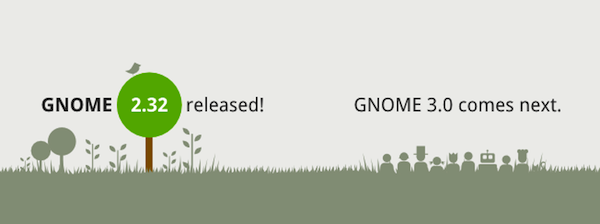
I am happy to announce that GNOME 2.32 has now officially been released! This release is a bit smaller than what you’ve come to expect, but that is simply because most of the focus is on the upcoming GNOME 3.x series! I want to congratulate the entire GNOME team for all of their hard work and for yet another improved and polished release.

Be sure to check out the GNOME 2.32 Release Notes for more details.

Categories: GNOME Tags: , ,

Disable Login Screen User List Ubuntu

July 3rd, 2010 13 comments

I recently wrote an article outlining how to remove the login screen user list in the KDE login screen. This article outlines the same steps, but specific to the GNOME login screen. The instructions here have been tested on Ubuntu 10.04 LTS as well as Ubuntu 9.10. If you would prefer to remove the user list from your login screen and require the username be entered in combination with the password, these instructions will achieve just that.

GDM Changes

I believe it was with Ubuntu 9.10 that the GDM login manager was rewritten and the previous configuration options removed. I know there was a lot of upset about that when it happened. The functionality seemed to be the same, but the configuration options that users had grown used to were now gone. It seems, however, that there are still some settings that can be changed. Perhaps not quite as many, but one of the important ones is still available. If slightly obscure.

Updating Configuration

There are two methods of updating this configuration. There is the command-line one-liner, which I like for it’s quick and easy use. There is also the graphical method. I’ll outline both below. You can follow whichever you feel most comfortable with.

Command Line : gconftool-2

To disable the login screen user list in Ubuntu 10.04, simply run the following command, entering your password when prompted:

sudo -u gdm gconftool-2 --set --type boolean /apps/gdm/simple-greeter/disable_user_list true

The next time you log in you’ll be prompted to enter your username and password, instead of selecting your username from a list.

Graphical Method : gconf-editor

To disable the login screen user list in Ubuntu 10.04 graphically, run the following command and then navigate to the proper key=value pair setting.

sudo -u gdm gconf-editor

Navigate to /apps/gdm/simple-greeter.

Check the box that says “disable user list”, setting the value to true.

disable ubuntu login user list

disable ubuntu login user list

Whichever method you choose, you’ll end up with the same result. Disabling the list of users at the login screen. I prefer my machine to require the username + password combination. No reason in telling everyone who the machine belongs to, and removing half of the security of the login mechanism.

I am interested in hearing your thoughts on the security vs usability of a user list at login. Do you agree with me or disagree?

Categories: GNOME Tags: ,

GNOME 2.30 Released

April 2nd, 2010 No comments
GNOME 2.30 Released

GNOME 2.30 Released

I am happy to pass on the announcement that GNOME has released 2.30, and exactly on schedule! This release brings a number of great improvements that I’m sure you’ll be happy with in the upcoming Ubuntu release. Because Ubuntu bases its releases after the GNOME release schedule, each GNOME release means an Ubuntu release is imminent.

If you enjoy GNOME, please consider donating to Friends of GNOME. They are *so* close to their goal. I’m sure the readers of Ubuntu Tutorials could help push them over the goal! Thank you.

Categories: GNOME Tags: ,

How to Change the Ubuntu Theme : Ubuntu Beginners

February 3rd, 2010 No comments

This article is part of a series entitled “Ubuntu Beginners” which walks new users through basic Desktop and Command Line usage. This article will detail how to change and customize your Ubuntu look by managing your themes. This article includes step-by-step instructions as well as screenshots, and is specific only to GNOME.

Changing The Theme

Ubuntu comes pre-installed with a number of Desktop themes. The default is called “Human”, and is what defines the characteristic Ubuntu earth-tone colors. Some users love the default theme and others don’t like it at all. The primary complaint that I’ve heard is that it is “too brown”. If you’d like to change your theme, follow the steps below.

To change your theme, you need to navigate to System > Preferences > Appearance, as outlined in the screenshot below:

System > Preferences > Appearance

System > Preferences > Appearance

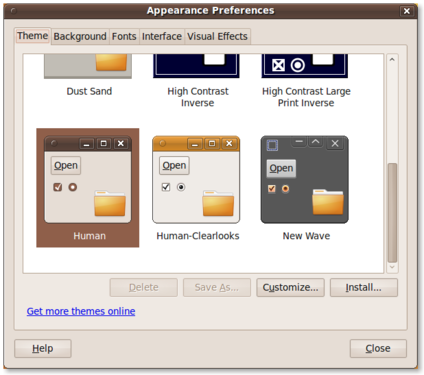
This will launch the GNOME Appearance utility, which will default to a list of installed themes. You can easily change your theme in real-time by simply selecting a new theme from the list. The default installed themes are:

  • Clearlooks
  • Dark Room
  • Dust
  • Dust Sand
  • High Contrast Inverse
  • High Contrast Large Print Inverse
  • Human
  • Human-Clearlooks
  • New Wave
Appearence :: Theme

Appearence :: Theme

On a default installation of Ubuntu 9.10, you should have nine default themes installed to choose from. The screenshot below displays more from the list above.

Appearance :: Theme (cont.)

Appearance :: Theme (cont.)

You can instantly change your theme by selecting one of the listed themes within the window. The next two screenshots show the Dust and Dust Sand themes after being selected.

Appearance :: Dust Theme

Appearance :: Dust Theme

Appearance : Dust Sand Theme

Appearance : Dust Sand Theme

In a future article I will outline additional theme customizations, including Backgrounds, Fonts, Interface, and Visual Effects. Until then, why not try a few different themes and see how well you like them. Remember, if you want to put the theme back where it started, simply select “Human” from the list.

Categories: Beginner Tags: , ,

How to Change the Ubuntu Screensaver : Ubuntu Beginners

February 2nd, 2010 1 comment

This article is part of a series entitled “Ubuntu Beginners”, which walks new users through basic Desktop and Command Line usage. This article will detail how to change the Ubuntu screensaver, using the graphical interface. Included below are GNOME, and KDE.

Change Screensaver – GNOME

Ubuntu’s default screensaver is a blank screen, activated after five minutes of inactivity. If you’d like to change the screensaver, the inactivity timeout, or other settings, you can find out how below. I’ve included screenshots for navigating to, managing and updating your screensaver in Ubuntu.

Launching Screensaver Preferences

Launching Screensaver Preferences

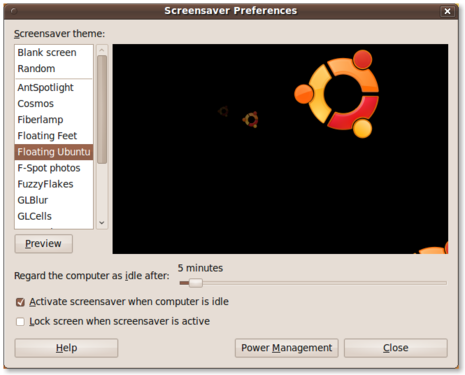
You can now change your preferences in the Screensaver Preferences utility. This allows you to change the screensaver, update the idle timeout, lock or don’t lock the screen, etc.

Screensaver Preferences

Screensaver Preferences

Finally, update the settings to reflect your preferences. Select a different screensaver from the list on the left, update the idle time, or lock the screen when the screensaver is active.

Floating Ubuntu - Screensaver Preferences

Floating Ubuntu - Screensaver Preferences

Change Screensaver – KDE

The screensaver settings in KDE are contained within the System Settings utility. You can launch this tool by clicking the Kickoff menu (bottom-left, on your bottom taskbar) and selecting System Settings.

System Settings

System Settings

From here you’ll want to select the ‘Desktop’ option. Screensaver preferences are held under the general Desktop settings.

Desktop Settings

Desktop Settings

The Desktop settings will then allow you to change the screensaver preferences. You’ll need to select ‘Screensaver’ from the list of options on the left side.

Screensaver

Screensaver

Conclusion

Updating the screensaver preferences in either of these major Desktop environments is a piece of cake. Simply navigate to the screensaver utility, select the screensaver of your choice and you’re set! Both of these environments also allow for security preferences, such as locking the screen when the screensaver is activated and requiring a password to unlock.

Categories: Beginner Tags: , , ,

How to Rename a File in Ubuntu : Ubuntu Beginners

February 1st, 2010 2 comments

This article is part of a series entitled “Ubuntu Beginners”, which walks new users through basic Desktop and Command Line usage. This article will detail how to rename files, using both the graphical interface as well as the command line. Included below are GNOME, KDE and command line methods.

Rename Files – Nautilus (GNOME)

If you are using the standard Ubuntu, which uses the GNOME Desktop Environment, the file manager is called Nautilus. Anytime you are browsing files or folders graphically, you are using Nautilus. I’ve included screenshots below displaying the default Home folder, selecting a document, and renaming the document.

This is the default Nautilus view in Ubuntu 9.10, displaying the contents of the home folder. You’ll notice that there are pre-populated directories (folders) for Documents, Downloads, Music, Pictures, etc.

Nautilus - Home Folder

Nautilus - Home Folder

In this next screenshot I’ve selected a document in my Documents folder, and selected the ‘Rename…’ option. This is done by selecting the file, right-clicking the mouse and selecting the ‘Rename…’ option.

Nautilus - Rename File

After selecting the ‘Rename…’ option, the file name will become editable. You can update the text to your preference, and rename your file.

Nautilus - Rename

Nautilus - Rename

Once you’ve updated the file name simply hit the [ENTER] key on your keyboard, or click your mouse anywhere outside of the editable text area. The edit-field will disappear and your file will have been renamed.

Rename Files – Dolphin (KDE)

If you have installed Kubuntu, the KDE-based Ubuntu variant, your file manager is called Dolphin. I’ve included screenshots of Dolphin, as well as the process of renaming files in Dolphin.

This is the default Home folder as displayed by the Dolphin file manager.

Dolphin - Home

Dolphin - Home

In order to rename a file, simply right-click on the file and select the ‘Rename…’ option. You’ll notice that Dolphin also provides a keyboard shortcut to rename using the F2 key. This means, instead of right-clicking and selecting ‘Rename…’ you can simply press F2 after the file has been selected.

Dolphin - Rename File

Lastly, enter the new name of the file into the dialog box and update your changes by hitting the [ENTER] key, or clicking the ‘Rename’ button.

Dolphin - Rename Item

Rename Files – Command Line (Linux)
The method of renaming a file on the command-line is generic to Linux. In other words, this method should apply to any Linux distribution, any version, and any variant.

In Linux, renaming a file is essentially the same as moving a file. Where moving a file is simply moving a file from one location to another, renaming a file is essentially moving the name of the file. The contents remain the same, we’ve simply moved the place where you’d find them–from one name to another.

To rename a file, using the following syntax:

mv welcome-to-ubuntu.doc renamed.doc

A few additional examples:

mv IMGOOO1.JPG release-party-pictures-1.jpg
mv IMGOOO2.JPG release-party-pictures-2.jpg

You get the idea. I understand it can be confusing to use the mv (move) command to rename a file, but you’ll find that you get used to it rather quickly and then not even think about it.

Conclusion
No matter the environment that you’re in, whether in be GNOME, KDE or the command-line, renaming files is simple. Right-click and select ‘Rename…’ is generally standard between graphical environments, and using mv on the command-line will work on all Linux distributions. I hope this beginner tip has been helpful.

Categories: Beginner Tags: , , , , ,

What Is The Best GNOME Desktop Theme?

January 22nd, 2010 18 comments

I’ve been using the Shiki theme (Shiki-Brave) for some time now. You may recall that I wrote about it in My Ubuntu Look and Feel as well as How To Install Shiki-Colors Theme in Ubuntu. After seeing some recent posts on other blogs regarding some of the potential themes for Ubuntu 10.04 “Lucid”, I’ve got the urge to try something new.

So, I this is my question for all of you readers out there, and don’t be shy about linking to screenshots:

What is the best GNOME Desktop theme?

Categories: GNOME Tags: ,

Preview GNOME Activity Journal (Zeitgeist) on Ubuntu 9.10

January 19th, 2010 4 comments

I’ve been meaning to type this up for some time now. Ever since I wrote the article on Installing GNOME Shell on Ubuntu 9.10, I’ve wanted to write about some of the other features of GNOME 3.x. Finally I am able to bring to you the preview of GNOME Activity Journal (also known as Zeitgeist). In this article I will outline how to install, use, and update the GNOME Activity Journal.

Requirements

GNOME Activity Journal previews can be downloaded from Launchpad by way of bzr. You can easily checkout the latest development versions and run them, no compilation required! You will need to have the bzr utility installed, which can be done using the following command: (or click the linked package name)

sudo aptitude install bzr

Once you have bzr installed you’re ready to go! Next I will cover how to download the development previews and get started running and testing GNOME Activity Journal.

Download GNOME Activity Journal

There are two requirements for running GNOME Activity Journal. The Journal utility itself, and the Zeitgeist daemon. In the following steps we’ll checkout the latest revisions of each.

First, we’ll create a directory structure for our applications to run in.

mkdir ~/zeitgeist

cd ~/zeitgeist

Zeitgeist

Download Zeitgeist using the command:

bzr branch lp:zeitgeist

GNOME Activity Journal

Download the GNOME Activity Journal utility using the command:

bzr branch lp:gnome-activity-journal

Launching GNOME Activity Journal

Once these two utilities have downloaded we’re ready to launch them and start previewing the GNOME Activity Journal. This is done using the commands:

~/zeitgeist/zeitgeist/zeitgeist-daemon.py &
~/zeitgeist/gnome-activity-journal/gnome-activity-journal &

Keeping Updated

If you want to keep these two utilities updated, you can simply continue to track the bzr repositories and update your branches with the latest revisions. Anytime you want to check for new features or changes in either Zeitgeist or GNOME Activity Journal, simply run the following two commands:

cd ~/zeitgeist/zeitgeist && bzr pull
cd ~/zeitgeist/gnome-activity-journal && bzr pull

These two commands will move you to the directories where you have each utility checked out and pull for any new revisions in the upstream Launchpad repository. If there are no changes, you should receive the message “No revisions to pull”. Otherwise it’ll download the latest changes and you can simply re-launch as outlined above.

Preview

Check out this YouTube video of a recent build:

Conclusion

The new utilities and features in GNOME 3.x are shaping up very nicely. Between the GNOME Shell and GNOME Activity Journal we’ve got some fun and exciting new utilities to tinker with. I’d love to hear your thoughts on both of these, and what you think about the upcoming GNOME 3.x release.

Reset GNOME Keyring Password on Ubuntu

January 16th, 2010 7 comments

This post is an update to an article I wrote some years ago. There have been some changes in the configuration between now and then, so I felt this warranted an update. The original article in question is: Clearing or Resetting the GNOME keyring. This article addresses the issue where a user may have forgotten or otherwise become locked out of their keyring. The keyring, of course, allows for the management of SSH, GPG and other keys through a central tool and interface.

The problem

You are prompted by the system to enter your keyring passphrase in order to unlock additional keys. None of your passphrases work–somehow you have become locked out of your keyring. In this situation you may not be able to unlock needed keys, such as passwords, SSH or GPG keys.

The solution

The only solution that I’ve been able to come up with is to delete the keyring contents, including the incorrect or corrupt passphrase. Note: this will destroy all stored keys in the keyring, requiring that they be re-imported. Other than the need to “start over” with the keyring manager, this solution should be otherwise harmless.

Method 1:

It is possible to clobber your keyring passphrase and settings from the Terminal. Open a terminal (Applications > Accessories > Terminal), and run the command:

rm ~/.gnome2/keyrings/login.keyring

On older systems you may need to try:

rm ~/.gnome2/keyrings/default.keyring

Method 2:

The second method bypasses the Terminal and uses the graphical interface strictly. To delete your current keyring, follow the steps below:

  1. Navigate to Applications > Accessories > Passwords and Encryption Keys
  2. Select the far-right tab “Passwords”
  3. Select your keyring
  4. Right-click and attempt “Change Password” or, if that doesn’t work, select “Delete”

Additional:

If you continue to have problems I would suggest looking for additional tips in the comments here or here.

Categories: GNOME Tags: , , , ,

Remove The User List From Ubuntu 9.10 GDM Login Screen

December 23rd, 2009 6 comments

I’m really enjoying the latest additions in GNOME 2.28, but one thing that has been bugging me is the rewrite of the GDM login screen. Historically it has been possible to customize a number of options, including features such as activating or deactivating the user list. With this latest upgrade it seems that GDM has been completely rewritten and those previously accessible customizations are now gone or well hidden. I have, however, been able to find a way to disable the user list and, again, require a username to login.

I’m curious to see further improvements to the new GDM system, but until that time I prefer to require username and password to login, not just a password.

Disable User List

In order to disable the user list you’ll need to open a terminal and run the following command:

sudo -u gdm gconftool-2 --set --type boolean /apps/gdm/simple-greeter/disable_user_list true

Enable User List

If you’d like to re-enable the user list you can revert the above command using:

sudo -u gdm gconftool-2 --set --type boolean /apps/gdm/simple-greeter/disable_user_list false

Categories: GNOME Tags: , , , ,