Archive

Posts Tagged ‘PPA’

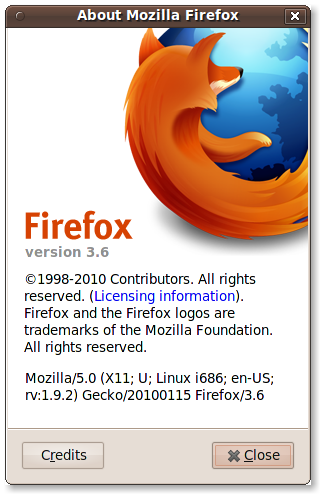
Install Mozilla Firefox Web Browser v3.6 via Personal Package Archive (PPA)
January 28th, 2010 5 comments

Recently I published a short article outlining how to install the latest Firefox Web Browser manually, alongside your existing Firefox installation. In this article I will outline how to install the latest stable Firefox release by making use of the Mozilla Team PPA.

This Personal Package Archive (PPA) provides the latest stable releases for Firefox, unlike a previously available solution which was the Mozilla Daily PPA, which provided the latest daily builds. If you are looking for the latest stable release of Mozilla Firefox, this article will outline how to configure the PPA in order to install the required package(s).

Requirements

Installing the latest stable release of the Mozilla Firefox web browser requires the addition of a Personal Package Archive (PPA). Configuring and activating this PPA on your system can be done by simply pasting the following command into your Terminal (Applications > Accessories > Terminal):

sudo add-apt-repository ppa:mozillateam/firefox-stable

Installation

Once you have the Personal Package Archive (PPA) configured, you can install the latest stable release of Mozilla Firefox by pasting the following two commands into your Terminal (Applications > Accessories > Terminal):

sudo aptitude update
sudo aptitude install firefox firefox-3.6 firefox-3.6-branding firefox-gnome-support

Troubleshooting

If you have issues with the latest stable version of Firefox, feel free to drop by the Ubuntu Tutorials forum thread and discuss solutions.

Categories: Internet Tags: , ,

Add PPA Key To Your Apt Keyring

May 14th, 2009 6 comments

I know many of you use Launchpad’s “Personal Package Archive” for updated and beta packages. I have about a half-dozen configured on my machine to give me the latest and greatest of my favorite applications. The one problem with a PPA though is that the packages can’t be verified when downloaded because you don’t have the GPG imported into your Apt Keyring. The following command is a template that you can use to import whatever PPA based keys you have warnings on:

sudo apt-key adv --keyserver keyserver.ubuntu.com --recv-keys <key id>

You can gather the <key id> in the output of:

sudo apt-get update

You should see the warnings, along with the key id at the bottom of the output.

For each GPG key that you get a warning on, run the command above, and you’ll stop seeing the warnings. You will have imported that team/project’s GPG key into your keyring, considering them trusted.

Categories: Security Tags: , , ,

Like Gnome-Do? Check Out The 0.5 Release!

June 11th, 2008 9 comments

Yesterday it was brought to my attention that the Gnome-Do team had released a major update, 0.5!  Being completely addicted to Gnome-Do I immediately upgraded to check out the new features.  Here is a basic rundown of the new features and, of course, how to upgrade your system!

Features

After taking a look at the mile-long list of improvements I realize that I won’t nearly have enough room here to outline everything.  I figure I’ll give you a link to the long list, and just outline some of the stuff that impresses me the most.

First of all I really like the new interface to handle the plugins.  Gnome-Do is a great tool, but a lot of the best functionality comes in the shape of plugins.  In the new version you’re able to manage all of your plugins by way of a central UI.  Activation, configuration, deactivation, etc all in one place.  Its a great way to try out all the plugins available without requiring manual downloading and setup, which was the previous method.

gnome-do style=

You really do need to check out all the plugins available–there are a bunch of new plugins that I’m sure you haven’t tried before.

You might notice, as I did, that some of the plugins you were previously used to need to be activated before they can be used again.  After you install (below) make sure to open the preferences and activate your favorites.

You can see an exhaustive list of additions at Dave’s blog, here.

How To Upgrade?

Now that I’ve got you interested I’ll outline how to upgrade.  In Ubuntu this is done by way of the Launchpad hosted PPA (Personal Package Archive).  This command will add the PPA repository to your sources.list:

echo "deb http://ppa.launchpad.net/do-core/ubuntu hardy main" | sudo tee -a /etc/apt/sources.list

Once you’ve got this added you’ll need to update (refresh), and then request the upgrade:

sudo aptitude update && sudo aptitude safe-upgrade

If you’re a new user you’ll definitely want to check out Gnome-Do with this release.  Install it using:

sudo aptitude install gnome-do

You should see an update for gnome-do at this point.  Accept the upgrade and the latest greatest version should install.

Thoughts?

I’d love to get some of your thoughts on Gnome-Do.  Do you use it as much as I do?  Hell, I don’t even have menu’s anymore.  I launch everything with Gnome-Do–everything!  Let me know what you think or share your favorite plugins.

Categories: GNOME Tags: , ,